
Huawei
Answering an Incoming Call auf Huawei
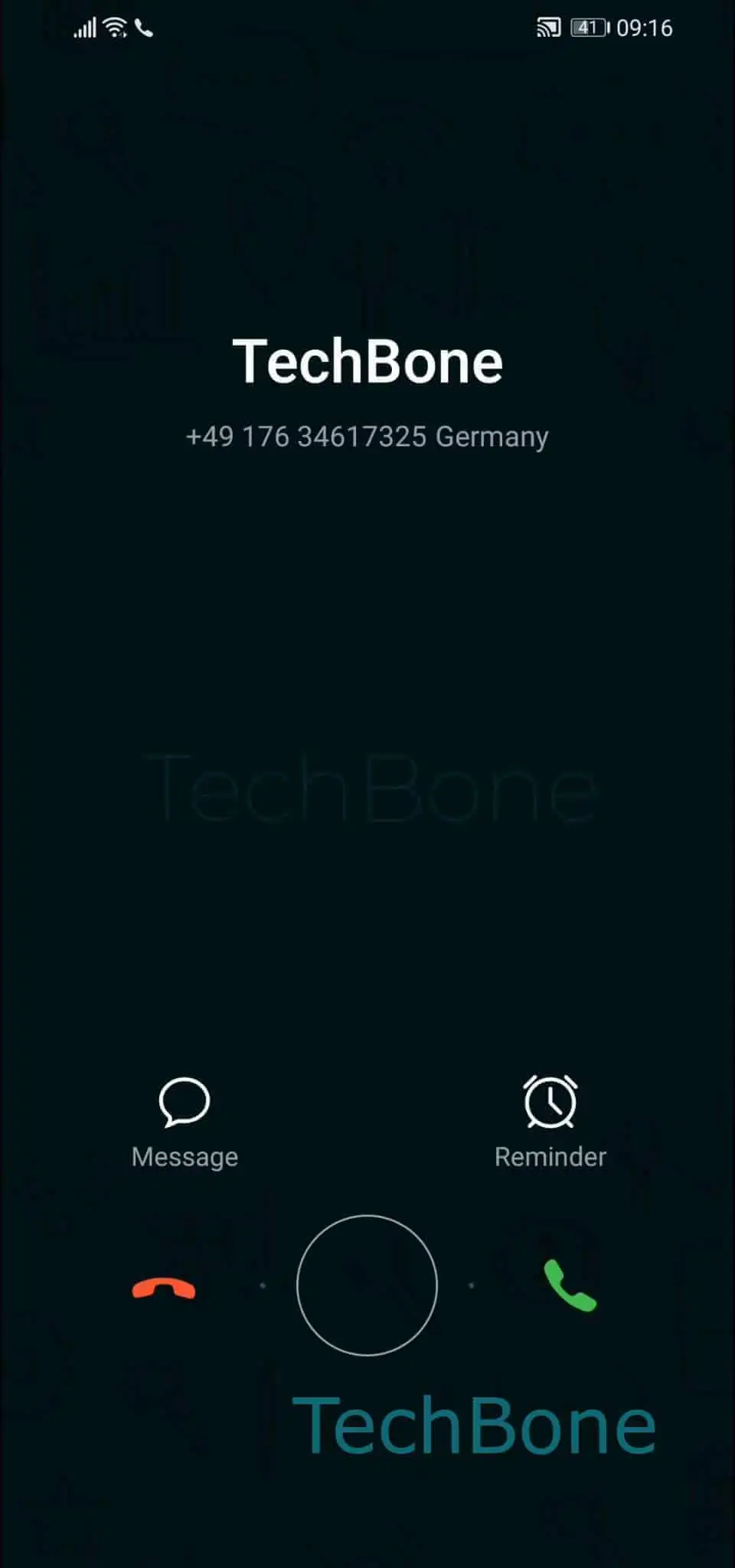
On Huawei phones running EMUI, incoming calls are handled by a lock screen widget rather than a fixed accept button. The circle icon works as a drag target, and the call only connects once you move it far enough toward the green handset icon.
This gesture exists because EMUI combines accept and reject into a single draggable control instead of two separate buttons, which keeps the lock screen layout compact. A short tap does nothing here, since the system is waiting for a drag motion, not a tap event.
To answer, place your finger on the icon and follow this path: Tap and hold the circle icon ➔ Drag the circle on the green phone icon ➔ Release the circle icon. The call connects as soon as you release over the green icon.
Dragging toward the red icon instead rejects the call. If you release the circle somewhere in the middle, without reaching either icon, the gesture cancels and the phone keeps ringing.
This drag control only appears while the phone is locked. When the screen is already unlocked at the moment a call arrives, EMUI shows a full-screen call layout with separate accept and decline buttons, so no dragging is needed in that case.