
Huawei
Add App Shortcut to Home Screen auf Huawei
When EMUI is set to the App Drawer style, every newly installed app is filed away in the drawer instead of appearing on a home screen page. That is expected behavior, not a bug: the drawer works like an app library, and the home screen only shows what you place there yourself.
To get an app onto a home screen page, you place a shortcut manually. The verified path is:
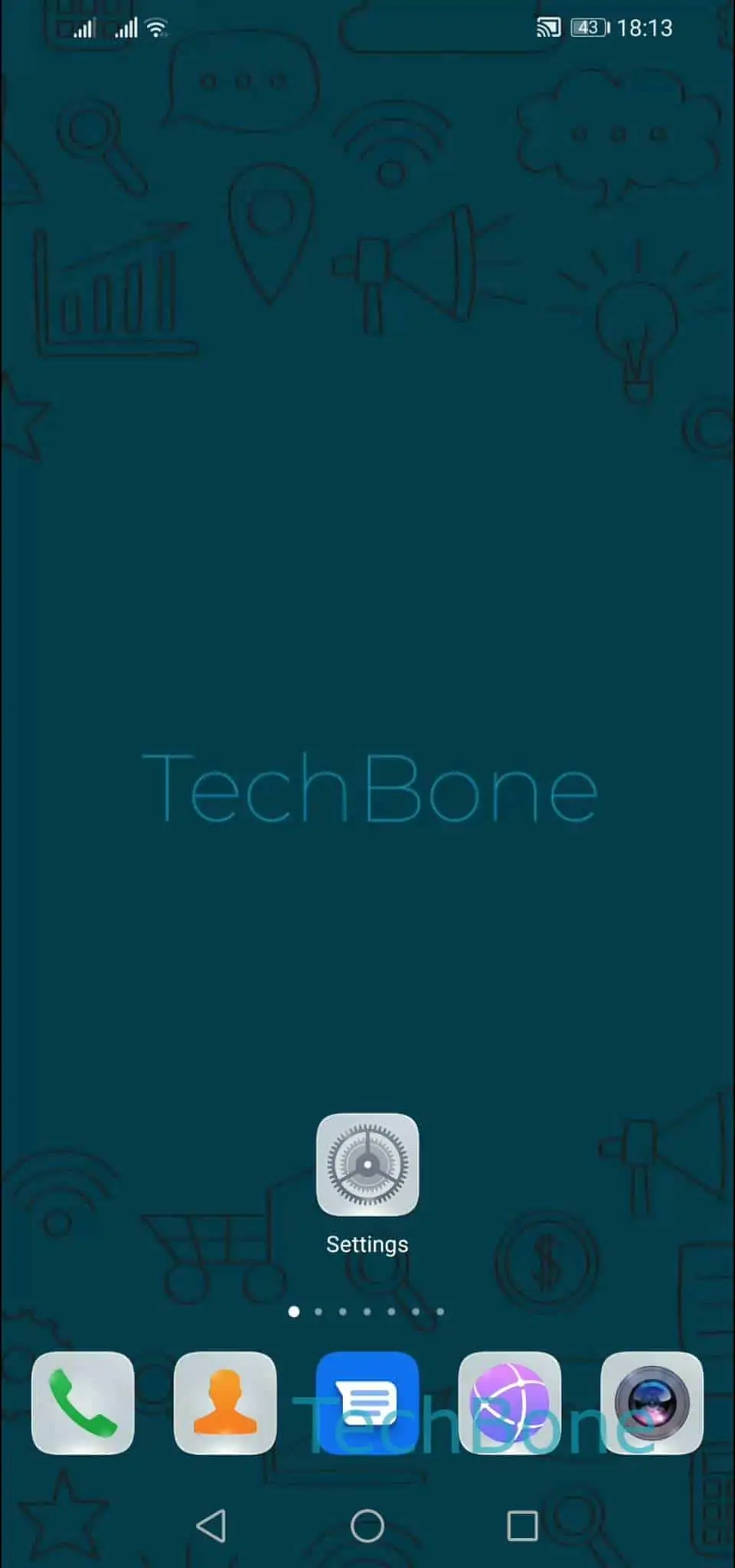
Swipe upwards to open the app-drawer ➔ Tap and hold an app ➔ Drag the app upwards ➔ Release the app to position a shortcut on home screen
Releasing the app over an empty spot on a home screen page drops a shortcut there. The original app entry stays in the drawer as well, since a shortcut is just a second access point, not a move.
This method works for any app currently listed in the drawer, including ones you just installed. If you prefer not to repeat this for every app, switching the home screen style back to the classic layout in home screen settings will place new installs directly on a home screen page automatically, though it changes how your entire home screen looks.