
Huawei
Assign a Picture to a Contact auf Huawei
Contacts on Huawei phones only display a picture once one has been explicitly attached through the Contacts app. Adding a name and number is not enough; the photo field stays empty until you assign an image yourself, either from an existing album or by taking a new one on the spot.
This link is stored per contact, so an existing gallery photo has to be selected and fitted before it appears on calls, messages and the contact list. The steps below use an already saved picture from the gallery.
Menu path
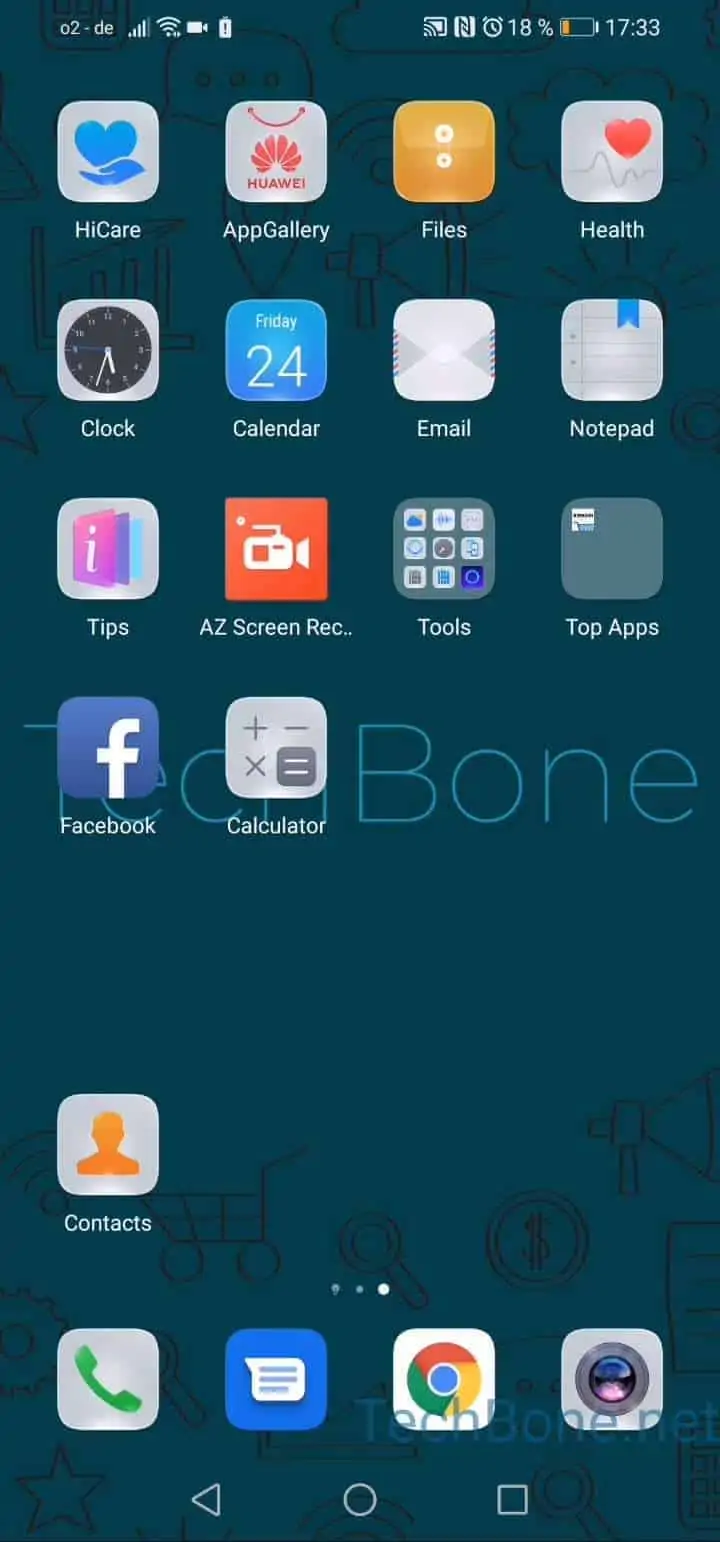
Open Contacts ➔ Choose a contact ➔ Tap on Edit ➔ Tap on Profile picture ➔ Choose Take photo or Choose from Gallery ➔ Choose an Album/Folder ➔ Choose a picture ➔ Tap on accept ➔ Fit the picture in ➔ Tap on Save
After tapping Save, the picture is bound to that contact and shows up immediately on the next call or message from them. If the photo still does not appear, check whether the edit was saved correctly rather than closed without confirming.