
Huawei
Apply a Downloaded Theme auf Huawei
On Huawei phones running EMUI, themes are managed separately from the home screen itself. A theme only changes wallpaper, icons and system colors once it is applied through the Themes app, not the moment it finishes downloading.
This separation explains why a freshly downloaded design has no visible effect. The file is stored locally, but the system still uses whatever theme was active before.
To switch your active design, use this path:
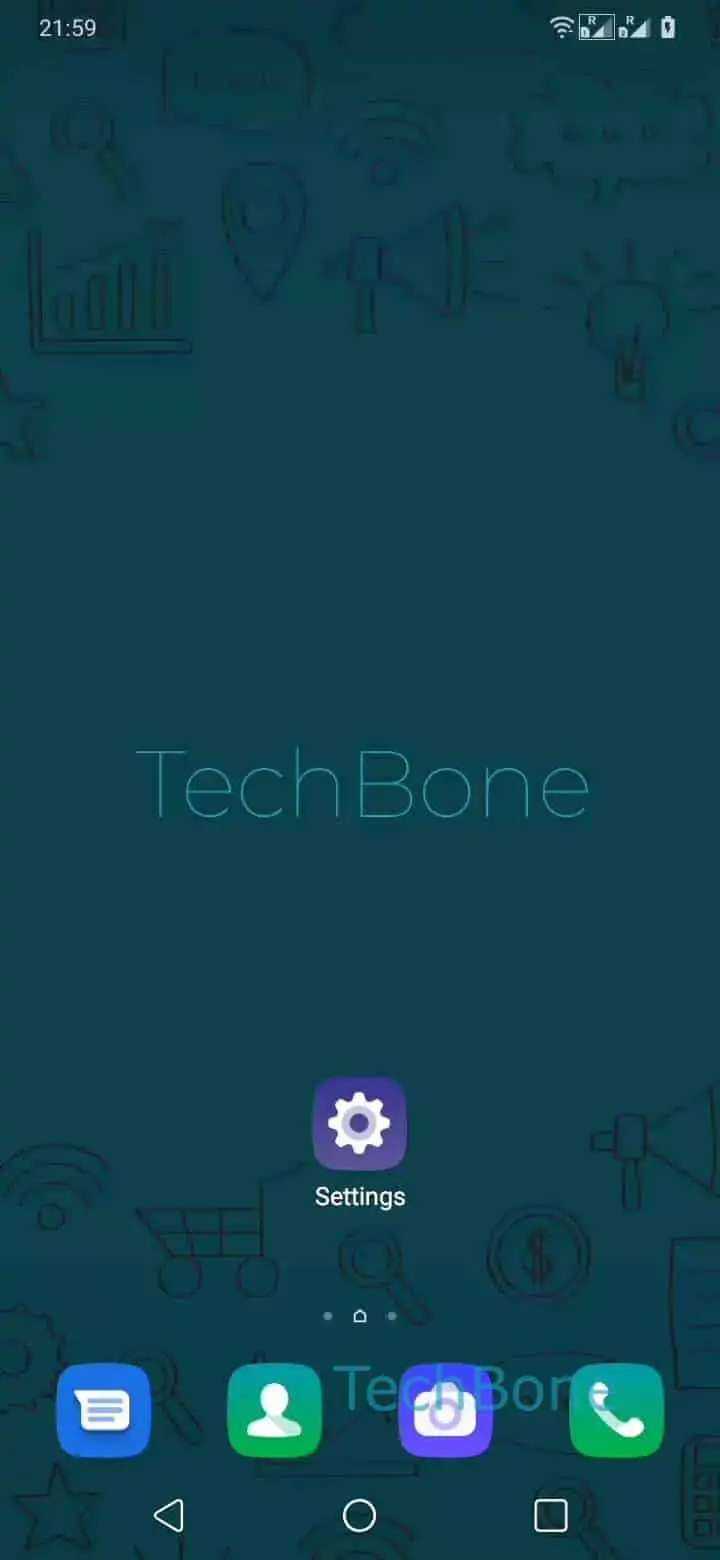
Open the Settings ➔ Tap on Home screen & wallpaper ➔ Tap on Themes ➔ Tap on Me ➔ Tap on Themes ➔ Choose a theme ➔ Tap on Apply
Free designs are not locked behind a separate store. You can browse and download them directly from the Home screen & wallpaper settings before applying them the same way.
If icons or colors only partially update after applying, a restart of the launcher or the phone usually finishes the refresh.