
Huawei
Enable Smart Data Saver for Individual Apps auf Huawei
Smart Data Saver is a background data management feature on Huawei phones. It limits how much mobile data apps can use when they are not actively open, which helps reduce overall data consumption but can delay notifications, message sync, or email delivery for apps that need to stay connected.
Once enabled, the restriction applies to every installed app by default. To keep specific apps updating in real time, you add them to the exception list so they keep unrestricted background access while the rest stay limited.
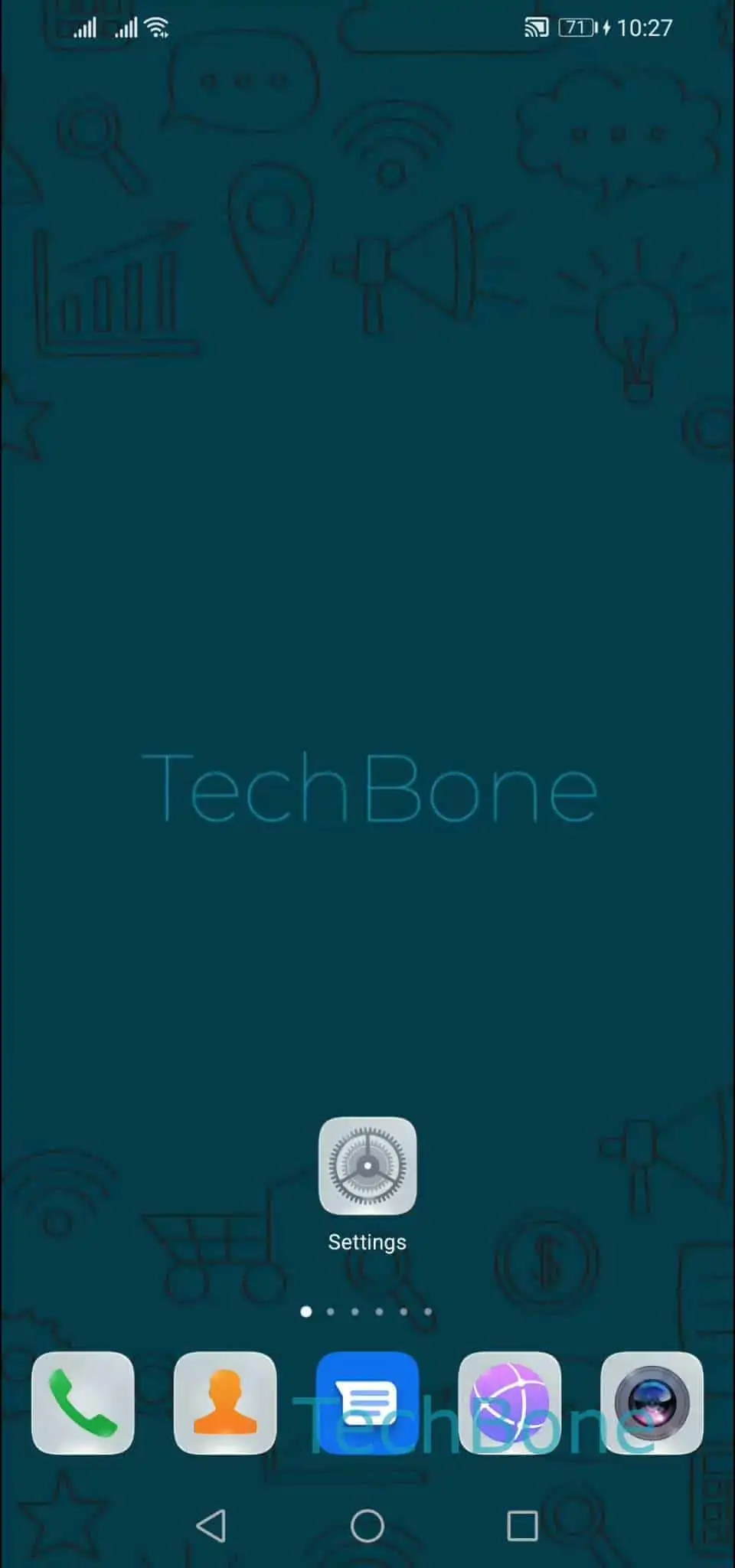
To open the setting: Open the Settings ➔ Tap on Mobile network ➔ Tap on Data usage ➔ Tap on Smart Data Saver ➔ Enable or disable Smart Data Saver ➔ Select apps for unrestricted data access.
Turning Smart Data Saver off removes all background restrictions system-wide, which is only useful if several apps need constant background access and managing exceptions individually becomes impractical. Keep in mind that leaving it off can increase your overall mobile data usage, especially with apps that sync media or run continuous background services.
If an app still feels delayed after being added to the exception list, check whether battery optimization or a separate background activity restriction is also limiting it, since those settings work independently from Smart Data Saver.