
Huawei
Disable App Lock auf Huawei
App lock on Huawei phones adds a PIN or password prompt in front of individual apps you choose to protect. This sits on top of your regular screen lock and is managed separately inside Security settings.
If you no longer need that extra layer, EMUI lets you turn the whole feature off in one step. You only need your current app lock password or PIN to confirm the change, since Huawei treats this as a security-relevant action.
Steps to disable app lock
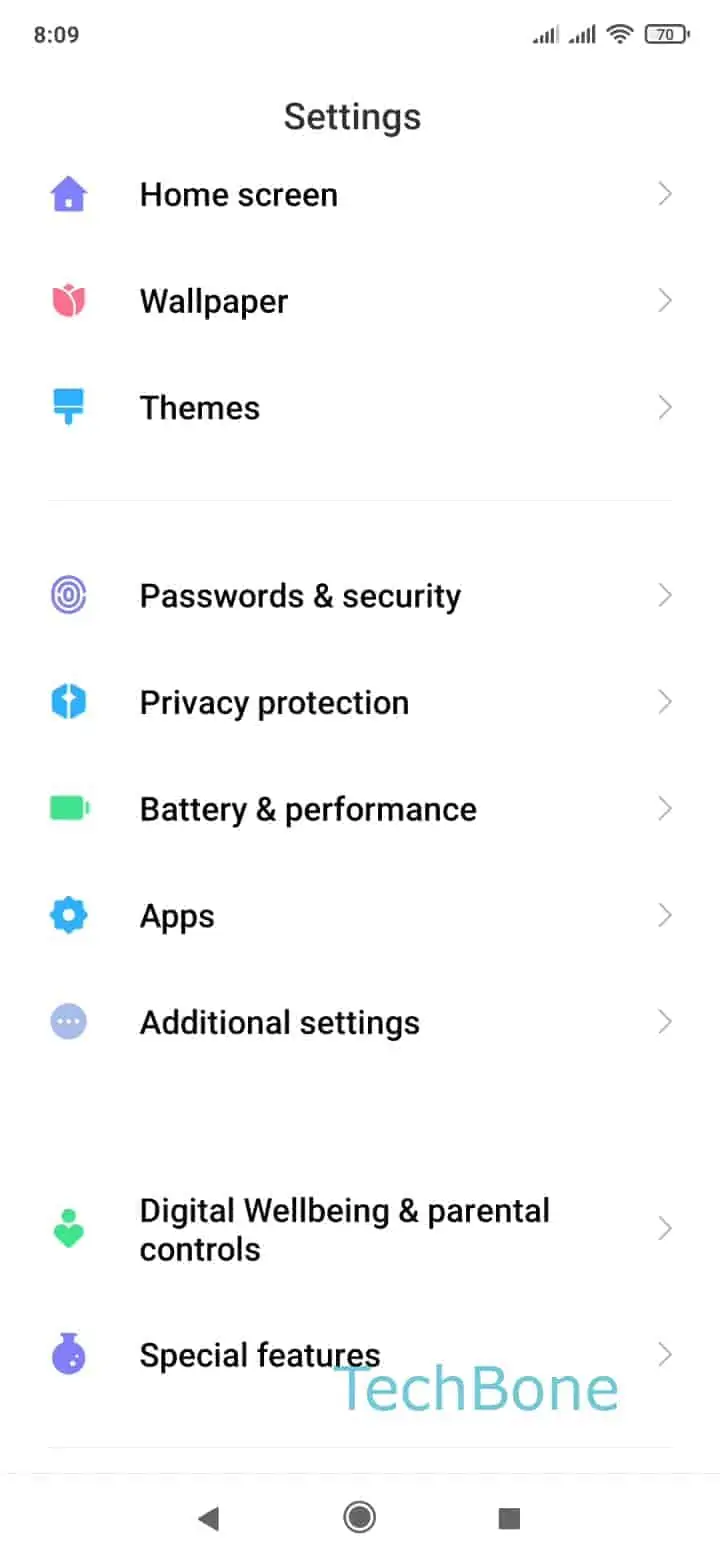
Open Open the Settings ➔ Tap on Security ➔ Tap on App Lock ➔ Open the Settings ➔ Tap on Disable app lock ➔ Confirm with Disable.
After confirming, every app that was previously locked opens directly again, without any password or PIN prompt. The list of protected apps you had set up is cleared, so if you re-enable app lock later, you will need to select those apps again.
If you only want to remove the lock from a single app instead of turning off the whole feature, look for that app in the App Lock list and deselect it there rather than disabling the entire function.