Skip to content
TechBone
Huawei

Huawei: Delete a Contact From the Contacts App

Deleting a contact on your Huawei phone removes it permanently, even if it is synced as a Google contact. Once gone, EMUI does not offer an undo option, so a wrong tap can cost you a number for good.

3 min4 steps
VersionAndroid 10 · EMUI

Step by step

1 / 4

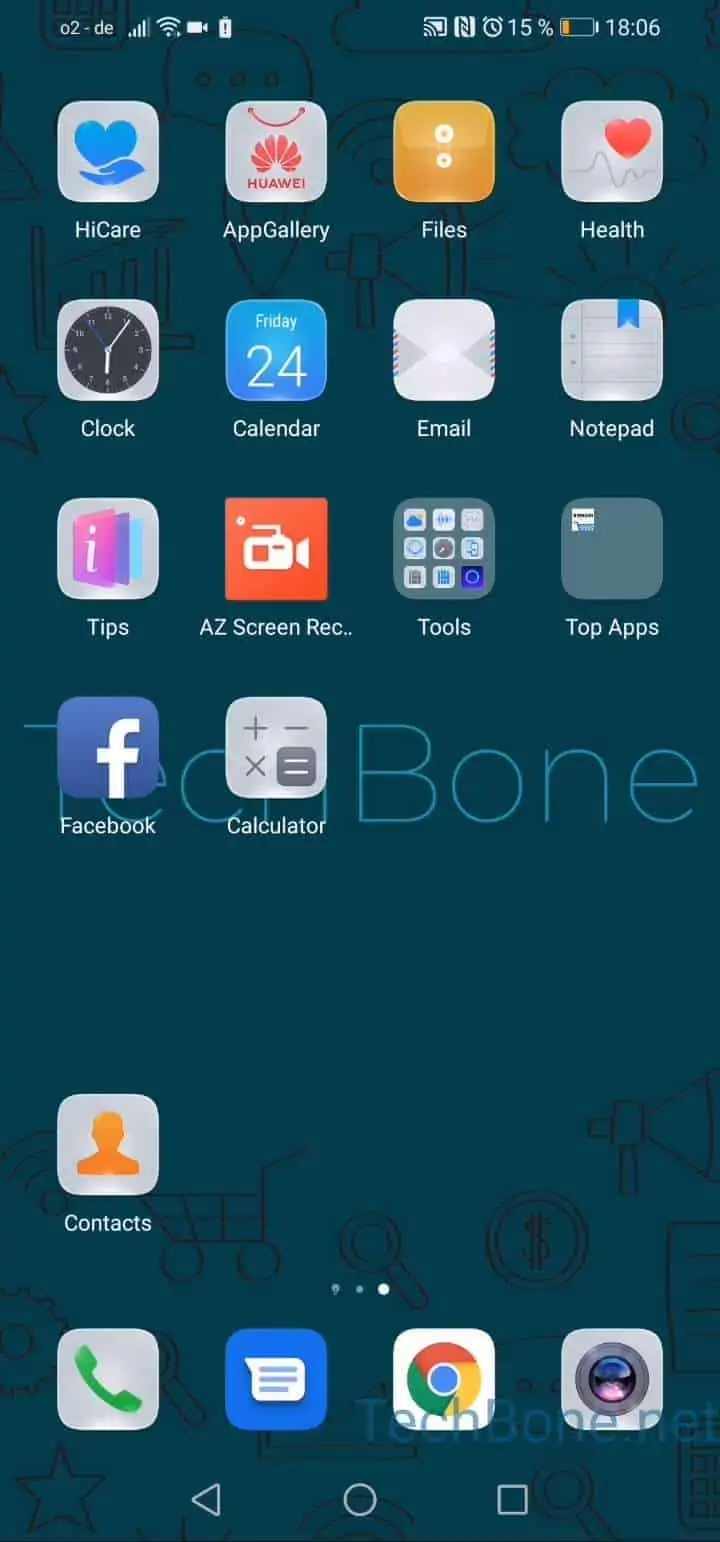
Step 1 of 4: Open **Contacts**

1

Open Contacts

Live simulator

Android 10 · EMUI
Delete a Contact – EMUI: step 1 – Open Contacts
Open Contacts
1 / 4

Scroll or use the buttons for the next step

Feedback

Was the guide correct?

Help others: confirm the path or report a problem.

96

Confirmations

Forum verified this path

Huawei

Delete a Contact auf Huawei

Contacts on Huawei phones can be removed directly from the Contacts app, whether they were added manually or synced from a Google account.

Go to Open ContactsTap and hold the contact you want to deleteTap on deleteConfirm with Delete. EMUI asks for a final confirmation because deleted contacts cannot be restored afterward.

If the contact was synced from a Google account, the deletion also applies to that account once the next sync runs. Keep that in mind before removing shared or work-related entries.

Need to clean up several entries at once? Open the contact settings and tap on Organise contacts to select multiple entries and delete them in one step, instead of repeating the process for every single contact.

Frequently asked questions

Yes. If the contact is synced as a Google contact, removing it on your Huawei device deletes it from that account as soon as the next sync happens.