
Huawei
Delete Conversations auf Huawei
Long message threads pile up fast, and clearing them one text at a time is not realistic. EMUI's Messages app offers a shortcut that removes an entire conversation in a single action instead of forcing you to select and delete each message individually.
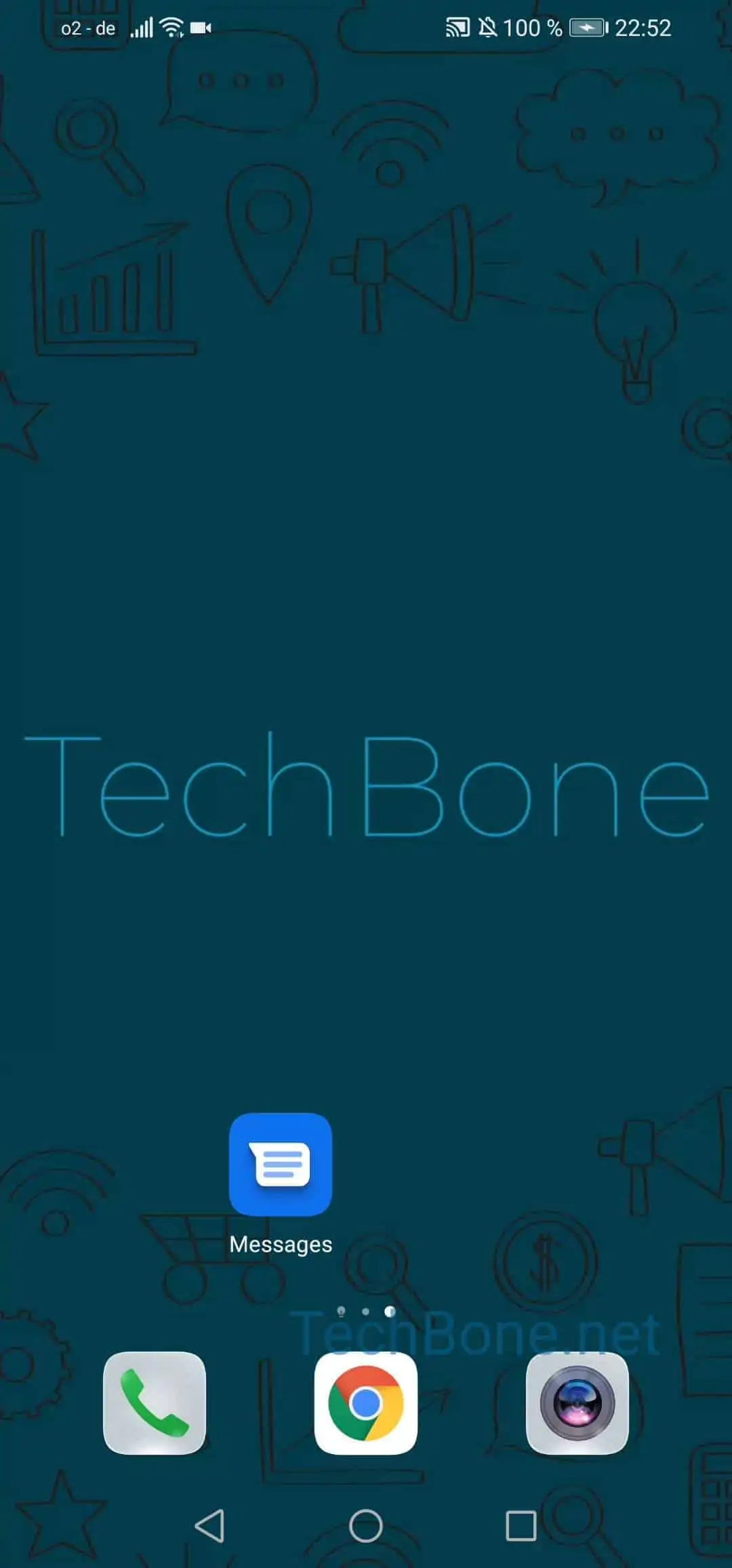
To delete a whole thread, open Open Messages ➔ Tap and hold a conversation ➔ Tap on Delete ➔ Confirm with Delete. The long-press brings up the delete option directly on the conversation itself, so there is no need to open it first.
Once you confirm the deletion, the conversation and every message inside it are gone permanently. Huawei's Messages app does not keep a trash folder or backup for deleted threads, so there is no way to recover them afterward.
If you only want the conversation out of your inbox view but might need it later, archiving is the safer option instead of deleting it outright. Use deletion only when you are certain you will not need the messages again, for example after resolving a support chat or clearing out spam threads.