
Skip to content
TechBone
Huawei

Huawei: Delete a Guest Account from Your Phone

If a guest account is still set up on your Huawei phone, anyone using guest mode can open apps and change settings without your password. Deleting that profile wipes all its data, from downloaded apps to saved logins, and removes the option to switch back into it. This makes sense once you no longer share the phone or want to reset guest access from scratch.

5 min6 steps
VersionAndroid 10 · EMUI

Step by step

1 / 6

Step 1 of 6: Open the **settings**

1

Open the settings

Live simulator

Android 10 · EMUI
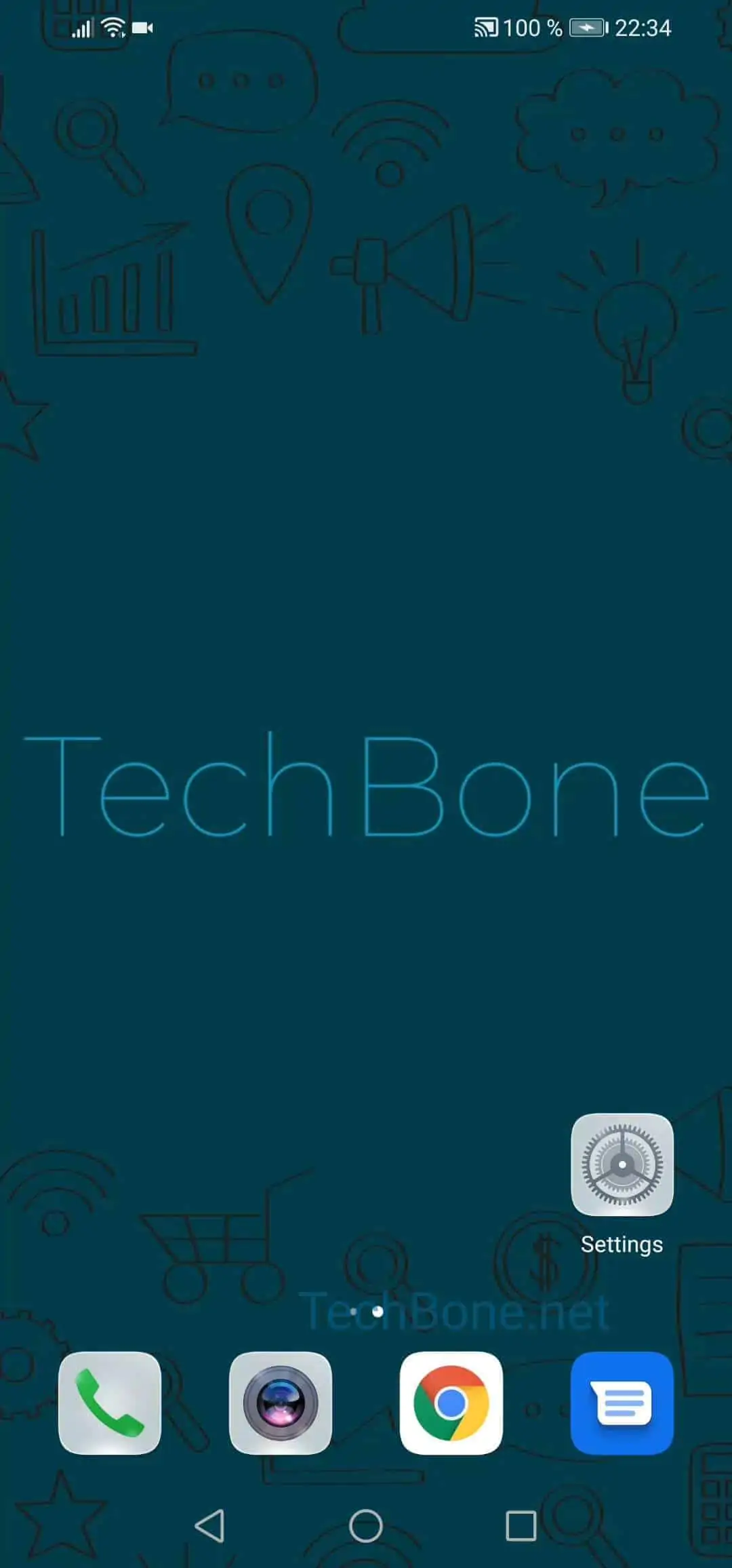
Delete Guest Account – EMUI: step 1 – Open the settings
Open the settings
1 / 6

Scroll or use the buttons for the next step

Feedback

Was the guide correct?

Help others: confirm the path or report a problem.

57

Confirmations

Forum verified this path

Huawei

Delete Guest Account auf Huawei

Guest mode on Huawei phones creates a separate account so visitors can use apps without touching your personal data. Once that account is no longer needed, deleting it removes every app, download and setting associated with it. The guest profile itself disappears until you create a new one from scratch.

To remove the account, go to Open the settingsTap on Users & accountsTap on UsersChoose the guest accountTap on Delete guestConfirm with Delete. EMUI treats the guest profile as a separate user, so this list only shows the account name, not any personal details.

This removal is permanent. Any files, logins or app data created while someone was using guest mode get erased immediately and cannot be restored. If you only want to block guest access temporarily instead of deleting history, switching back to your own account without confirming the deletion keeps the guest profile intact for next time.

Frequently asked questions

No. The guest profile runs in its own separate space, so removing it only deletes files and settings created inside Choose the guest account. Your personal apps, photos and accounts stay untouched.