Skip to content
TechBone
Huawei

Huawei: Format a Memory Card in Storage Settings

A new memory card in your Huawei phone often shows up empty or throws a 'not formatted' warning before you can save anything to it. Existing files stay untouched until you format the card, and formatting also builds the folder structure needed for photos, apps and backups. This step deletes everything already stored on the card, so back up anything important first.

4 min5 steps
VersionAndroid 10 · EMUI

Step by step

1 / 5

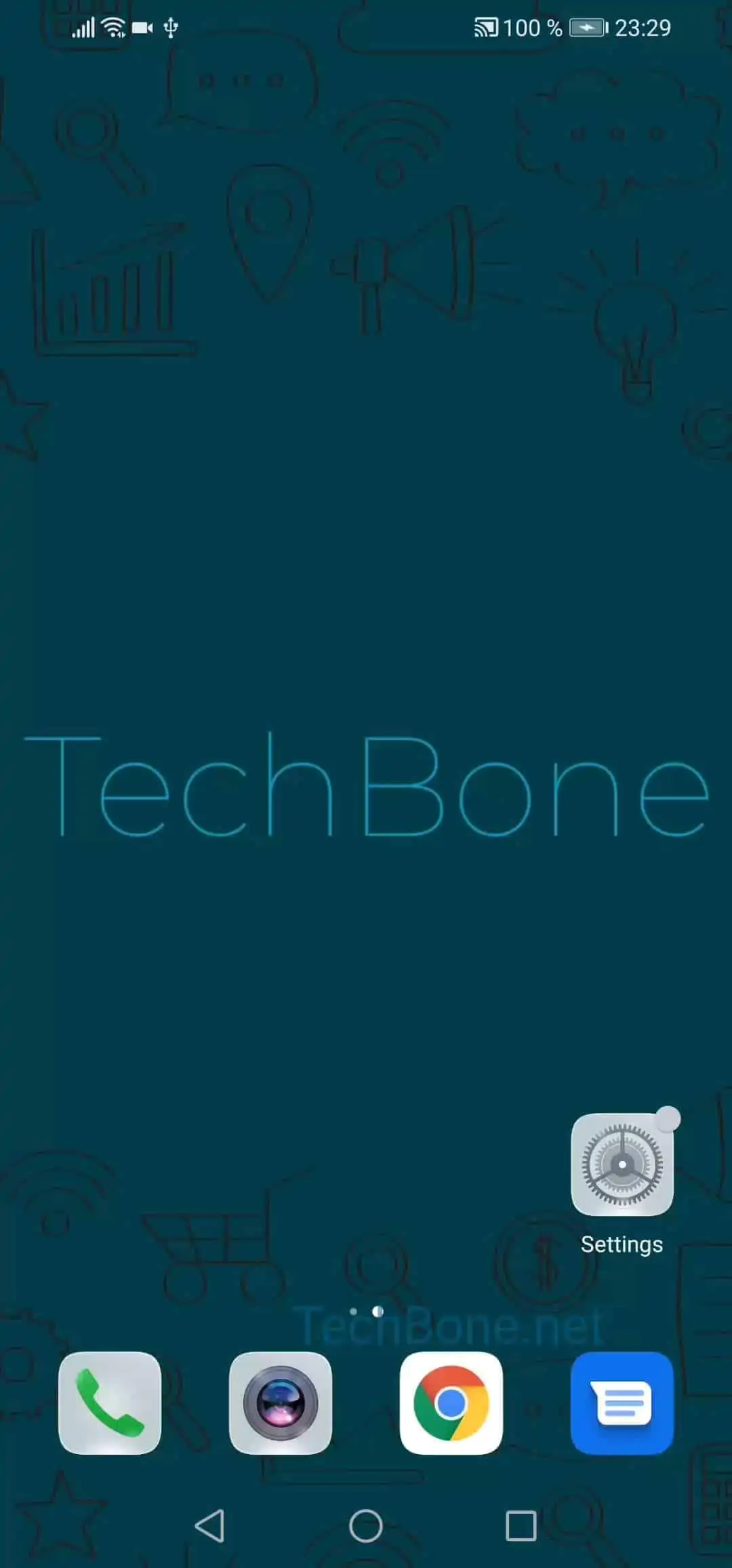
Step 1 of 5: Open the **settings**

1

Open the settings

Live simulator

Android 10 · EMUI
Format Memory Card – EMUI: step 1 – Open the settings
Open the settings
1 / 5

Scroll or use the buttons for the next step

Feedback

Was the guide correct?

Help others: confirm the path or report a problem.

99

Confirmations

Forum verified this path

Huawei

Format Memory Card auf Huawei

A newly inserted memory card usually arrives with a file system that does not match what EMUI expects for photos, videos and app data. Formatting rebuilds this structure and clears any leftover files from a previous device.

Huawei phones handle this through the storage settings, not through a separate app. Open SettingsStorageMemory cardFormat and confirm with Erase & Format. The process finishes within seconds for smaller cards, longer for high-capacity ones.

Formatting removes every file on the card immediately and permanently. There is no recovery option afterward, so copy photos, videos or documents to your phone or a computer before you start.

Skip this step if the card already works fine and shows the right files. Format only when the card is new, was used in another device, or your phone reports read/write errors.

Frequently asked questions

They are deleted permanently once you confirm Erase & Format. Copy them to your phone or a computer beforehand if you want to keep them.