
Huawei
Forward an SMS Message auf Huawei
Retyping a text message to share it with someone else wastes time and risks copying it wrong. EMUI includes a built-in forward function that takes the message exactly as received and resends it as a new SMS.
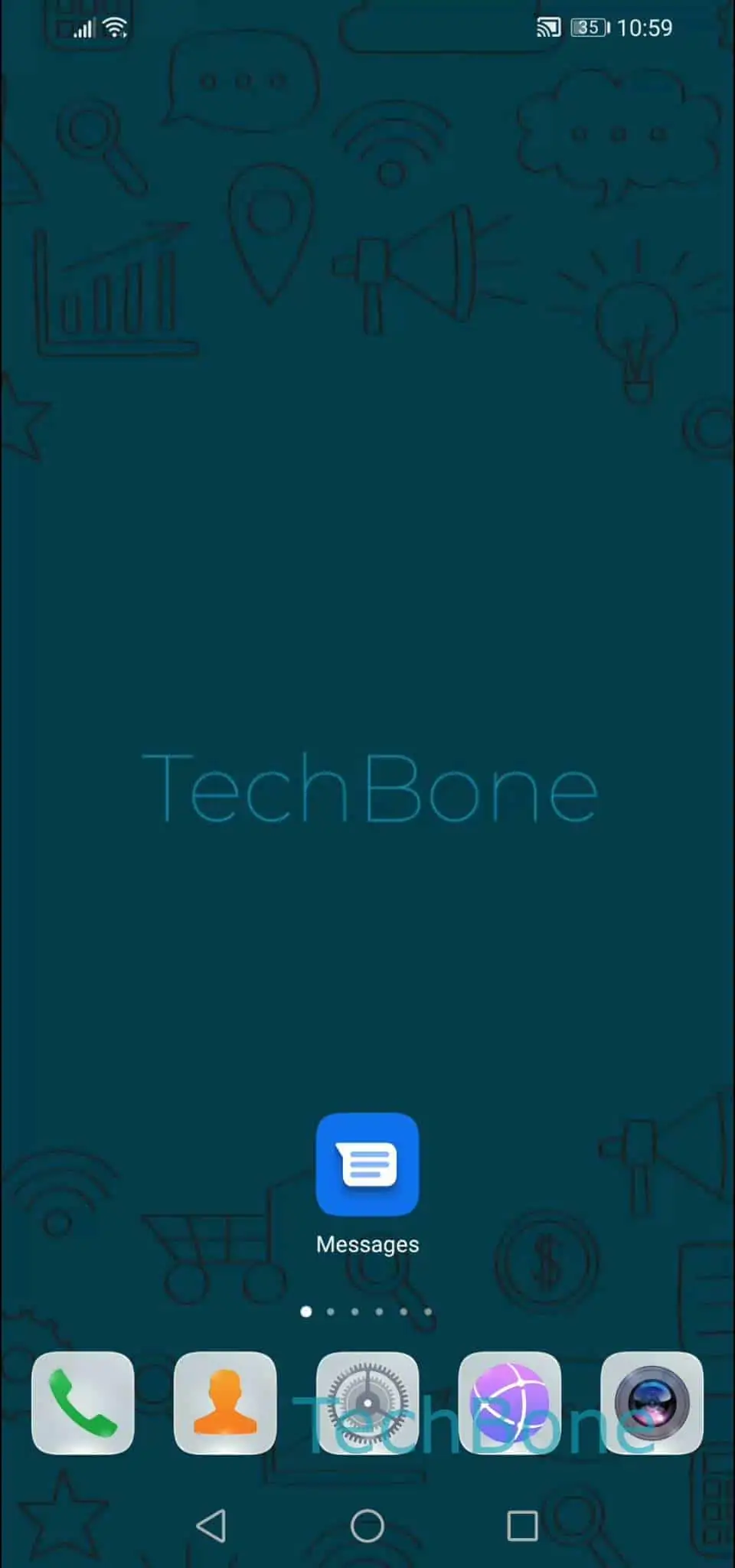
Open the Messages app and choose the conversation that contains the text. Tap and hold the specific message to bring up its options, then open the menu and tap on Forward.
The full path is: Open the Messages app ➔ Choose a conversation ➔ Tap and hold a message ➔ Open the menu ➔ Tap on Forward ➔ Choose a conversation or tap New message and follow the instructions on screen.
You can send the forwarded text to an existing conversation or start a brand-new one by tapping New message. The message shows up as a normal new SMS in the target chat, not as a quoted reply.
This function works on a single message at a time. If the original message included a picture or other media, the full content is carried over when you forward it.