
Huawei
Enable or Disable Google Play Protect auf Huawei
Google Play Protect runs as a background scanner on Huawei phones with EMUI. It checks apps at the moment of download, rescans them afterward, and periodically reviews anything installed from outside the Play Store. When it spots a suspicious app, it notifies you, and for a serious threat it can block the app from running.
This is useful most of the time, but it can also flag legitimate apps, especially ones distributed outside the Play Store or apps that request unusual permissions. If you know an app is safe and Play Protect still stops you from installing or opening it, turning the scanner off temporarily is the fastest workaround.
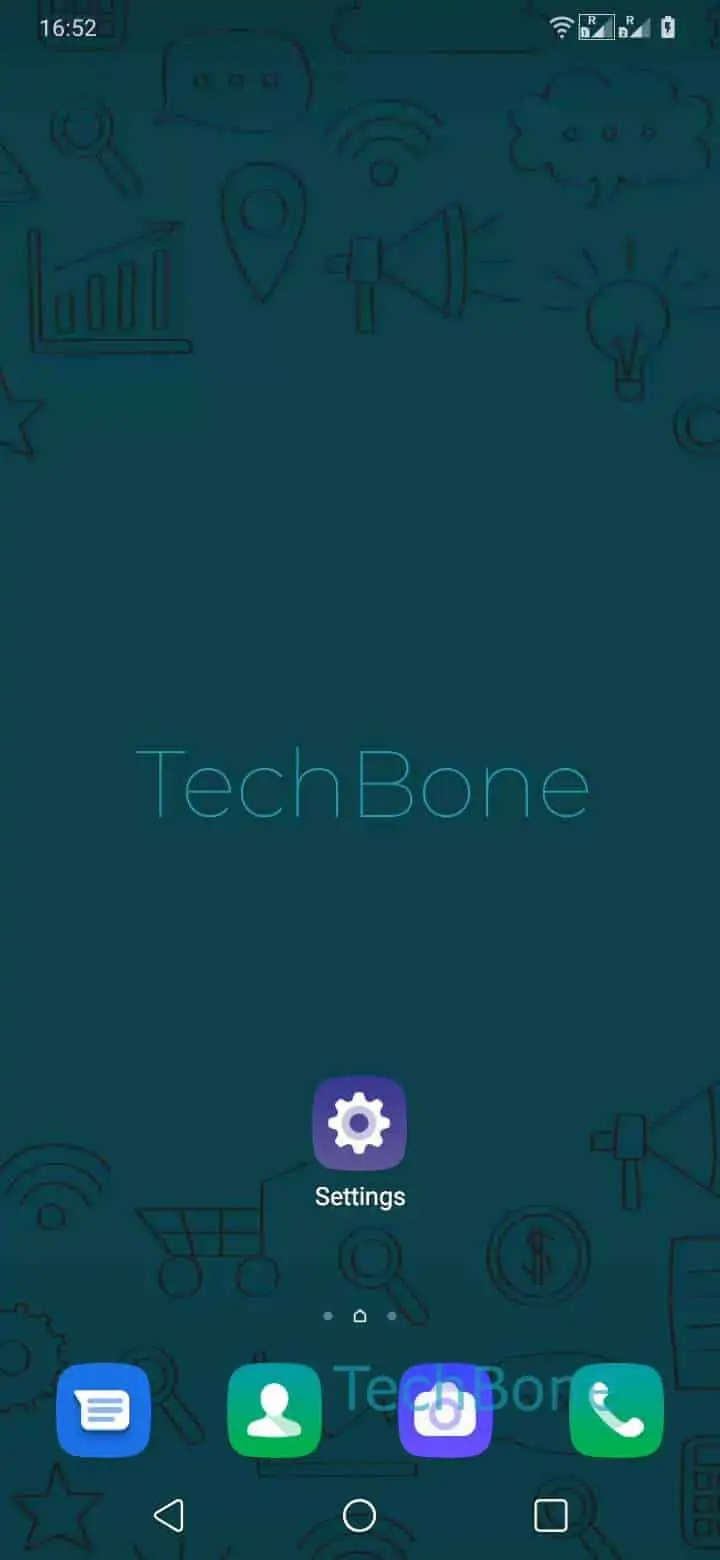
To find the switch, go to Open the Settings ➔ Tap on Security ➔ Tap on Google Play Protect ➔ Open the Settings. From there, Enable or disable Scan apps with Play Protect and confirm with Tap on Turn off to disable it, or repeat the steps to switch it back on.
Leave Play Protect enabled if you regularly install apps from unfamiliar sources or hand your phone to other people. Turn it off only for a specific app or a short period, then re-enable it afterward so the device keeps getting scanned automatically.