
Skip to content
TechBone
Huawei

Huawei: Pair Messages for Web with Your PC

When a text comes in while you are working on your laptop, reaching for the Huawei phone every time gets old fast. Messages for web only works once the phone and the browser tab have been linked through a QR code scan, and that pairing session can drop if the phone loses network or the browser tab closes. If the scanner window on the computer stays blank or the code never gets recognized, the two devices are usually not on the same Wi-Fi network or the phone camera has not been given permission.

3 min4 steps
VersionAndroid 10 · EMUI

Step by step

1 / 4

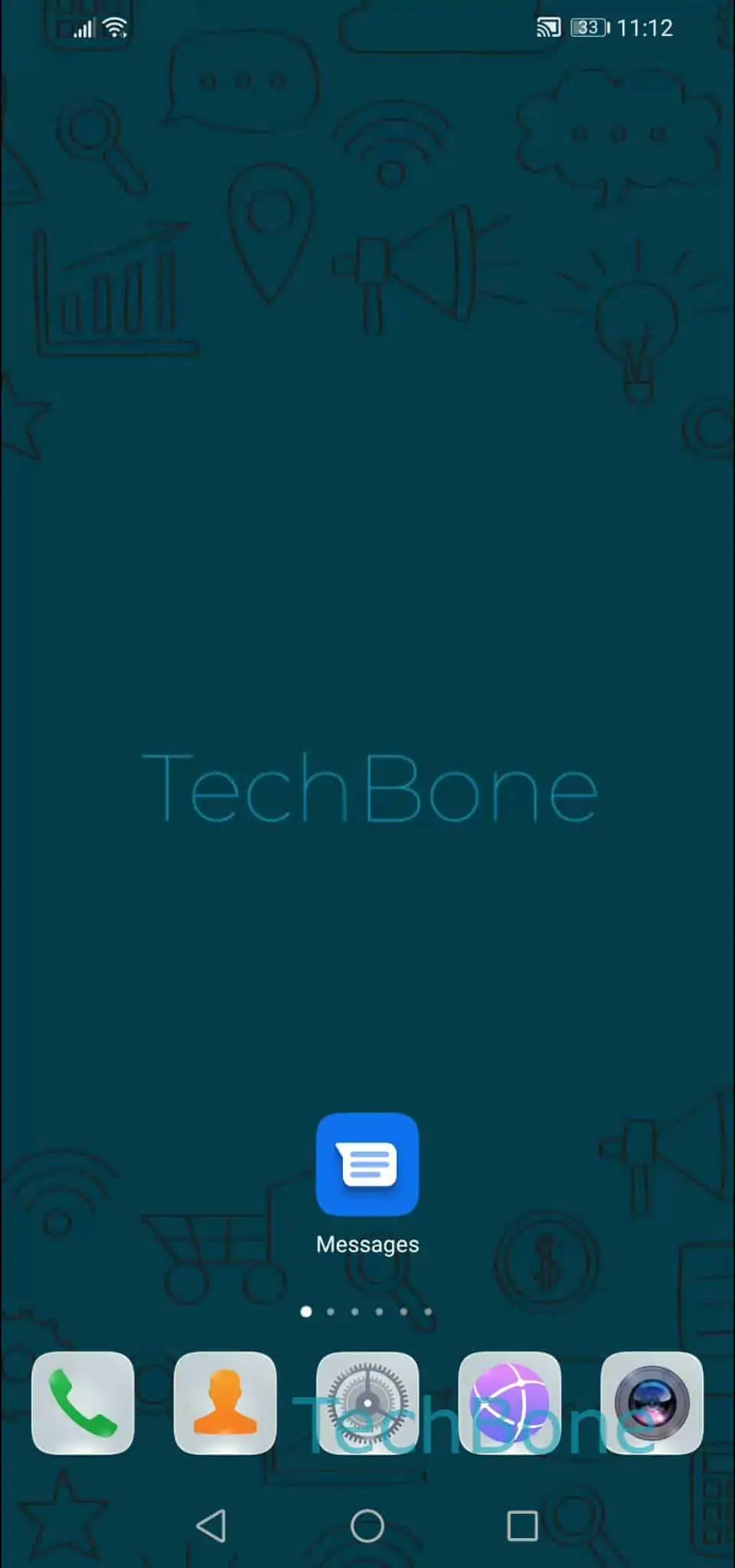
Step 1 of 4: Open the **Messages app**

1

Open the Messages app

Live simulator

Android 10 · EMUI
Pair Messages for Web with a PC – EMUI: step 1 – Open the Messages app
Open the Messages app
1 / 4

Scroll or use the buttons for the next step

Feedback

Was the guide correct?

Help others: confirm the path or report a problem.

82

Confirmations

Forum verified this path

Huawei

Pair Messages for Web with a PC auf Huawei

Messages for web lets you read and send texts from a browser window while the Huawei phone stays in a pocket or bag. The phone still handles the actual SMS delivery, the browser only mirrors the conversation once a pairing session is established through a QR code.

That pairing depends on two things: an active internet connection on the phone and a browser tab open on the same network. If either drops, the session on the computer times out and shows the scanner screen again.

To start or renew the connection, open Open the Messages appOpen the menuTap on Messages for webTap on QR code scanner and follow the instructions onscreen. Point the phone camera at the code shown on the computer screen inside the browser tab for Messages for web.

Once the scan succeeds, the browser keeps the session active until you sign out, switch networks, or clear the browser data. Closing the laptop lid or putting the phone to sleep does not end the pairing by itself.

If the QR code never gets recognized, check that the phone camera has permission to scan codes and that both devices reach the internet without a restrictive firewall or VPN blocking the connection.

Frequently asked questions

The camera used in Open the Messages appOpen the menuTap on Messages for webTap on QR code scanner needs permission to access the camera. Check the phone camera permission settings if the scanner screen stays black or the code is not detected after several tries.