Skip to content
TechBone
Huawei

Huawei: Set a Custom Ringtone for Calls

If every call still sounds like the factory-installed tone, the personal MP3 you copied over USB or downloaded to your Huawei phone is not showing up where you expect it. The stock ringtone list only pulls from a specific storage location, so a file saved in the wrong folder simply gets ignored. Once you know which folder EMUI actually scans, picking your own track takes seconds.

4 min5 steps
VersionAndroid 10 · EMUI

Step by step

1 / 5

Step 1 of 5: Open the **Settings**

1

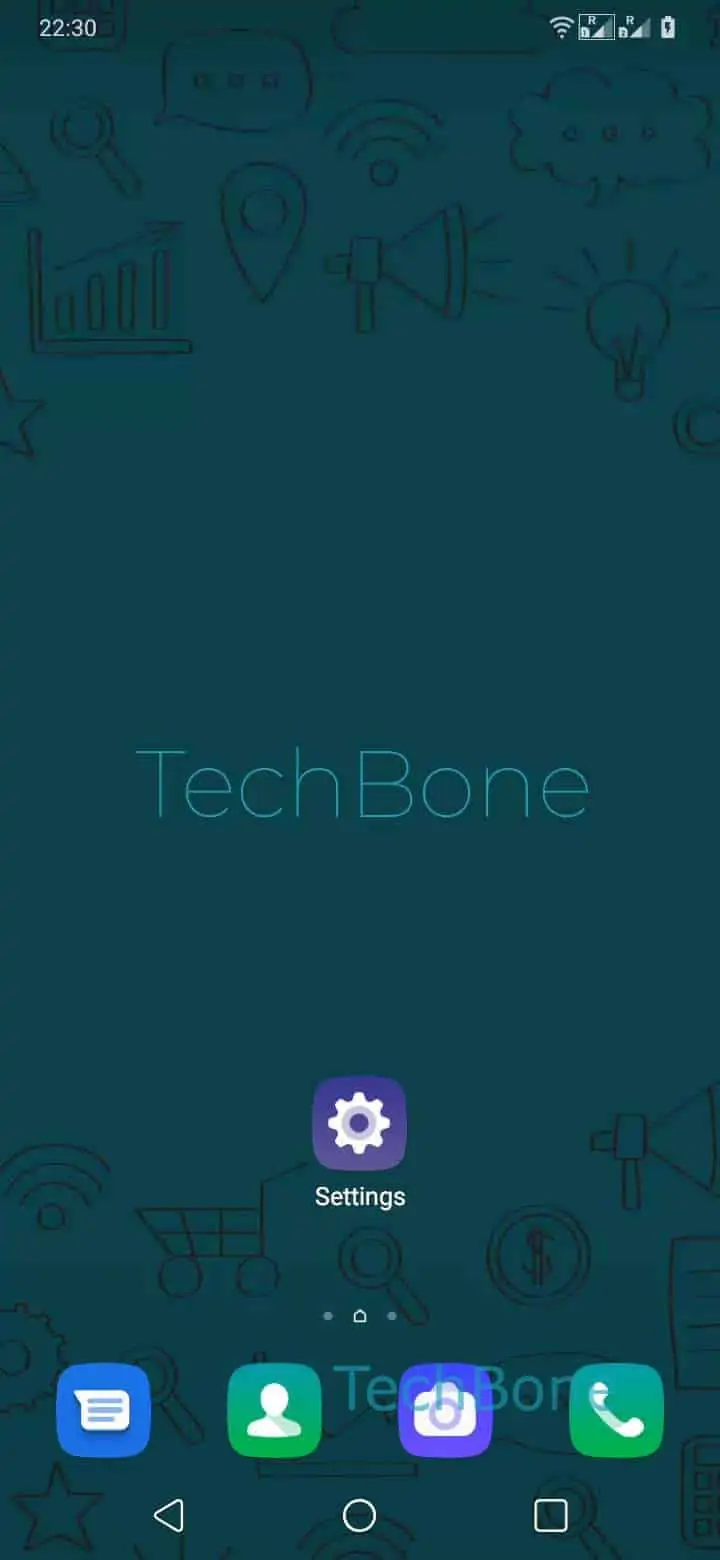
Open the Settings

Live simulator

Android 10 · EMUI
Set a Custom Ringtone – EMUI: step 1 – Open the Settings
Open the Settings
1 / 5

Scroll or use the buttons for the next step

Feedback

Was the guide correct?

Help others: confirm the path or report a problem.

42

Confirmations

Forum verified this path

Huawei

Set a Custom Ringtone auf Huawei

Huawei phones ship with a fixed set of ringtones, but EMUI also lets you assign any audio file stored on the device as your phone ringtone. The file has to sit in local storage first, either copied over from a PC via USB cable or downloaded directly through the browser or a file manager app.

Once the file is on the device, the ringtone picker only looks inside its own audio scan, so files buried in unrelated app folders sometimes do not appear immediately. A quick reboot or reopening the file manager once usually forces EMUI to index the new file.

Menu path for the ringtone selection

Go to Open the SettingsTap on Sounds & vibrationTap on Phone ringtoneTap on Music on deviceChoose a ringtone.

This setting only changes the sound played for incoming calls. Notification sounds, alarms, and per-app alerts use separate sound settings and are not affected by this change.

Frequently asked questions

The ringtone picker only scans certain storage locations. If the file was saved to a random download folder, move or copy it into the phone's main Music folder, then reopen Tap on Music on device so EMUI rescans the storage.