
Huawei
Remove App Shortcut from Home Screen auf Huawei
When your Huawei home screen runs in App Drawer style, every icon you see is a direct shortcut to an app, not a shortcut inside a folder or a separate drawer view. Removing one from the screen does not touch the app itself: the app and all its data stay installed exactly as before.
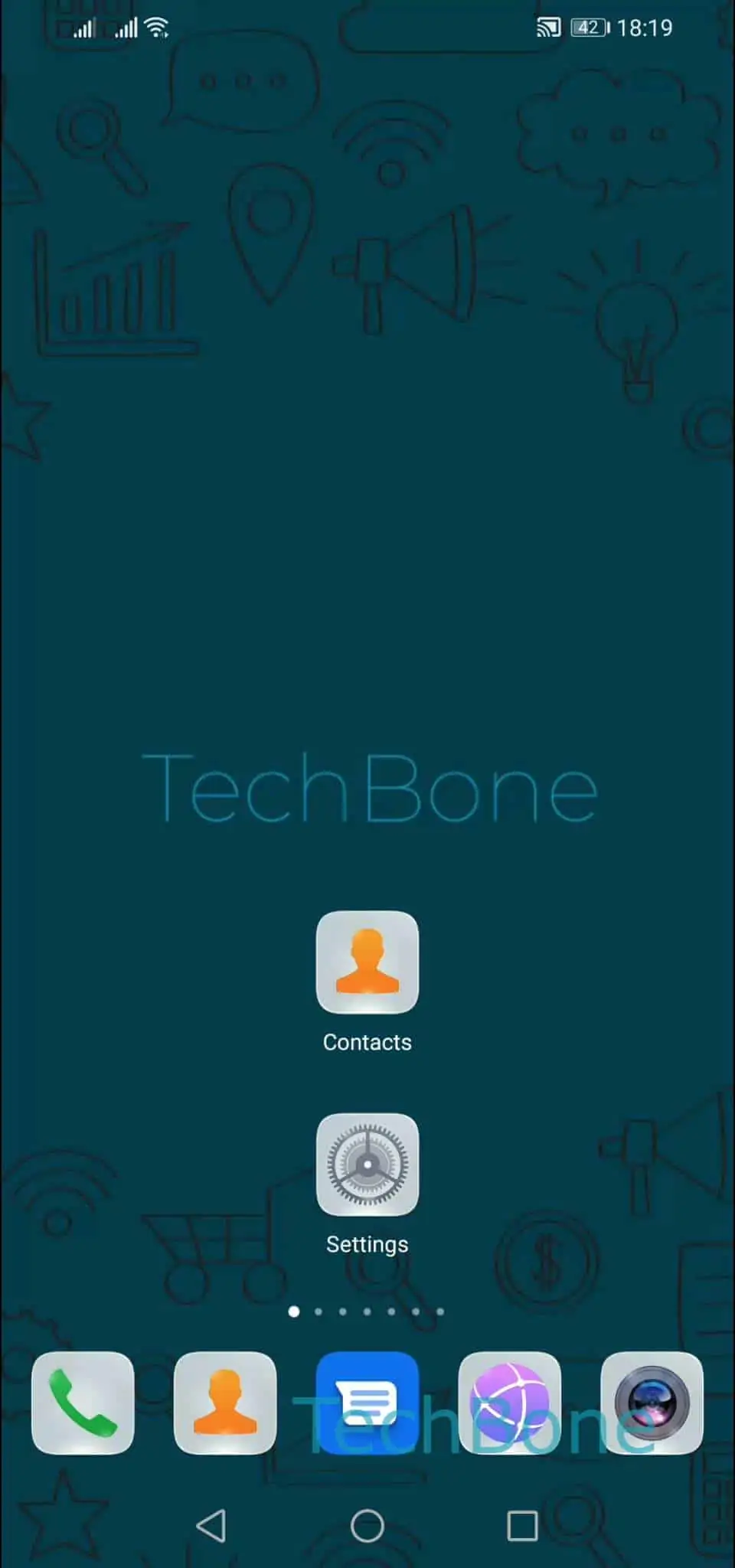
To remove a shortcut, Tap and hold an app until the quick-action menu shows up, then Tap on Remove. The icon disappears right away and nearby icons shift to fill the empty spot.
This behavior only applies when your home screen is set to App Drawer style, where each app has exactly one icon on the main screen and there is no separate app list. If you switch to a Standard layout with a dedicated app drawer, removing an icon from the home screen only deletes that shortcut there; the app stays listed in the drawer itself.
Use this action when you just want a cleaner home screen without losing the app or its settings. If your goal is to get rid of the app completely, including its data, you need to uninstall it through your device settings instead of removing the shortcut.