Skip to content
TechBone
Huawei

Huawei: Show Step Count on Lock Screen

If the step counter your Huawei phone tracks with its built-in pedometer never shows up on the lock screen, the Magazine lock screen style is probably not active. Without it, the Show step count toggle in your settings has no visible effect, so the number stays hidden even though tracking runs in the background.

3 min3 steps
VersionAndroid 10 · EMUI

Step by step

1 / 3

Step 1 of 3: Open the **settings**

1

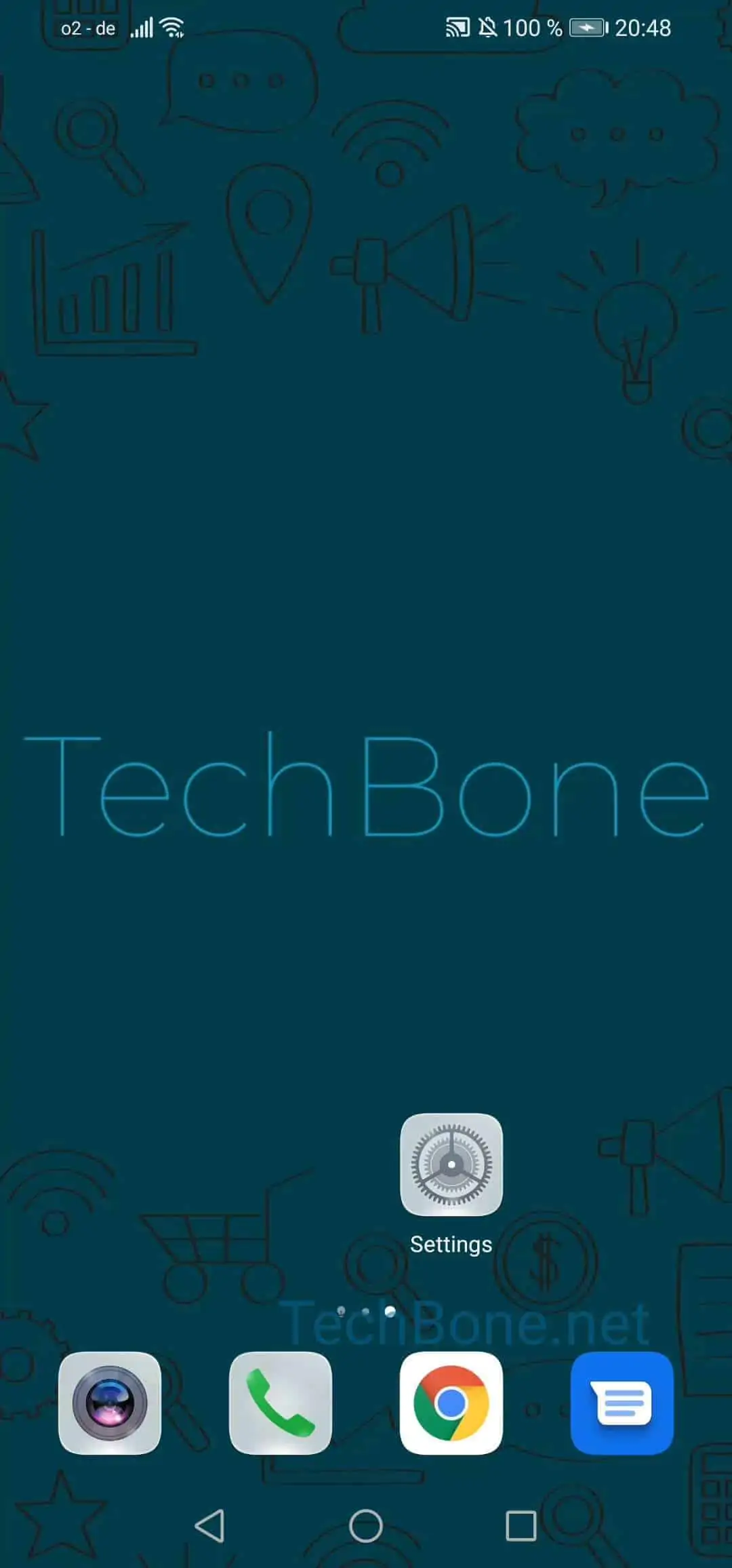
Open the settings

Live simulator

Android 10 · EMUI
Show Step Count on Lock Screen – EMUI: step 1 – Open the settings
Open the settings
1 / 3

Scroll or use the buttons for the next step

Feedback

Was the guide correct?

Help others: confirm the path or report a problem.

94

Confirmations

Forum verified this path

Huawei

Show Step Count on Lock Screen auf Huawei

Some Huawei phones track your daily steps with a built-in pedometer, but the number only appears on the lock screen when the Magazine style is active. If your lock screen uses a different layout, the step count toggle has no visible effect, even when it is switched on.

To enable or disable the counter, open Open the settingsTap on Home screen & wallpaperActivate or deactivate Show step count. This setting only controls whether the number is displayed; it does not turn the pedometer itself on or off.

If you don't see any steps at all, check that the pedometer permission is granted and that you carry the phone with you during the day. Step counts reset at midnight, so a low number early in the day is expected.

Turning the option off is useful if the step count on the lock screen feels distracting, or if you share the device and prefer to keep activity data private. The lock screen style itself stays unchanged either way.

Frequently asked questions

The counter only shows up when your lock screen uses the Magazine style. Check Open the settingsTap on Home screen & wallpaper and confirm Magazine is selected as your lock screen style.