
Skip to content
TechBone
Huawei

Huawei: Show SIM Card Messages Stored on the SIM

Old text messages you sent or received years ago sometimes disappear from your inbox after a SIM swap or a factory reset, even though they still physically sit on the SIM card. Huawei phones do not display these by default because the Messages app only loads device storage first. They are not deleted, just hidden from the normal conversation view.

4 min5 steps
VersionAndroid 10 · EMUI

Step by step

1 / 5

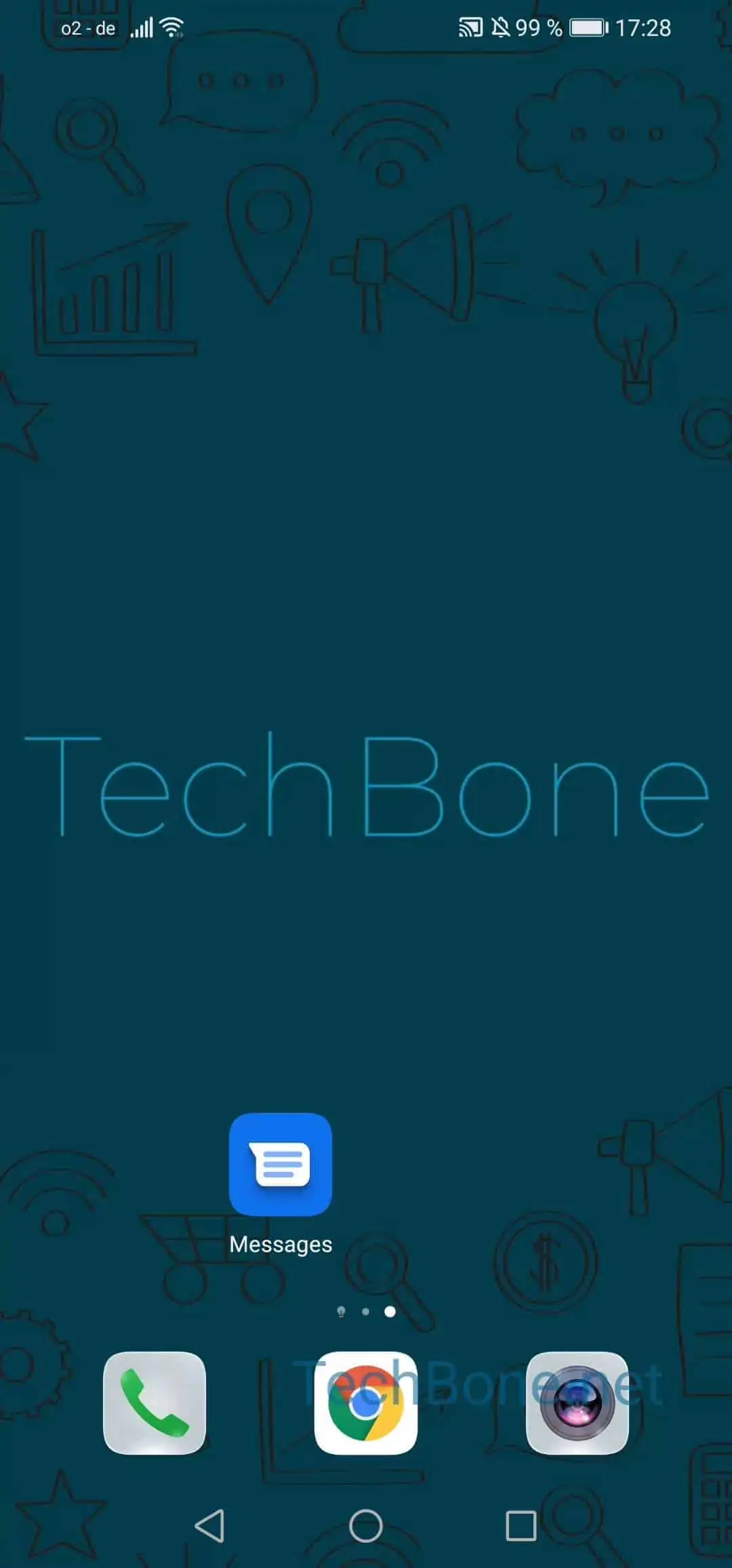
Step 1 of 5: Open **Messages**

1

Open Messages

Live simulator

Android 10 · EMUI
Show SIM Card Messages – EMUI: step 1 – Open Messages
Open Messages
1 / 5

Scroll or use the buttons for the next step

Feedback

Was the guide correct?

Help others: confirm the path or report a problem.

30

Confirmations

Forum verified this path

Huawei

Show SIM Card Messages auf Huawei

SIM cards can store a limited number of text messages independently from your phone storage. On Huawei devices running EMUI, these SIM messages are kept separate from your normal inbox and are not shown automatically.

This happens because the Messages app defaults to device storage. Messages saved directly on the SIM, often from before a SIM swap or an older phone, stay untouched until you open the correct menu.

To view them, open Open MessagesOpen the menuOpen the settingsTap on AdvancedTap on SIM card messages. This screen lists every SMS still stored physically on the SIM chip, separate from your regular conversations.

If a message you are looking for still does not appear, check whether the SIM card itself was replaced or reformatted, since a new SIM has its own empty storage. In that case, the old messages remain only on the original SIM card, not on the current one.

Frequently asked questions

The Messages app loads device storage by default. Texts saved on the SIM stay separate until you open Open MessagesOpen the menuOpen the settingsTap on AdvancedTap on SIM card messages.