
Huawei
Set Default Launcher App auf Huawei
On Huawei phones running EMUI, the launcher controls the home screen, the app drawer and every widget placement you use daily. Installing a new launcher app from the store does not automatically make it active. The system keeps using the previous one until you manually confirm the switch in the settings.
This matters because some launchers focus on a clean, minimal home screen, while others add gesture controls, icon packs or app drawers with extra categories. If the new launcher never opens after installation, or your phone reverts to the old layout after a restart, the default app assignment is usually the cause.
How to change it
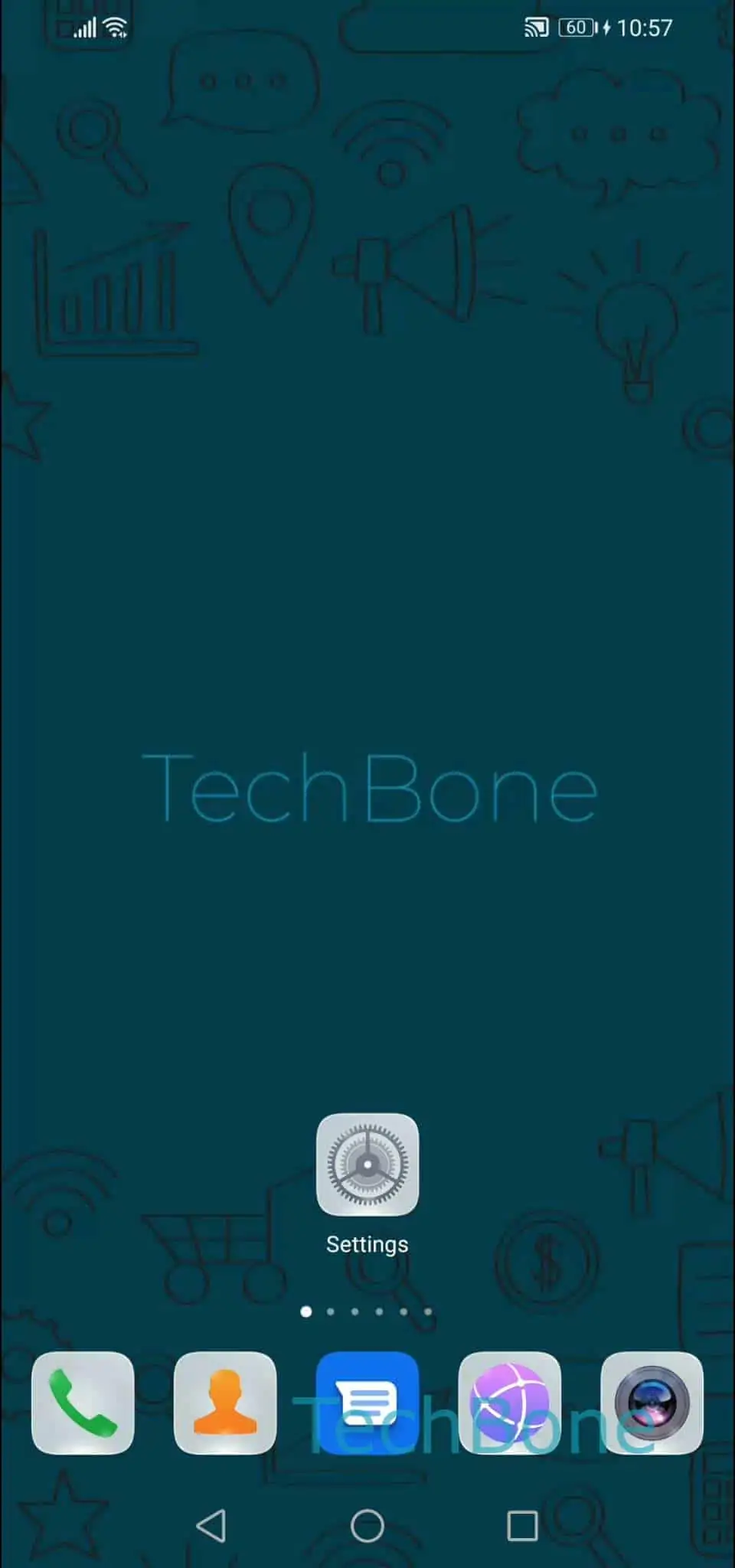
Go to Open the Settings ➔ Tap on Apps ➔ Tap on Default apps ➔ Tap on Home app ➔ Choose the default home / launcher app. Select the launcher you want to use and confirm.
The home screen reloads with the new layout immediately. Widgets from the previous launcher may need to be re-added, since layouts are not always shared between different launcher apps.
If a launcher does not appear in the list under Home app, it either has not finished installing or lacks the permissions needed to register as a home app. Reinstalling it usually fixes that.