
Huawei
Exit Simple Mode auf Huawei
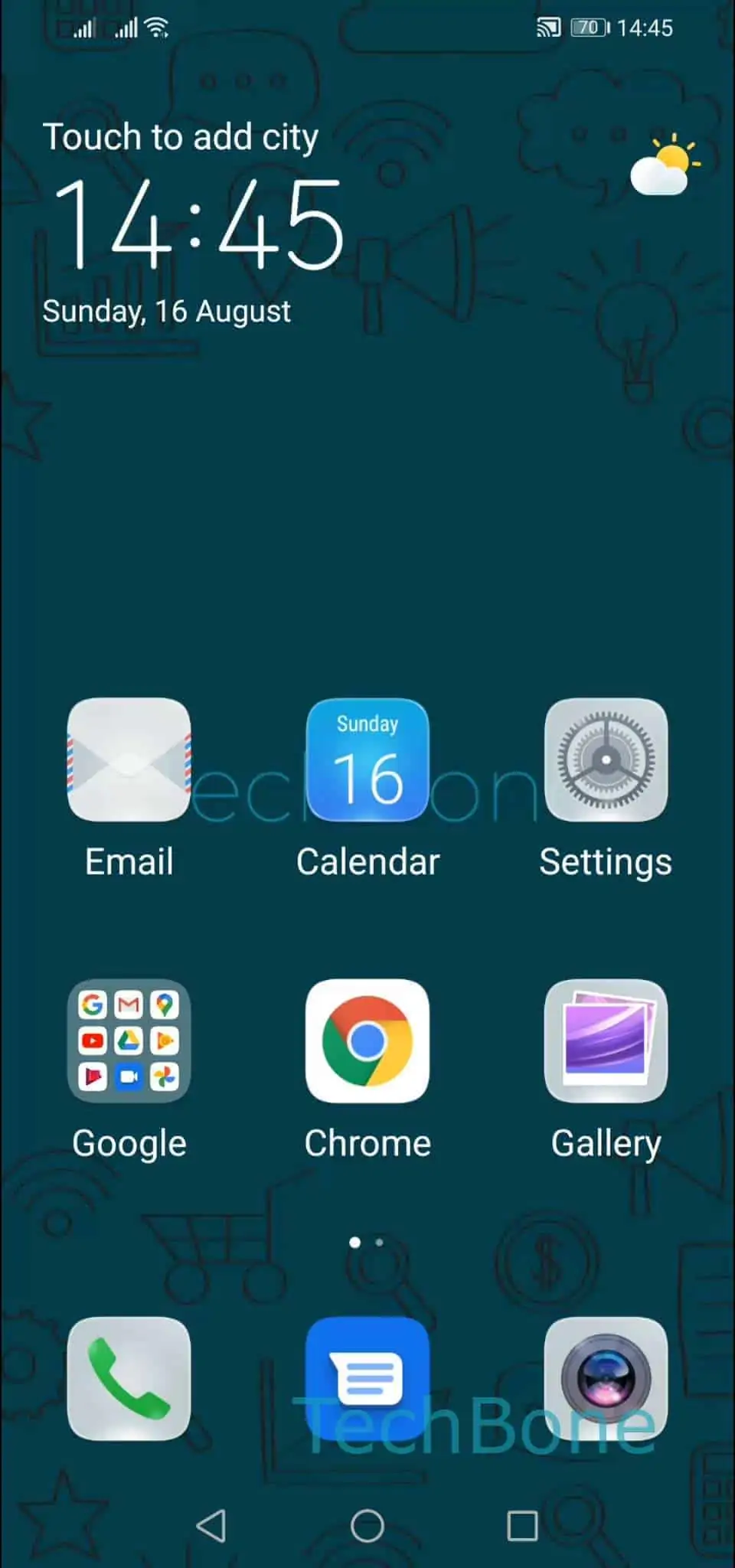
Simple mode on Huawei phones swaps the regular home screen for a layout with larger icons, fewer widgets, and a reduced settings menu. It is meant for users who prefer a minimal interface, but it also hides features like the app drawer and detailed notification controls that many people expect to use daily.
EMUI stores this display mode as a system-level setting rather than a launcher option, so you cannot switch it off from the home screen itself. Instead, the toggle sits inside the main settings app under its own dedicated entry.
How to switch it off
Open Settings on your Huawei device, then scroll to find and tap Exit Simple mode. Confirm the action if prompted, and your phone rebuilds the home screen with the standard layout, full app drawer, and complete notification panel.
If the option is missing from the list, check that you are looking at the top-level settings menu rather than a sub-menu, since some EMUI versions place it near the display or home screen settings instead of a separate section.
Switching out of Simple mode does not delete apps or data. It only changes how icons, folders, and menus are displayed, so anything you had pinned or organized in Simple mode reappears in its default arrangement afterward.