Skip to content
TechBone
Huawei

Huawei: Switch Between 12-Hour and 24-Hour Clock Format

If your Huawei phone displays 3:45 PM instead of 15:45, or the other way round, the clock format is likely tied to your system language rather than a fixed choice. This dependency means switching language can silently change how time appears on the lock screen, notifications, and widgets. A manual toggle for 24-hour time removes that guesswork.

3 min4 steps
VersionAndroid 10 · EMUI

Step by step

1 / 4

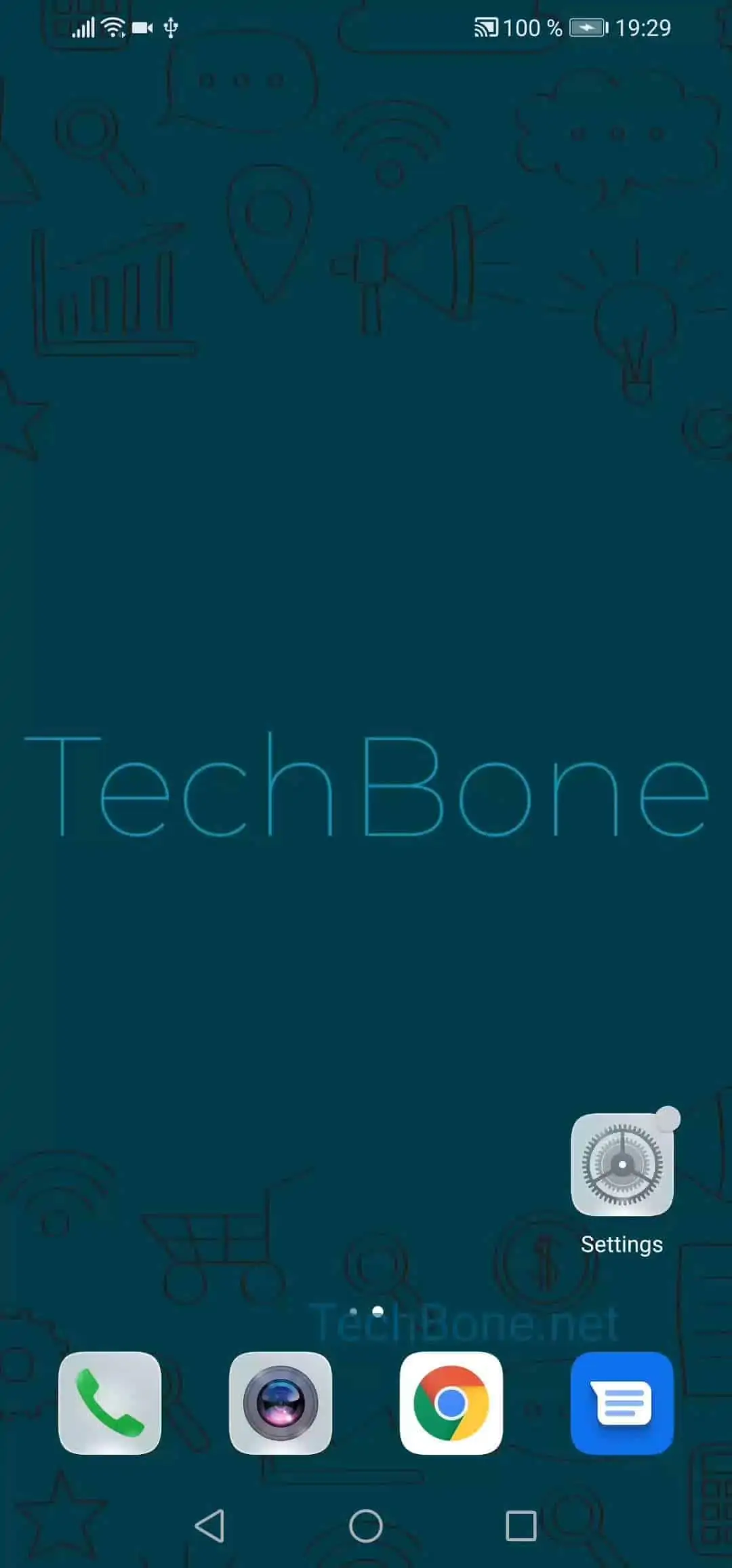
Step 1 of 4: Open the **settings**

1

Open the settings

Live simulator

Android 10 · EMUI
Switch Between 12-Hour and 24-Hour Time – EMUI: step 1 – Open the settings
Open the settings
1 / 4

Scroll or use the buttons for the next step

Feedback

Was the guide correct?

Help others: confirm the path or report a problem.

36

Confirmations

Forum verified this path

Huawei

Switch Between 12-Hour and 24-Hour Time auf Huawei

On Huawei phones running EMUI, the clock format is not an independent setting by default. It inherits from the system language, so switching to a language that commonly uses 12-hour notation can flip your time display from 24-hour to AM/PM without warning.

This shows up on the lock screen, in the notification shade, and in any widget that pulls the system time. If timestamps look inconsistent across apps, a language-driven default is usually the reason.

To force a fixed format regardless of language, open Open the settingsTap on System & updatesTap on Date & timeActivate or deactivate 24-hour time. Turning the toggle on locks the display to 24-hour notation; turning it off switches back to 12-hour with AM/PM markers.

This setting only changes how time is displayed, not the underlying system clock or timezone. If the time itself is wrong after adjusting the format, check the timezone and automatic date and time options separately.

Frequently asked questions

The 12-hour or 24-hour display often follows the language default unless you set it manually. Go to Open the settingsTap on System & updatesTap on Date & time and toggle Activate or deactivate 24-hour time to lock the format independently of language.