
Huawei
Uninstall an App auf Huawei
Huawei phones handle app removal differently depending on your home screen layout. With the standard layout, every app icon sits directly on the home screen and you remove an app by holding its icon until a menu appears. With the App drawer layout, apps live in a separate drawer accessed by swiping up, and the removal process starts there instead.
Uninstalling with the App drawer enabled
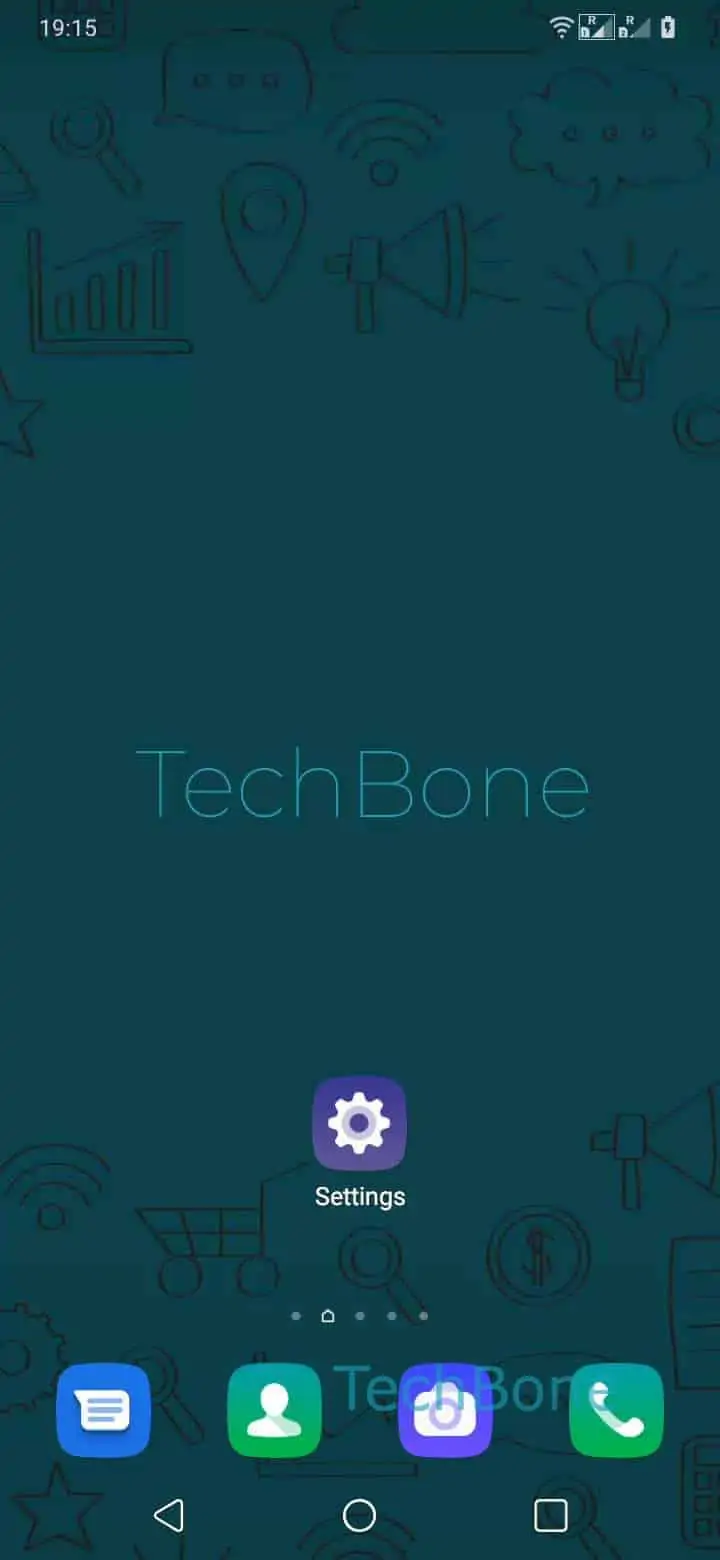
If your home screen only shows a few icons and a dock at the bottom, the App drawer is active. Swipe upwards to open the app-drawer ➔ Tap and hold an app ➔ Tap on Uninstall ➔ Confirm with OK. The app disappears from the drawer right after you confirm.
Uninstalling from the home screen
If every app already appears directly on your home screen, skip the drawer step. Tap and hold the icon, then tap Uninstall and confirm with OK. EMUI treats both entry points the same once the confirmation dialog shows up.
System apps and preinstalled Huawei apps often show a Disable option instead of Uninstall, since removing them completely could affect core phone functions. Disabling still frees up storage and stops the app from running, though the icon may stay visible in a hidden system folder.