
Huawei
Resize a Widget on the Home Screen auf Huawei
Not every widget on a Huawei home screen keeps the size you first placed it in. Switching launchers, moving a widget to another screen, or restoring a backup can shrink a clock widget down to a single line or stretch a calendar widget across the full screen. EMUI treats each widget as a resizable box with handles at the corners and edges, so the fix works without deleting the widget.
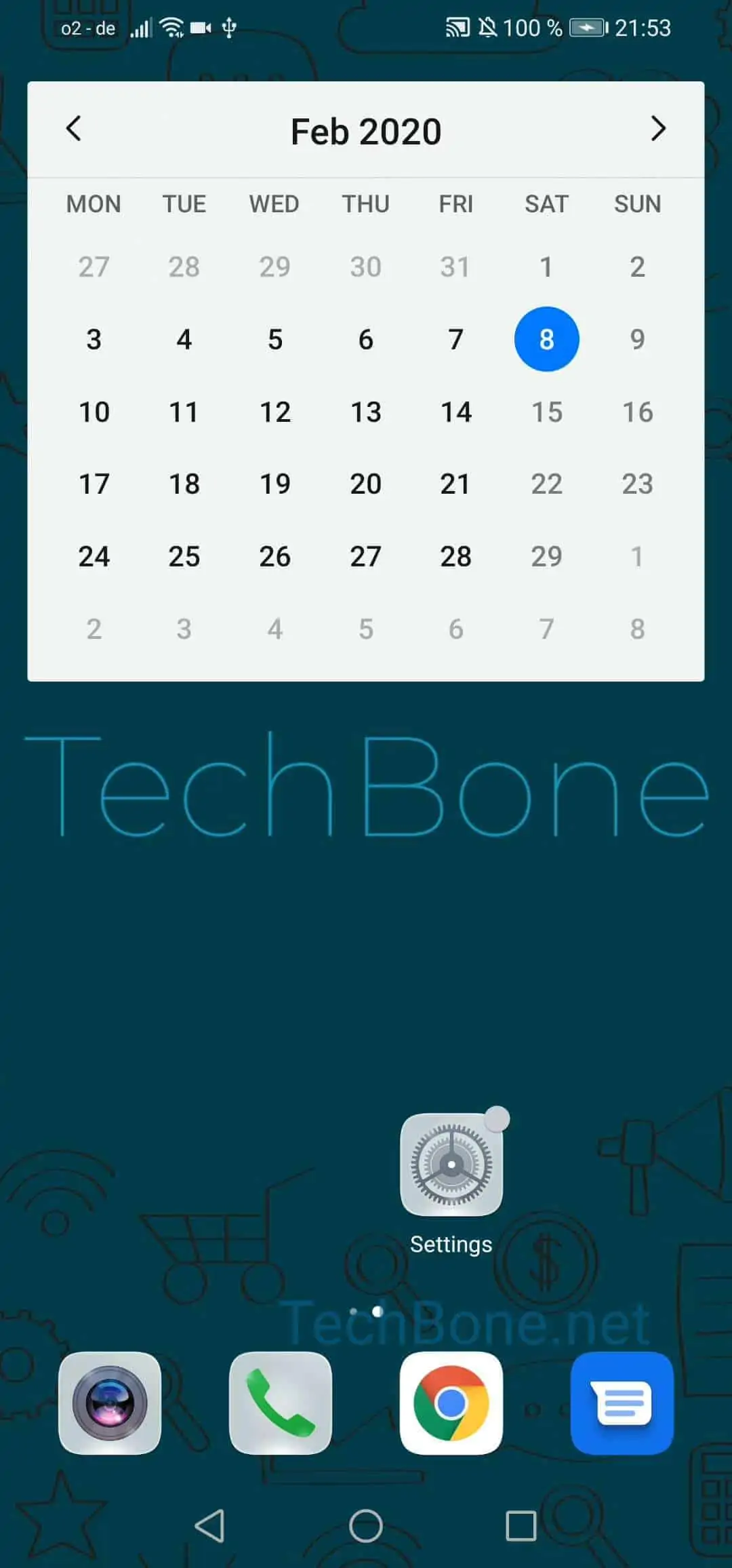
To resize a widget, first press and hold it until it detaches slightly from the grid. This puts the widget into edit mode and shows small points framing its outline.
Tap and hold a Widget ➔ Pull on the points that frame the widget to change the size ➔ Tap on a free space to end editing
Drag any of the framing points inward or outward to shrink or expand the widget. Corner points usually resize both height and width at once, while edge points change only one dimension. Release your finger once the widget shows the layout you want, then tap an empty area of the home screen to lock in the new size.
Not all widgets support every size. Some only offer a small and a large version, so dragging beyond those limits snaps back to the closest supported size. If a widget refuses to resize at all, it may only be available in one fixed layout on your current EMUI version.