Skip to content
TechBone
Huawei

Huawei: Enable or Disable Wireless Projection

If your Huawei phone refuses to mirror onto a TV or receiver, wireless projection is either switched off or the two devices are stuck on different networks. The feature works like the screen-mirroring apps you get from third parties, only it needs no extra install and talks directly to Miracast-certified TVs and receivers. It only shows results once your phone and the display share the same Wi-Fi network.

3 min3 steps
VersionAndroid 10 · EMUI

Step by step

1 / 3

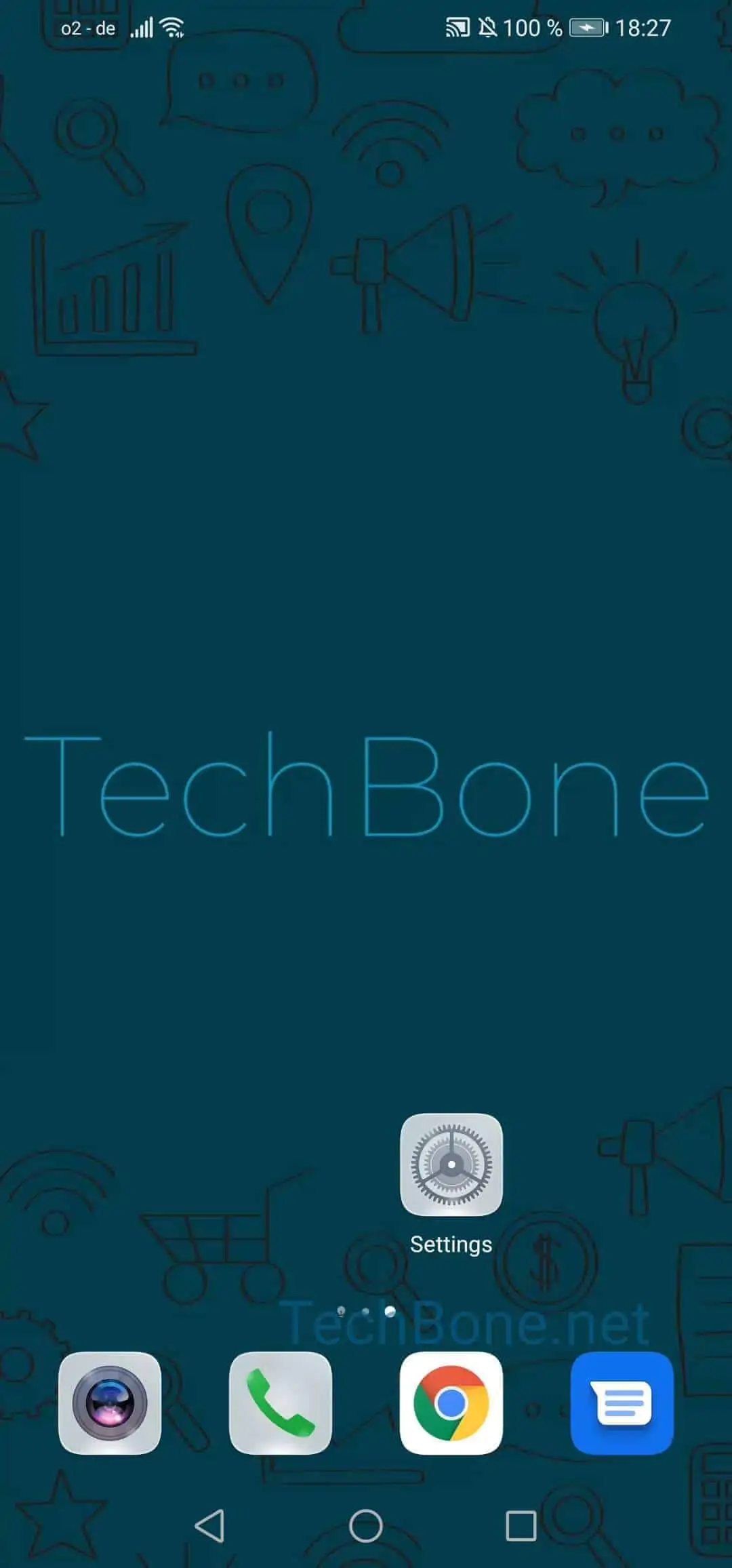
Step 1 of 3: Open the **settings**

1

Open the settings

Live simulator

Android 10 · EMUI
Enable or Disable Wireless Projection – EMUI: step 1 – Open the settings
Open the settings
1 / 3

Scroll or use the buttons for the next step

Feedback

Was the guide correct?

Help others: confirm the path or report a problem.

55

Confirmations

Forum verified this path

Huawei

Enable or Disable Wireless Projection auf Huawei

Wireless projection sends the screen of your Huawei phone to a nearby TV or receiver over the local network. It relies on the Miracast standard built into most modern TVs, so no extra app or cable is needed on the receiving side.

The most common reason projection fails is that the phone and the display are not on the same Wi-Fi network. Guest networks or separate 2.4 GHz/5 GHz bands can block detection even though both devices are technically online. A second reason is that the function is simply switched off in the system settings.

To turn it on or off, go to Open the settingsTap on More connectionsTap on Wireless projection. From there you can toggle the feature and start scanning for available displays once it is enabled.

If your TV or receiver is not Miracast-certified, wireless projection will not detect it at all. In that case, a manufacturer app or an HDMI streaming stick is the better route instead of this built-in function.

Battery drain and a short connection range are normal side effects, since the phone keeps a constant Wi-Fi Direct link open to the display while projecting.

Frequently asked questions

The TV or receiver either lacks Miracast support or has it disabled in its own network settings. Check under Open the settingsTap on More connectionsTap on Wireless projection that scanning is active, then confirm the display's Miracast or screen-mirroring option is turned on as well.