Skip to content
TechBone
OnePlus

OnePlus: Switch Between 12- and 24-Hour Clock Format

When your OnePlus clock suddenly shows military time after setting up a new region, or you want the classic AM/PM display back on your lock screen, the format did not change by itself. OxygenOS ties the hour style to your selected region, so you need to switch it manually to get the display you are used to. Without this fix, every screen showing the time keeps the format tied to whatever region you picked during setup.

3 min4 steps
VersionAndroid 10 · Oxygenos 10

Step by step

1 / 4

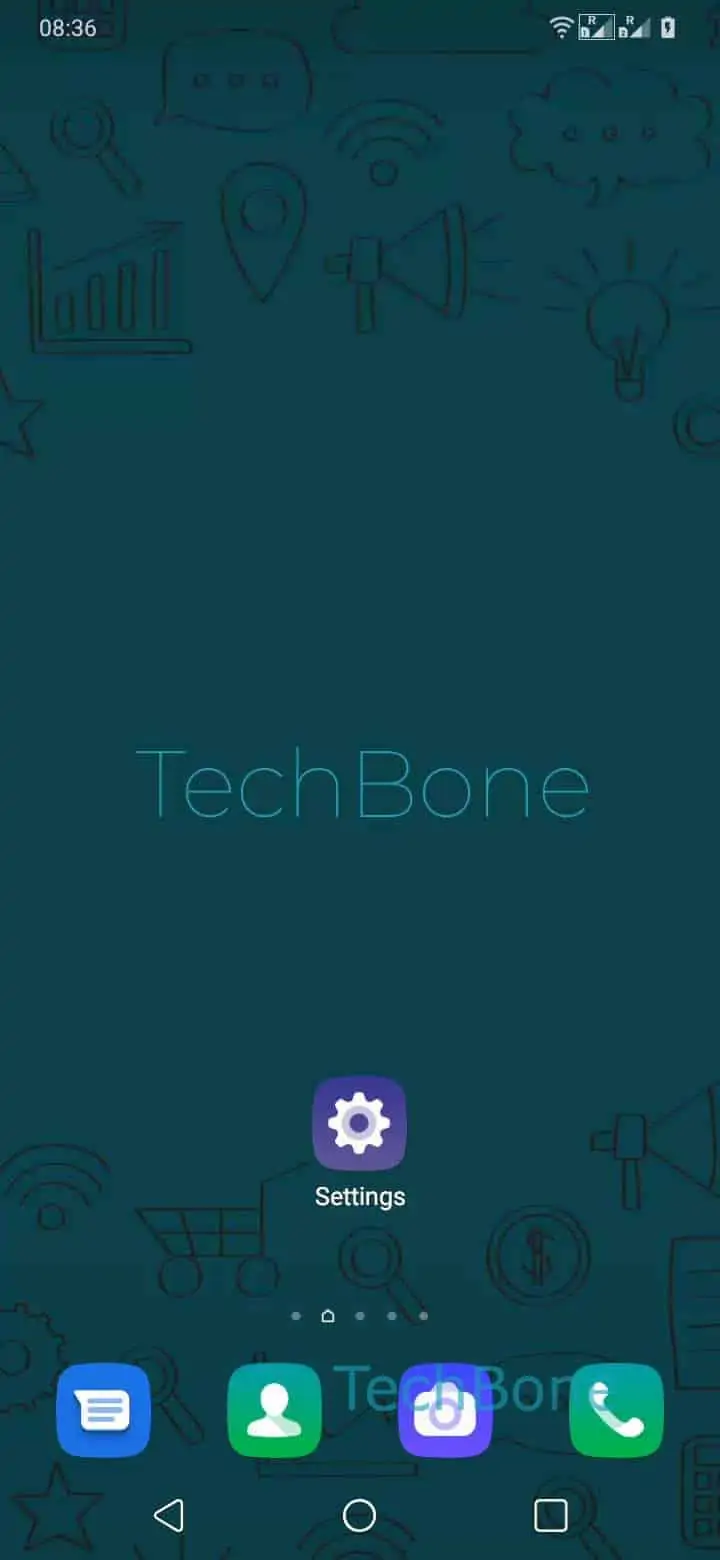
Step 1 of 4: Open the **Settings**

1

Open the Settings

Live simulator

Android 10 · Oxygenos 10
Switch Between 12- and 24-Hour Clock Format – Oxygenos 10: step 1 – Open the Settings
Open the Settings
1 / 4

Scroll or use the buttons for the next step

Feedback

Was the guide correct?

Help others: confirm the path or report a problem.

48

Confirmations

Forum verified this path

OnePlus

Switch Between 12- and 24-Hour Clock Format auf OnePlus

OxygenOS decides the clock style based on the region you picked during setup or in the language settings. That is why a fresh device or a region change can switch your lock screen and status bar from 12-hour AM/PM display to 24-hour military time without any action from you.

The setting responsible for this sits inside the Date & time menu, separate from the region and language options themselves. Toggling it lets you keep any region selected while still choosing the clock style you prefer.

To change it, open SettingsSystemDate & time ➔ toggle Use 24-hour format. Turning the switch on shows the 24-hour style everywhere on the phone, including the lock screen, status bar, and most apps. Turning it off returns the clock to the 12-hour AM/PM format.

This setting is global and affects the whole system, so you cannot set a different format for individual apps. If only one app still shows the wrong format, that app is likely using its own internal clock setting rather than following the system, and adjusting Date & time will not fix it.

Automatic date and time detection stays independent from this toggle. You can leave Automatic date & time enabled for accurate time zone updates while still manually controlling whether the hour count runs from 1 to 12 or 0 to 23.

Frequently asked questions

OxygenOS links the default hour style to your selected region. If your phone updates the region automatically while traveling or after a SIM change, the clock can switch to whatever format is standard there. Use SettingsSystemDate & timeUse 24-hour format to set it back manually regardless of region.

Compatible devices

Tap your device — opens its hub with matching guides.