
OnePlus
Add a Contact Shortcut to the Home Screen auf OnePlus
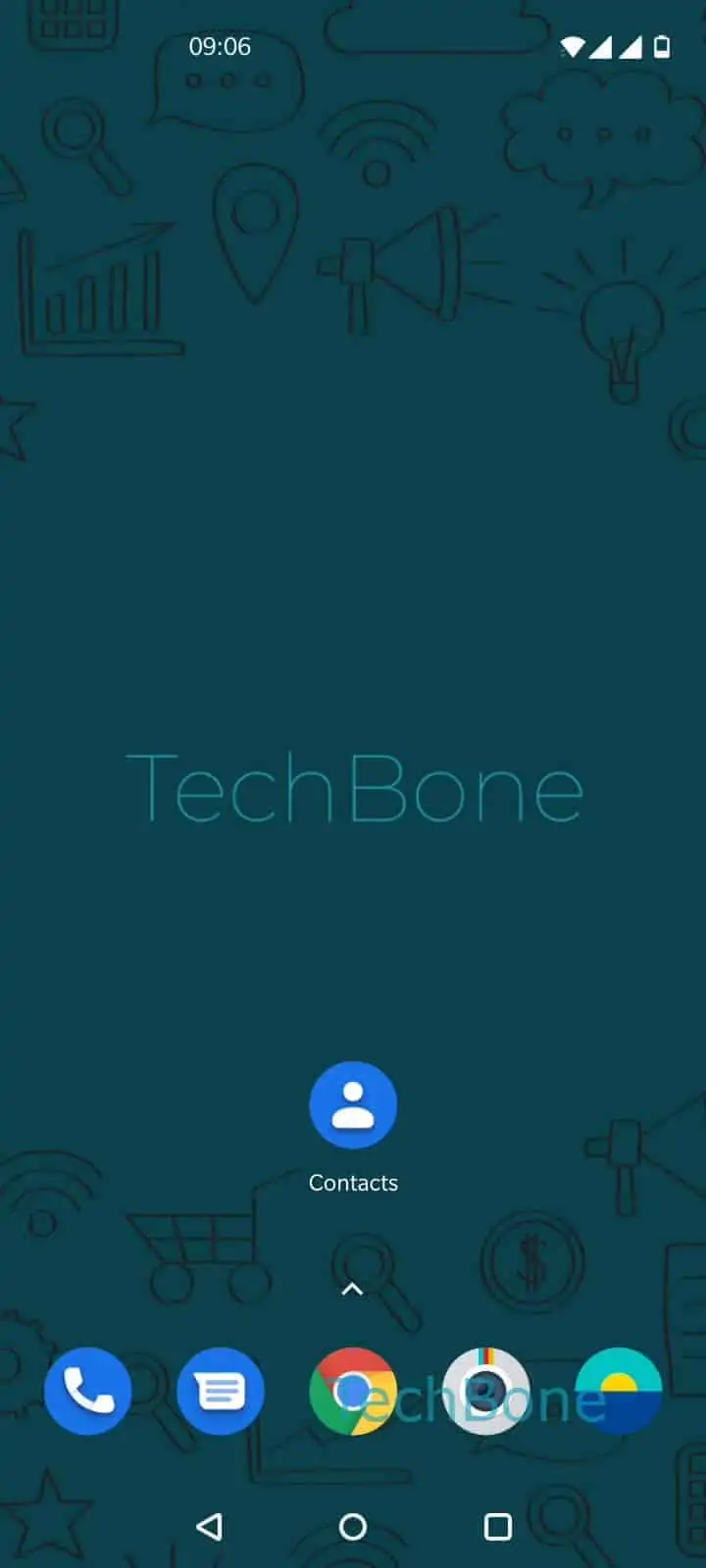
A contact shortcut on the home screen behaves like an app icon. Tapping it opens the contact card directly, skipping the Contacts app and any search or scroll through your contact list.
On OnePlus phones running OxygenOS, this shortcut lives in the Contacts app itself rather than in a separate widget menu. Open Contacts app ➔ Choose a contact ➔ Open the menu ➔ Tap on Add to Home screen. From there you can either tap and hold to drag the icon to a specific spot on your home screen, or tap Add automatically to let the system place it in the next free slot.
The shortcut only stores a reference to the contact, not a separate copy. If you edit the phone number, photo, or name in Contacts later, the home screen icon updates automatically. Deleting the shortcut from the home screen does not delete the underlying contact.
This method makes sense for a handful of people you call often, like a partner or a work contact. For quick access to several people at once, a dedicated call widget or your favorites list in the Phone app is usually faster to manage than adding one icon per contact.