Skip to content
TechBone
OnePlus

OnePlus: Turn Off Automatic App Icons on Home Screen

Every time you install an app on your OnePlus phone, a shortcut lands on the home screen whether you want it there or not. If you prefer to arrange icons yourself, this default behavior gets messy fast, especially after installing several apps back to back. The setting behind this sits in the home screen preferences, not inside individual app settings.

3 min3 steps
VersionAndroid 10 · Oxygenos 10

Step by step

1 / 3

Step 1 of 3: Tap and hold a **free area** on home screen

1

Tap and hold a free area on home screen

Live simulator

Android 10 · Oxygenos 10
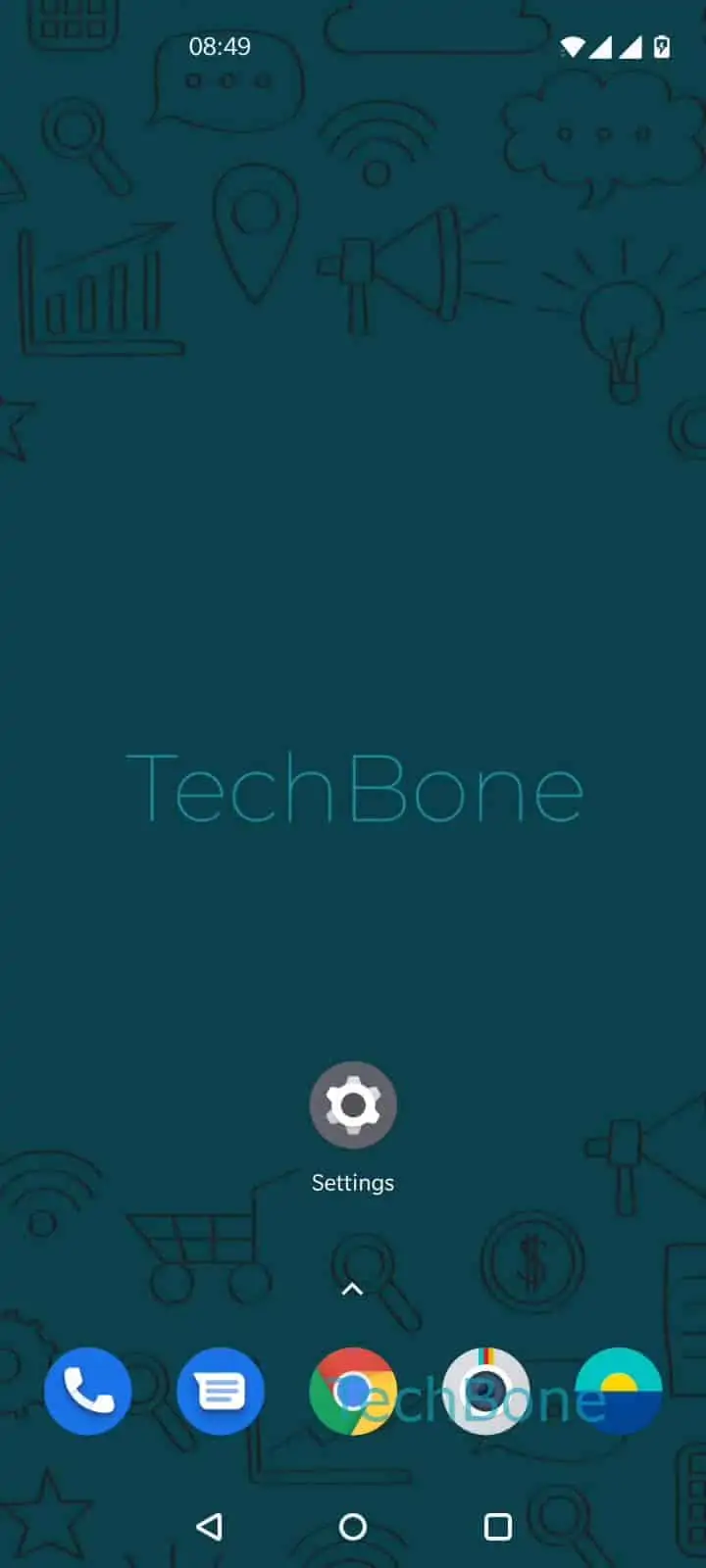
Disable Automatic App Shortcuts on Home Screen – Oxygenos 10: step 1 – Tap and hold a free area on home screen
Tap and hold a free area on home screen
1 / 3

Scroll or use the buttons for the next step

Feedback

Was the guide correct?

Help others: confirm the path or report a problem.

84

Confirmations

Forum verified this path

OnePlus

Disable Automatic App Shortcuts on Home Screen auf OnePlus

On OnePlus phones running OxygenOS, every freshly installed app gets an icon placed on the home screen automatically. This happens regardless of whether you already keep the app drawer organized on your own. The behavior comes from a single toggle in the home screen settings, separate from the app drawer or launcher settings menu.

To turn it off, tap and hold a free area on your home screen, then open the home settings panel that appears. From there you find the option that controls whether new app icons get added automatically. Follow this path:

Tap and hold a free area on home screenTap on Home settingsEnable or disable Add icon to Home screen

Switching this off does not remove icons already placed on your home screen. It only stops future installs from adding new shortcuts there. Apps still install normally and remain reachable through the app drawer.

If you rely on quick access to new apps right after installing them, keep this setting enabled. For anyone who curates their home screen layout manually, disabling it saves the extra step of deleting unwanted icons after every install.

Frequently asked questions

No. Disabling Add icon to Home screen only affects apps installed after you change the setting. Icons already placed stay exactly where you put them.

Compatible devices

Tap your device — opens its hub with matching guides.