
OnePlus
Add Bookmark Shortcut to Home Screen auf OnePlus
Chrome keeps saved pages inside its own bookmark menu, so reaching a frequently used site still means launching the browser first, opening the menu, and scrolling to the right entry. OxygenOS lets you skip those steps by placing a direct shortcut on the home screen, right next to your regular apps.
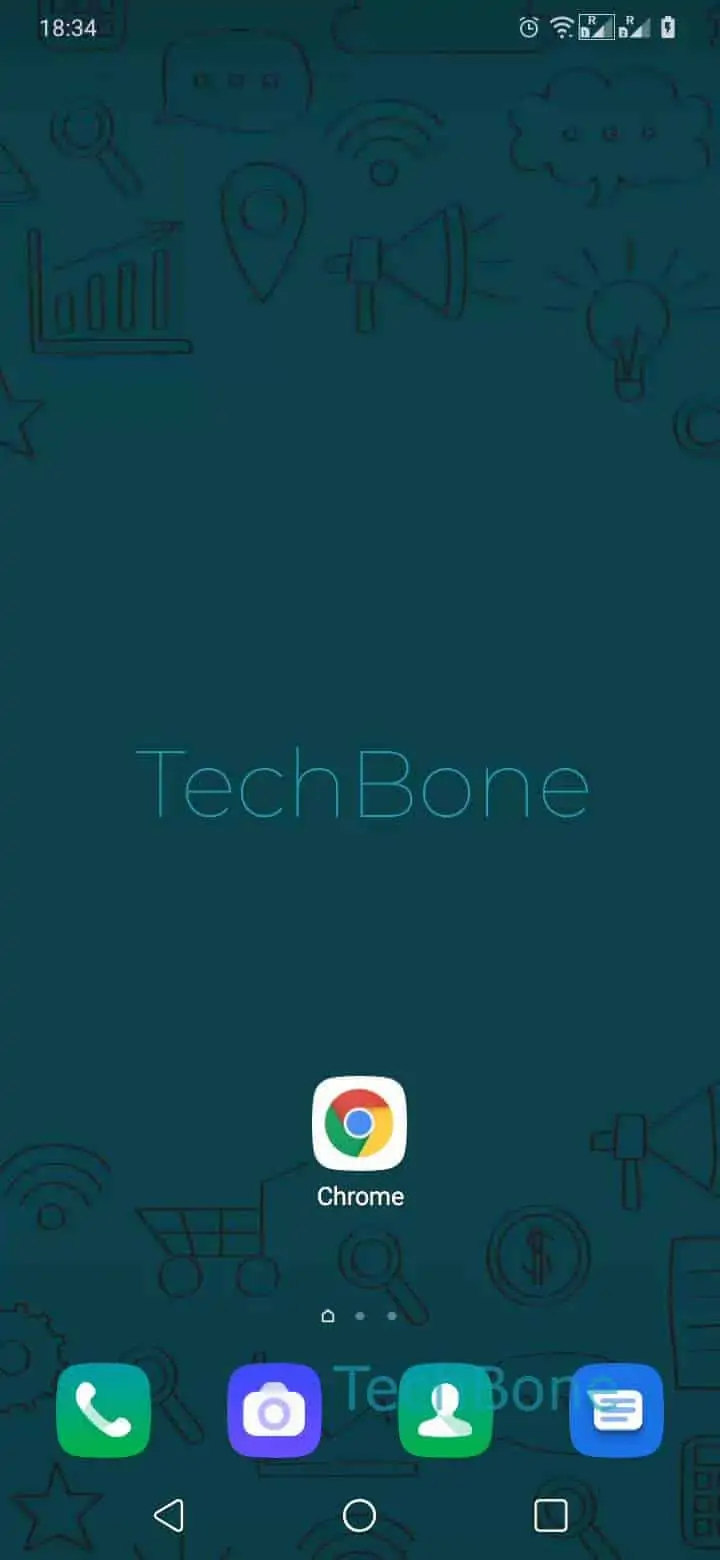
The shortcut is created through Chrome's own sharing function, not through the OnePlus launcher settings. Open the page you want to pin, then go to Open the Chrome app ➔ Open the menu ➔ Tap on Add to Home screen. Chrome suggests a name based on the page title, which you can shorten or rewrite before confirming with Edit the name if desired and tap Add.
The new icon behaves like any app icon afterward: Tap and hold the icon to place it manually or tap on Add automatically lets you choose the exact spot or drop it onto the next free space automatically. Tapping the icon later opens Chrome directly on that page, without loading the browser's start screen first.
Because the shortcut relies on Chrome, it disappears from the home screen if the app is uninstalled or its data is cleared. Removing the icon later works the same way as removing any app shortcut, without deleting the underlying bookmark from Chrome.