Skip to content
TechBone
OnePlus

OnePlus: Exclude Apps from Data Saver Restrictions

When Data Saver is active on your OnePlus phone, background data gets blocked for most apps. WhatsApp and other messengers can then miss incoming messages until you open them manually. Adding an app to the unrestricted data list keeps it connected even while data saving stays on.

5 min6 steps
VersionAndroid 10 · Oxygenos 10

Step by step

1 / 6

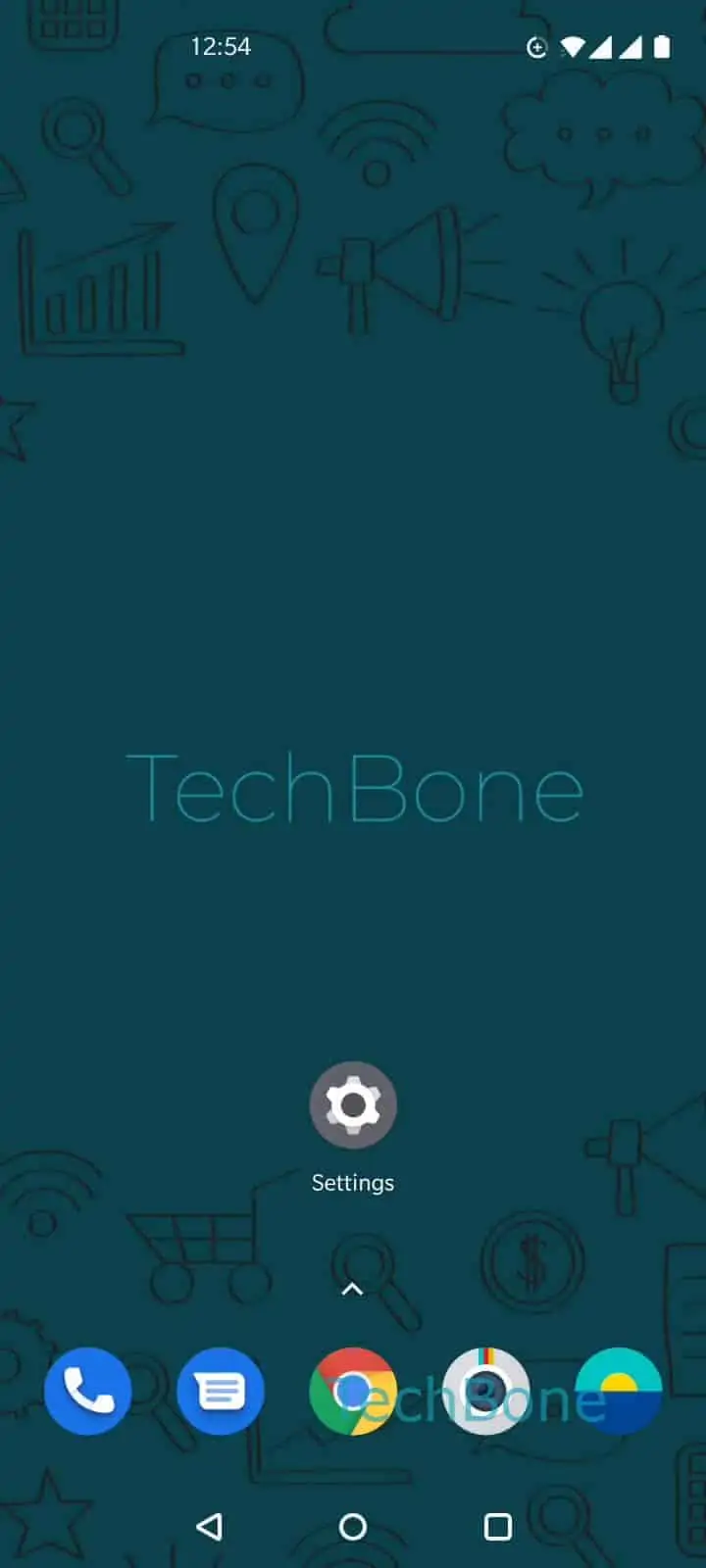
Step 1 of 6: Open the **Settings**

1

Open the Settings

Live simulator

Android 10 · Oxygenos 10
Add App to Data Saver Exception List – Oxygenos 10: step 1 – Open the Settings
Open the Settings
1 / 6

Scroll or use the buttons for the next step

Feedback

Was the guide correct?

Help others: confirm the path or report a problem.

96

Confirmations

Forum verified this path

OnePlus

Add App to Data Saver Exception List auf OnePlus

Data Saver on OnePlus phones limits background data for every app that is not explicitly marked as unrestricted. This affects messenger apps like WhatsApp the most, since they rely on a constant background connection to fetch new messages instantly.

When Data Saver blocks that connection, notifications only arrive once you open the app manually, which feels like delayed or missing messages.

To fix this, add the affected app to the unrestricted data list. Open Open the SettingsTap on Wi-Fi & networkTap on SIM & networkTap on Data SaverTap on Unrestricted dataSet the desired apps to unrestricted data usage.

Only enable this for apps that genuinely need background data, since every exception increases mobile data usage on your plan. Turning off Data Saver entirely removes the restriction for every app, but it also removes the battery and data savings the feature provides.

Frequently asked questions

No. Data Saver stays active for all other apps. Only the apps you set to unrestricted in Tap on Unrestricted data keep full background access.

Compatible devices

Tap your device — opens its hub with matching guides.