
Skip to content
TechBone
OnePlus

OnePlus: Add a WiFi Network Manually

If your OnePlus phone does not show a WiFi network in the scan list, the router is usually broadcasting a hidden or non-visible SSID. Without the network name in the list, you cannot tap it and connect the usual way. Adding the network manually lets you connect once you have the exact SSID and password from the router.

4 min5 steps
VersionAndroid 10 · Oxygenos 10

Step by step

1 / 5

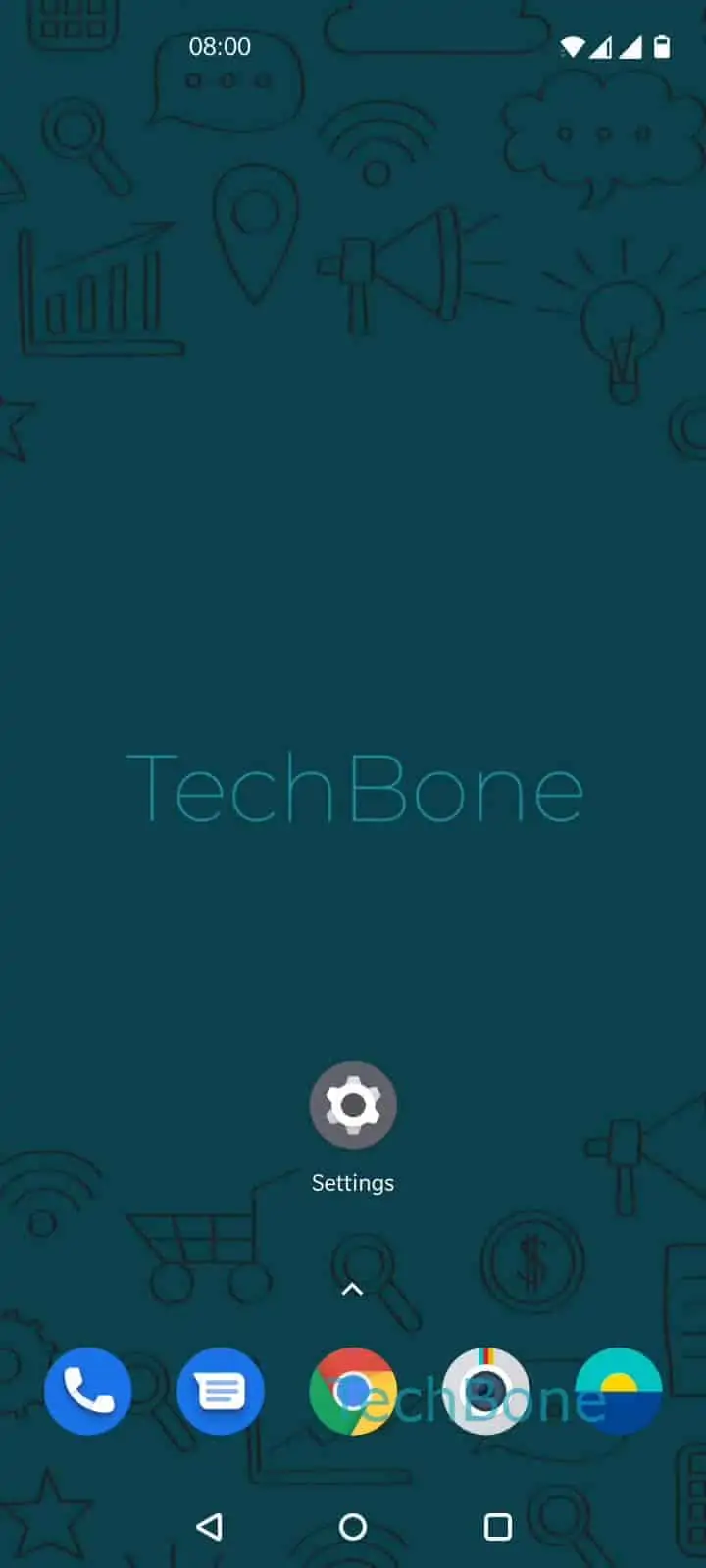
Step 1 of 5: Open the **Settings**

1

Open the Settings

Live simulator

Android 10 · Oxygenos 10
Add WiFi Network Manually – Oxygenos 10: step 1 – Open the Settings
Open the Settings
1 / 5

Scroll or use the buttons for the next step

Feedback

Was the guide correct?

Help others: confirm the path or report a problem.

56

Confirmations

Forum verified this path

OnePlus

Add WiFi Network Manually auf OnePlus

A missing WiFi network on a OnePlus phone almost always means the router is not broadcasting its SSID openly, or the network is out of the normal scan range at that moment. In both cases the network simply never appears in the list under WiFi, so tapping it to connect is not possible.

Adding the network manually solves this by letting you type the SSID yourself instead of relying on the automatic scan. You still need two pieces of information: the exact network name (case-sensitive) and the WiFi password, plus the correct security type if the router uses something other than the default WPA/WPA2 setting.

To add it, open Open the SettingsTap on Wi-Fi & networkTap on Wi-FiTap on Add networkEnter the appropriate data and tap Save.

This method only works if the router itself allows manual connections and the SSID is typed exactly as configured, including capitalization and spaces. If the network still fails to connect after entering the correct data, the issue is more likely a router-side problem, such as MAC filtering or a full device limit, rather than something fixable from the phone.

Frequently asked questions

Double-check that the SSID matches the router exactly, including uppercase and lowercase letters. If the password and name are correct, the router may be blocking new devices through MAC filtering or a full connection limit, which is not something you can fix from the Wi-Fi settings on the phone.

Compatible devices

Tap your device — opens its hub with matching guides.