Skip to content
TechBone
OnePlus

OnePlus: Enable or Disable Background Data for an App

If an app keeps draining your mobile data even when you are not actively using it, background data usage is likely still switched on for that app. On OnePlus phones this permission runs separately for every installed app, so a messenger might need it while a rarely used game does not. Turning it off selectively can noticeably cut your monthly data consumption.

5 min6 steps
VersionAndroid 10 · Oxygenos 10

Step by step

1 / 6

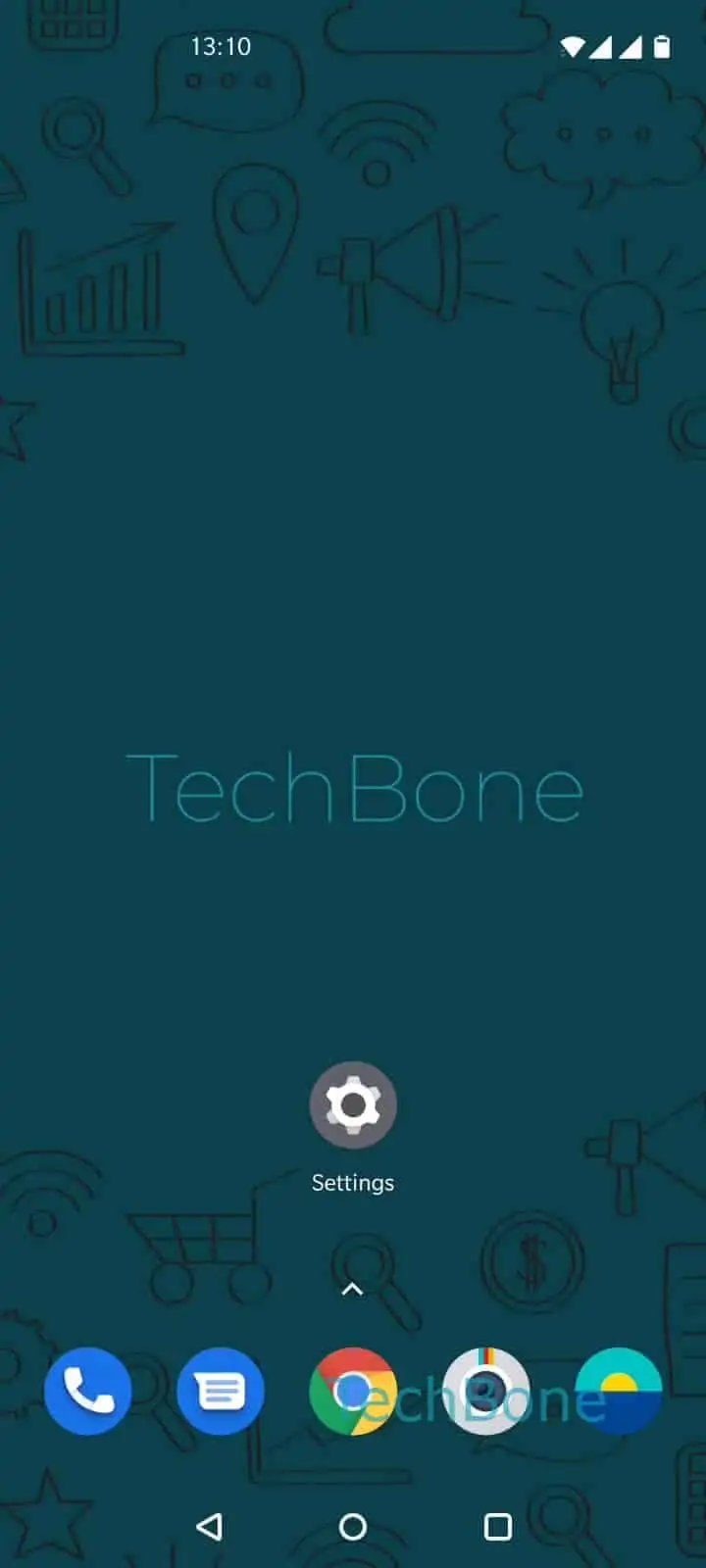
Step 1 of 6: Open the **Settings**

1

Open the Settings

Live simulator

Android 10 · Oxygenos 10
Enable or Disable Background Data for Apps – Oxygenos 10: step 1 – Open the Settings
Open the Settings
1 / 6

Scroll or use the buttons for the next step

Feedback

Was the guide correct?

Help others: confirm the path or report a problem.

31

Confirmations

Forum verified this path

OnePlus

Enable or Disable Background Data for Apps auf OnePlus

Background data lets an app stay active without being open. It can sync mail, refresh feeds, or check for messages while running in Oxygen OS in the background, and all of that traffic counts against your mobile data plan unless you are on Wi-Fi.

On a OnePlus phone this setting exists per app, so you can leave it on for apps that need instant updates and turn it off for everything else. The relevant switch sits under an app own network settings, not in a general data-saver menu.

Where to find the setting

Open the SettingsApps & notificationsSee all apps ➔ choose the app you want to change ➔ Mobile data & Wi-Fi ➔ enable or disable Background data.

Disabling background data does not close the app or delete your data. It only stops that specific app from using mobile data while it is not on screen; it can still update normally over Wi-Fi.

For messenger apps such as WhatsApp, leaving background data enabled is usually the better choice, otherwise new messages and calls may only arrive once you open the app manually. For apps you rarely use or that do not need instant updates, disabling it is a safe way to reduce data usage without losing functionality when you actually open them.

Frequently asked questions

Not automatically. Some apps rely on push notifications delivered through Google Play services, which work independently of an app own background data. Others only fetch new content when opened, so notifications may arrive later if you disable Background data for that app.

Compatible devices

Tap your device — opens its hub with matching guides.