Skip to content
TechBone
OnePlus

OnePlus: Block Ads in the Browser App

Ads and banners popping up mid-scroll on your OnePlus browser usually mean the built-in ad filter is switched off or set too loose. Chrome ships with a basic blocker for intrusive ad formats, but it only works once the right toggle is active. Without it, pages load slower and get cluttered with pop-ups.

5 min6 steps
VersionAndroid 10 · Oxygenos 10

Step by step

1 / 6

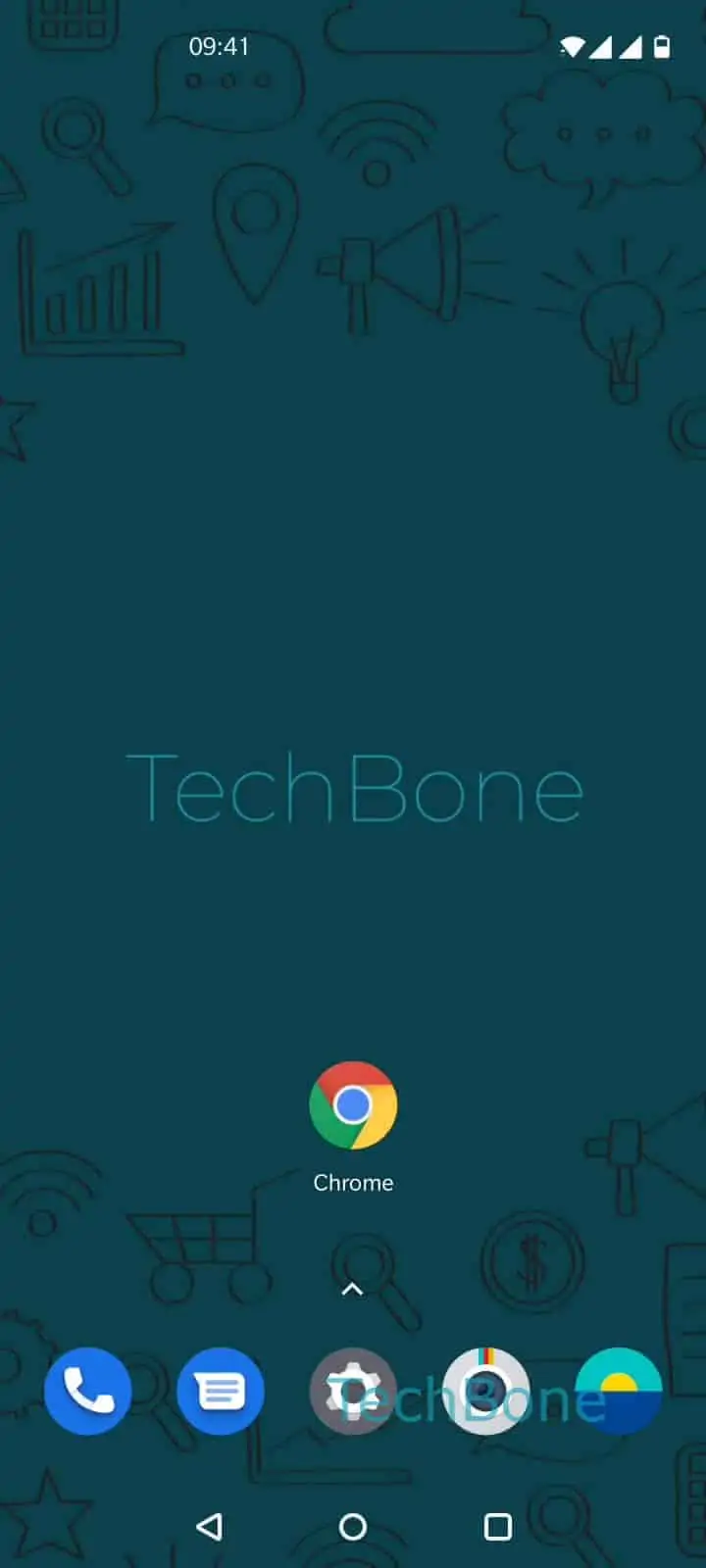
Step 1 of 6: Open the **Chrome app**

1

Open the Chrome app

Live simulator

Android 10 · Oxygenos 10
Block Ads in Chrome Browser – Oxygenos 10: step 1 – Open the Chrome app
Open the Chrome app
1 / 6

Scroll or use the buttons for the next step

Feedback

Was the guide correct?

Help others: confirm the path or report a problem.

39

Confirmations

Forum verified this path

OnePlus

Block Ads in Chrome Browser auf OnePlus

Ads and banners on websites are controlled by Chrome's own filter for intrusive ad formats, not by a separate app on your OnePlus phone. When this filter is turned off or set to allow ads, every site you open can show pop-ups, auto-playing banners, and overlay ads without restriction.

You manage this setting through the Chrome app itself. Open Open the Chrome appOpen the menuOpen the SettingsTap on Site settingsTap on AdsEnable or disable Ads. Setting it to blocked applies to all sites you visit afterward, not just the current tab.

This filter only removes ad formats that Chrome flags as disruptive, such as full-screen pop-ups or auto-redirects. It does not strip out every banner or in-content ad on a page, so some sites will still show static ads.

If you need stronger blocking, a dedicated content blocker extension or a different browser with built-in ad blocking is a better fit. Keep in mind that blocking ads can break sites that rely on ad revenue to display content correctly, sometimes hiding paywalled articles or video players.

Frequently asked questions

The Chrome filter only removes formats it classifies as intrusive, like auto-playing pop-ups or full-screen interstitials. Static banners and in-content ads inside a page's layout are not affected, so check Open the Chrome appOpen the menuOpen the SettingsTap on Site settingsTap on Ads to confirm the setting is on.

Compatible devices

Tap your device — opens its hub with matching guides.