Skip to content
TechBone
OnePlus

OnePlus: Switch Between Calendar Views

By default, the Calendar app on OnePlus phones opens with a combined overview of every added account, which makes it hard to see a full month at a glance. If you only need a quick daily rundown or a compact weekly plan instead, the current view setting is working against you. This applies to all accounts synced into the app, not just one calendar.

3 min3 steps
VersionAndroid 10 · Oxygenos 10

Step by step

1 / 3

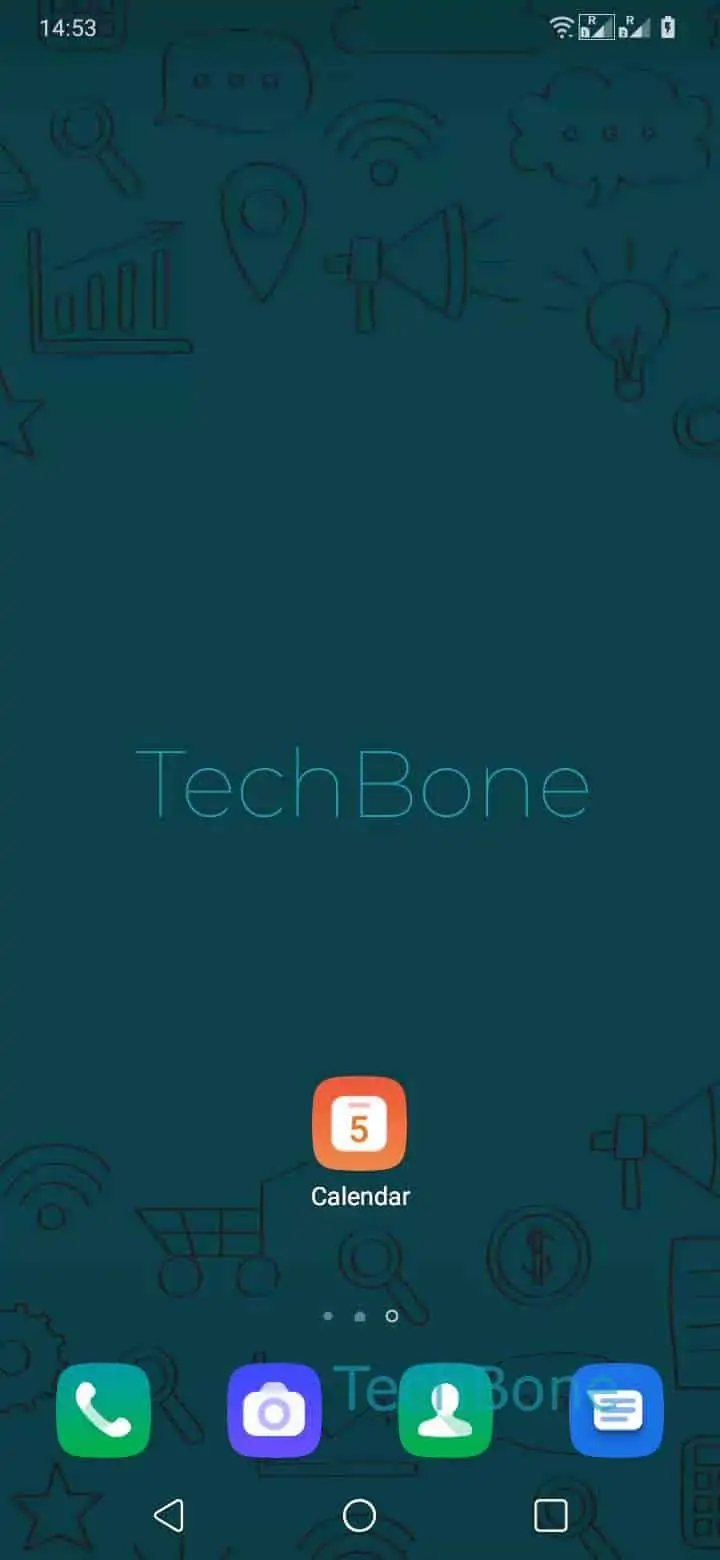
Step 1 of 3: Open the **Calendar app**

1

Open the Calendar app

Live simulator

Android 10 · Oxygenos 10
Change Calendar View – Oxygenos 10: step 1 – Open the Calendar app
Open the Calendar app
1 / 3

Scroll or use the buttons for the next step

Feedback

Was the guide correct?

Help others: confirm the path or report a problem.

67

Confirmations

Forum verified this path

OnePlus

Change Calendar View auf OnePlus

The OnePlus Calendar app merges every synced account - Google, Exchange, local calendars - into one combined display. On first launch, this usually lands on a mixed overview that is not tied to a single view mode, which is why a full month or a clean day-by-day list does not show up automatically.

The view setting controls how entries from all accounts get arranged on screen. Schedule lists upcoming events in a running feed, Day and 3 days focus on short-term planning, Week compresses appointments into a grid, and Month gives you the full calendar layout with dots marking busy days.

To switch, open Open the Calendar appOpen the menuChoose Schedule, Day, 3 days, Week orMonth. The app remembers the last selected view the next time you open it, until you change it again or reinstall the app.

If entries still look incomplete after switching views, the issue is usually account sync, not the view mode itself. Check that all relevant calendars are still toggled on inside your account settings before assuming the view is broken.

Frequently asked questions

No. Adding a new account only adds its events into the current view. The view mode set under Open the menuChoose Schedule, Day, 3 days, Week orMonth stays as is.

Compatible devices

Tap your device — opens its hub with matching guides.