
OnePlus
Change Calendar View auf OnePlus
The OnePlus Calendar app merges every synced account - Google, Exchange, local calendars - into one combined display. On first launch, this usually lands on a mixed overview that is not tied to a single view mode, which is why a full month or a clean day-by-day list does not show up automatically.
The view setting controls how entries from all accounts get arranged on screen. Schedule lists upcoming events in a running feed, Day and 3 days focus on short-term planning, Week compresses appointments into a grid, and Month gives you the full calendar layout with dots marking busy days.
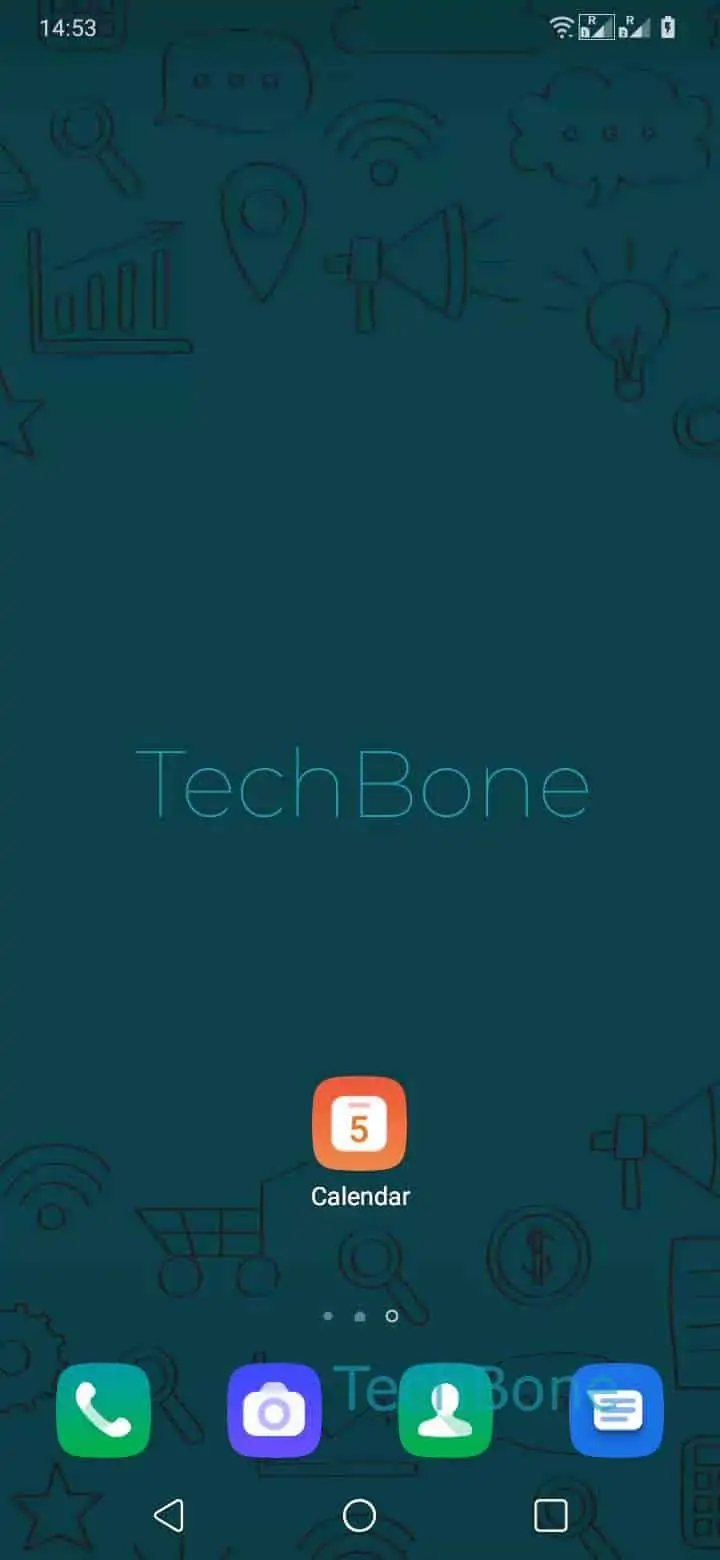
To switch, open Open the Calendar app ➔ Open the menu ➔ Choose Schedule, Day, 3 days, Week orMonth. The app remembers the last selected view the next time you open it, until you change it again or reinstall the app.
If entries still look incomplete after switching views, the issue is usually account sync, not the view mode itself. Check that all relevant calendars are still toggled on inside your account settings before assuming the view is broken.