Skip to content
TechBone
OnePlus

OnePlus: Show Calendar Week Numbers in the Calendar App

When you book a meeting or deadline, you often need the calendar week number, and the OnePlus Calendar app does not show it by default. That forces you to count weeks manually every time you check a date. The Show week number setting controls whether week numbers appear next to the days in your calendar view.

4 min5 steps
VersionAndroid 10 · Oxygenos 10

Step by step

1 / 5

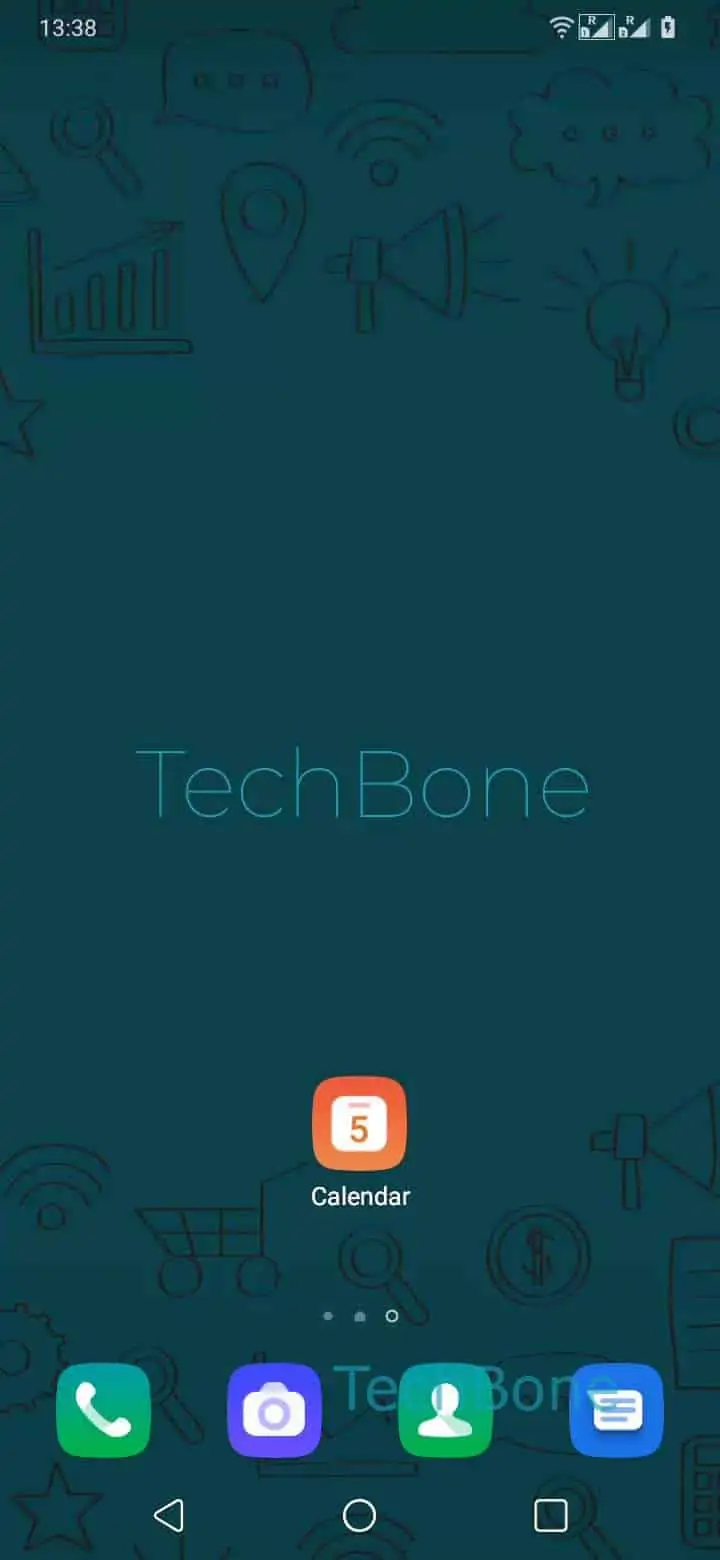
Step 1 of 5: Open the **Calendar app**

1

Open the Calendar app

Live simulator

Android 10 · Oxygenos 10
Show or Hide Calendar Week Number – Oxygenos 10: step 1 – Open the Calendar app
Open the Calendar app
1 / 5

Scroll or use the buttons for the next step

Feedback

Was the guide correct?

Help others: confirm the path or report a problem.

80

Confirmations

Forum verified this path

OnePlus

Show or Hide Calendar Week Number auf OnePlus

The OnePlus Calendar app hides week numbers by default, and this is a setting inside the app itself, not a system-wide Android option.

Because the option lives in the app's own preferences, changing it only affects the built-in Calendar app. If you rely on Google Calendar or another calendar app instead, you need to look for a similar setting there.

To switch week numbers on or off, go to Open the Calendar appOpen the menuOpen the SettingsTap on GeneralEnable or disable Show week number.

Once enabled, a small number appears next to every week row in month view, matching the standard ISO week count most work calendars use for planning. This makes it easier to reference a specific week during scheduling without doing the math yourself.

Turning the option off removes the numbers again and gives the date grid slightly more room, which can look cleaner if you never reference week numbers.

Frequently asked questions

No. The Show week number option only affects the built-in OnePlus Calendar app. Google Calendar has its own separate setting for week numbers, found in that app's preferences.

Compatible devices

Tap your device — opens its hub with matching guides.