Skip to content
TechBone
OnePlus

OnePlus: Group Apps into Folders on the Home Screen

When your OnePlus home screen fills up with icons, finding the right app takes longer every time. OxygenOS does not sort apps into categories automatically, so scattered icons for messaging, games, or tools quickly turn into visual clutter. Grouping related apps into a named folder keeps the layout manageable without deleting anything.

3 min3 steps
VersionAndroid 10 · Oxygenos 10

Step by step

1 / 3

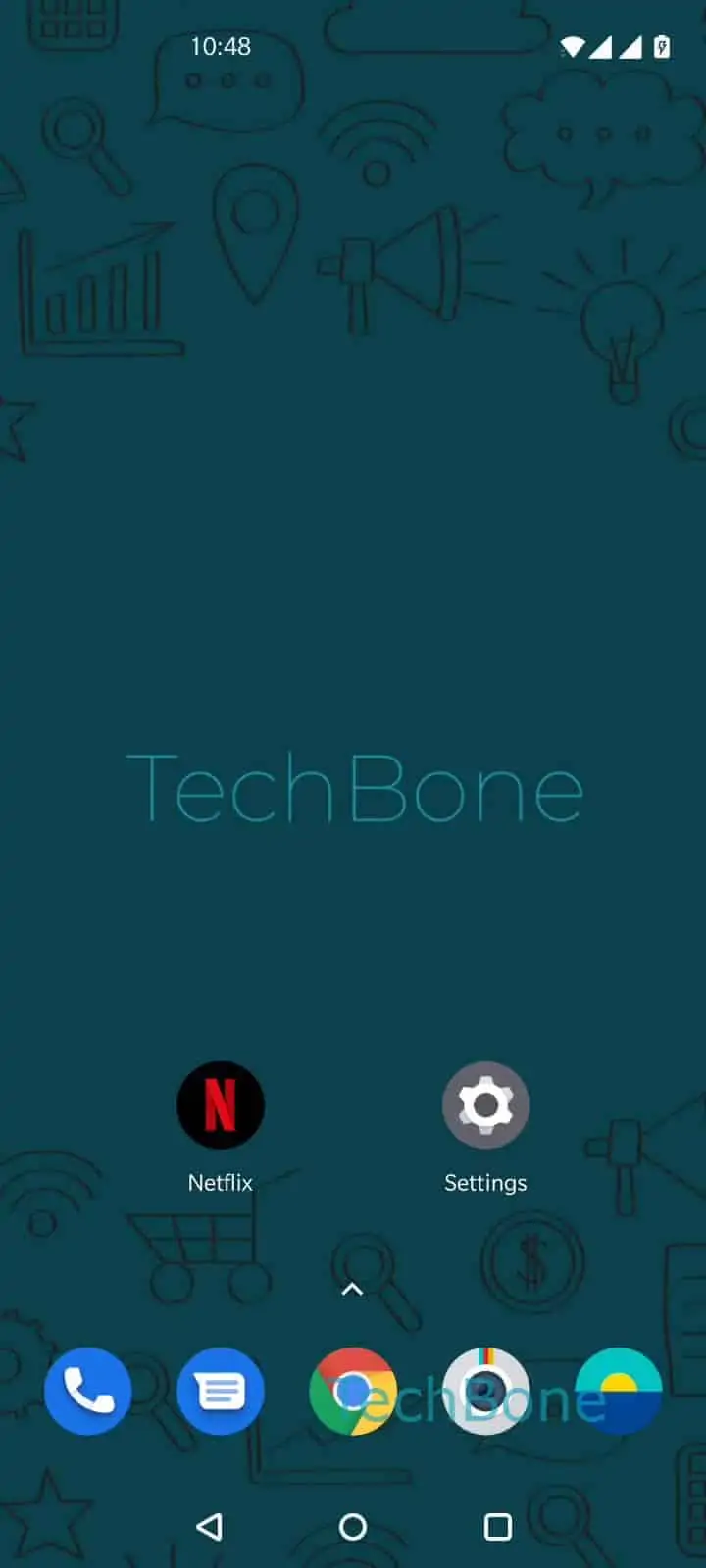
Step 1 of 3: Tap and hold an **app**

1

Tap and hold an app

Live simulator

Android 10 · Oxygenos 10
Create a Folder on the Home Screen – Oxygenos 10: step 1 – Tap and hold an app
Tap and hold an app
1 / 3

Scroll or use the buttons for the next step

Feedback

Was the guide correct?

Help others: confirm the path or report a problem.

62

Confirmations

Forum verified this path

OnePlus

Create a Folder on the Home Screen auf OnePlus

A crowded home screen makes it hard to locate apps quickly, especially once you have installed more than a screen's worth of icons. OxygenOS does not group apps by category automatically, so folders are the only built-in way to keep related apps together without hiding them in the app drawer.

To create a folder, Tap and hold an appDrag the app onto anotherRelease the app to create a folder. The two apps merge into a single folder icon that you can tap to expand and rename.

This works with any two app icons on the home screen, regardless of whether they are shortcuts or full apps. You can add more apps to an existing folder the same way, by dragging additional icons onto it.

Folders only reorganize the home screen; they do not move apps out of the app drawer or change their installation location. If you only want fewer icons visible without reorganizing, hiding apps from the home screen or using the app drawer directly is usually the quicker option.

Frequently asked questions

There's no fixed limit; you can keep adding icons to a folder by dragging more apps onto it.

Compatible devices

Tap your device — opens its hub with matching guides.