Skip to content
TechBone
OnePlus

OnePlus: Customize What Displays on the Screen Saver

If your OnePlus screen saver only shows the default clock and you want your own photos or a color display instead, the option is hidden inside a separate content menu. Depending on whether you pick Clock, Colors or Photos, extra settings like Analog or Digital style, or Night mode, only show up once you have chosen the right content type first.

7 min9 steps
VersionAndroid 10 · Oxygenos 10

Step by step

1 / 9

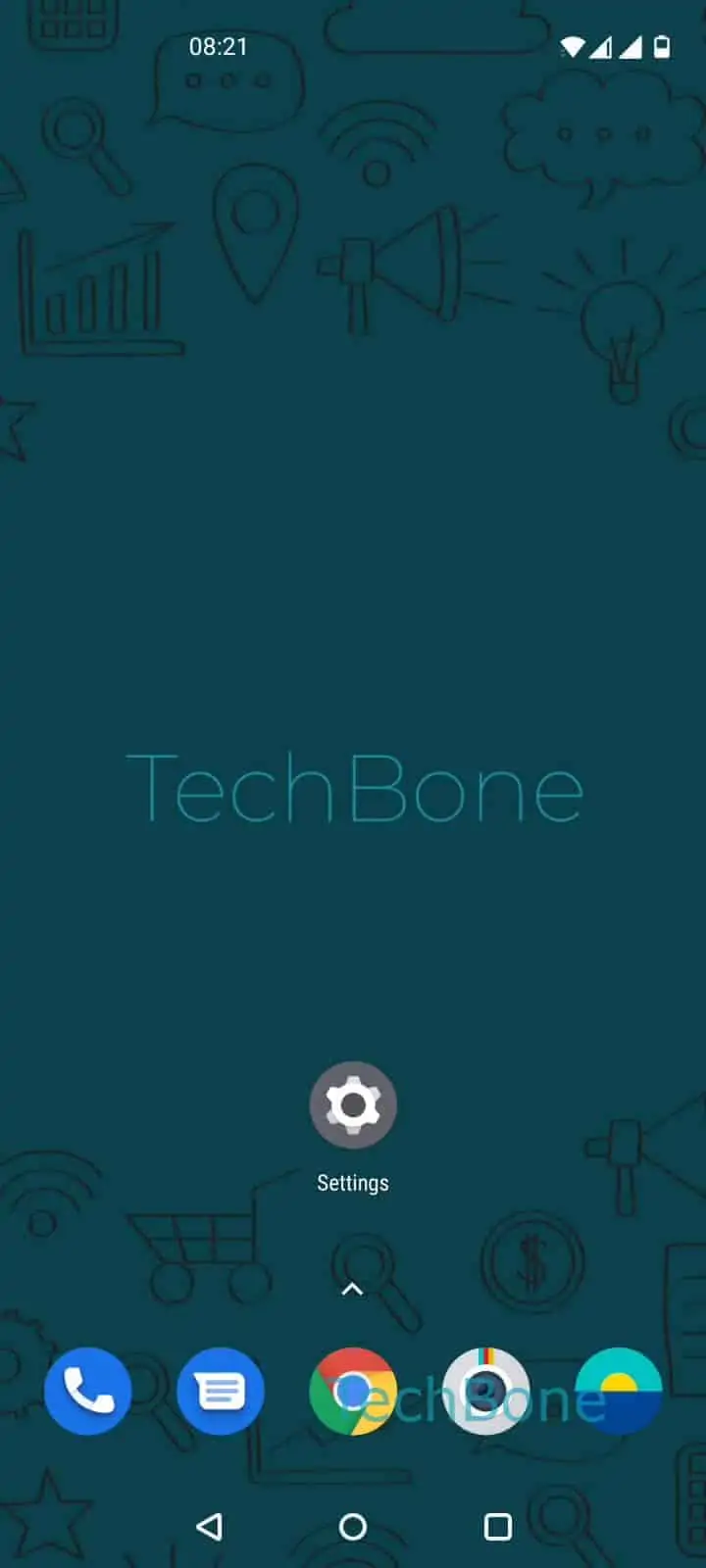
Step 1 of 9: Open the **Settings**

1

Open the Settings

Live simulator

Android 10 · Oxygenos 10
Screen Saver Content Settings – Oxygenos 10: step 1 – Open the Settings
Open the Settings
1 / 9

Scroll or use the buttons for the next step

Feedback

Was the guide correct?

Help others: confirm the path or report a problem.

15

Confirmations

Forum verified this path

OnePlus

Screen Saver Content Settings auf OnePlus

The OnePlus screen saver defaults to a digital clock, and many owners never notice the Colors or Photos options because they sit behind a separate content picker.

Open SettingsDisplayScreen saverCurrent screen saver to reach that picker. Choosing Clock, Colors or Photos here decides what the screen saver actually shows.

Selecting Clock unlocks a second settings screen. Tap Settings again, then Style to switch between Analog and Digital, and toggle Night mode to dim the display automatically after dark.

Photos and Colors skip the style step since they have no analog or digital variant. If the screen saver still shows the old content after a change, reopen Current screen saver to confirm the new selection actually saved.

Frequently asked questions

The Style option with Analog and Digital only appears when Clock is selected as the screen saver content under Current screen saver. Photos and Colors do not have a style choice.

Compatible devices

Tap your device — opens its hub with matching guides.