
OnePlus
Enable or Disable Desktop Site in Chrome auf OnePlus
Chrome on OnePlus phones renders web pages in a mobile-optimized layout by default. This view strips down navigation bars, resizes tables, and hides elements that were built for a full screen, which speeds up loading and cuts data use.
Some websites rely on features that only appear in the full layout, such as advanced editing tools, complete menus, or admin dashboards. When one of those is missing, switching the page to its desktop version fixes it without changing any other browser setting.
Where to switch it
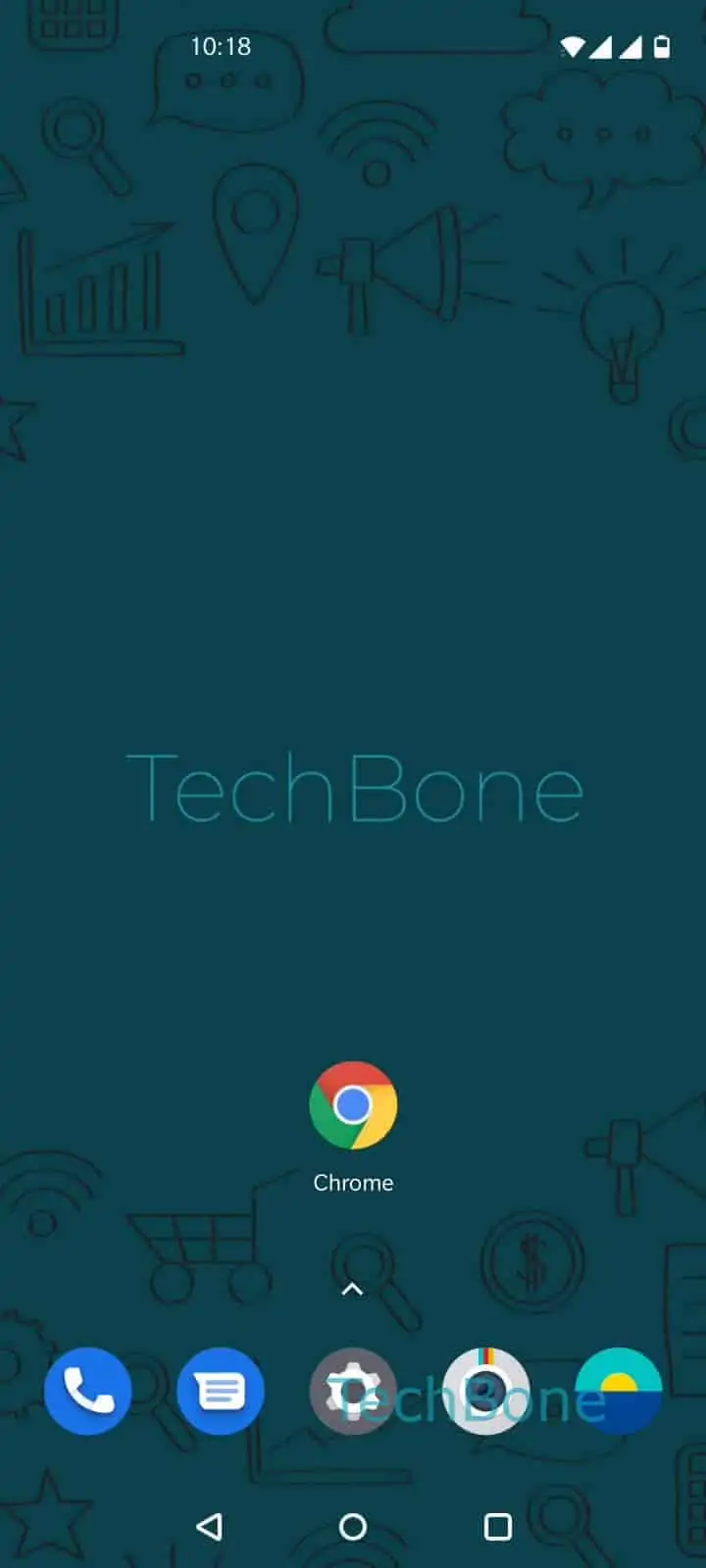
Open the page you want to change, then go to Open the Chrome app ➔ Open the menu ➔ Enable or disable Desktop site. Toggling it on reloads the current tab in the full desktop layout; toggling it off returns to the mobile view.
This setting applies per tab and per site. Opening a new tab or visiting a different domain resets it to the mobile default, so you may need to repeat the toggle on other pages.
If a site still looks broken after switching, the mobile layout was likely not the issue. Check for outdated cached data or a slow connection before adjusting the desktop setting again.