
OnePlus
Disable TalkBack auf OnePlus
TalkBack is the screen reader built into Android accessibility services, and once it runs on a OnePlus phone it takes over the touch layer completely.
A single tap only selects an item and reads it aloud, a double-tap is required to actually open it, and swiping left or right moves focus between elements instead of scrolling the screen. This is exactly why reaching the toggle to switch TalkBack off needs a different tapping pattern than usual.
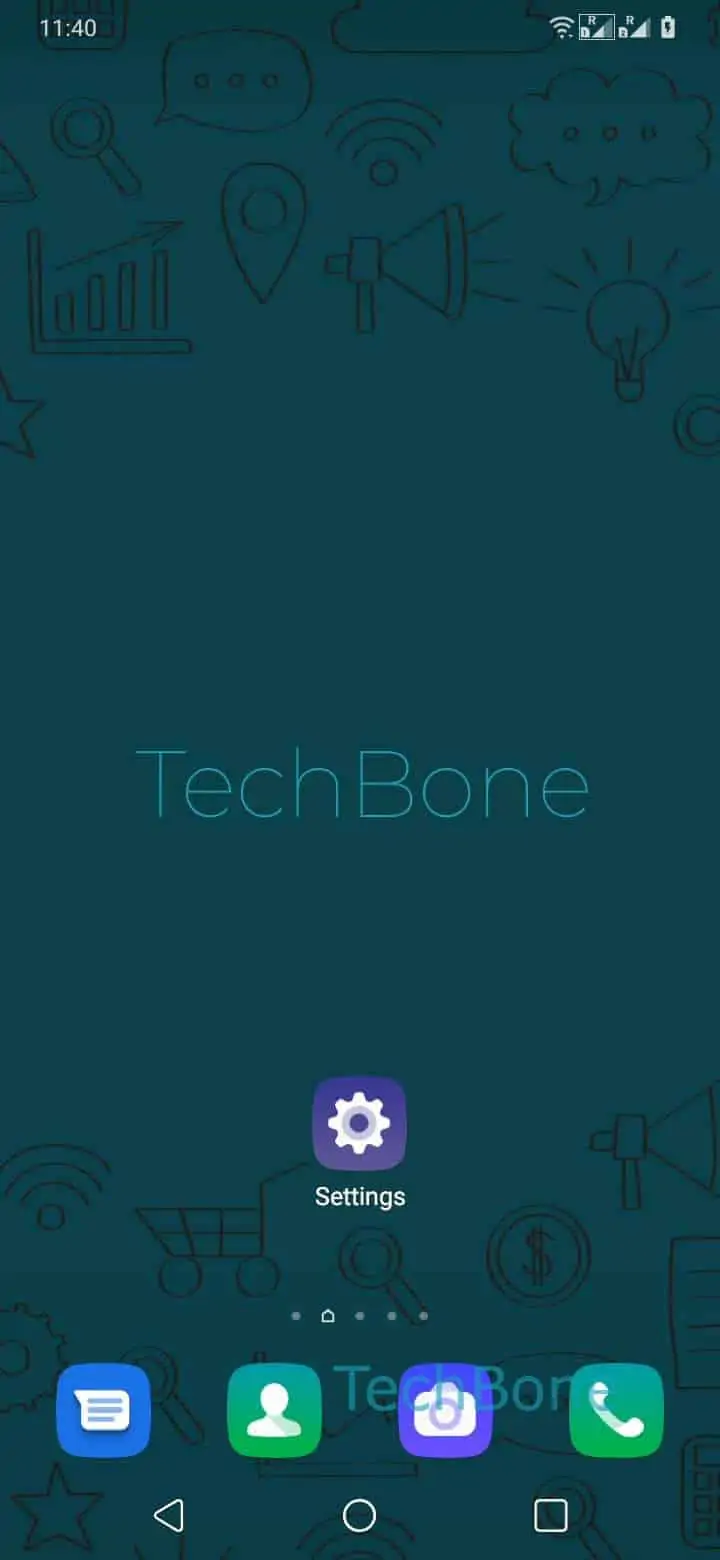
To turn TalkBack off, tap on Settings, then tap twice to open it, and swipe with two fingers to scroll down. Tap on System, then tap twice, tap on Accessibility, then tap twice, tap on TalkBack, then tap twice. Tap on Use service, then tap twice, tap on Stop, then tap twice to confirm and disable TalkBack.
If double-tapping does not register, the phone may be stuck in a state where a single tap already triggers actions. In that case, try the volume-key shortcut for TalkBack if one is set up, or ask someone to guide you verbally through the confirmation dialog.
Once TalkBack is off, taps and swipes return to normal behavior immediately, without a restart.