
OnePlus
Adjust Display Scaling for Icons and Elements auf OnePlus
Display scaling on OnePlus phones controls the size of icons, buttons, and spacing on screen, separately from the font size setting. This is why increasing text size alone does not fix cramped-looking icons or oversized app grids.
OxygenOS offers five scaling levels: Small, Default, Large, Larger, and Largest. Lower settings fit more content and icons per screen but shrink every element, including tap targets. Higher settings enlarge icons and spacing, which improves visibility but reduces how much fits on screen at once.
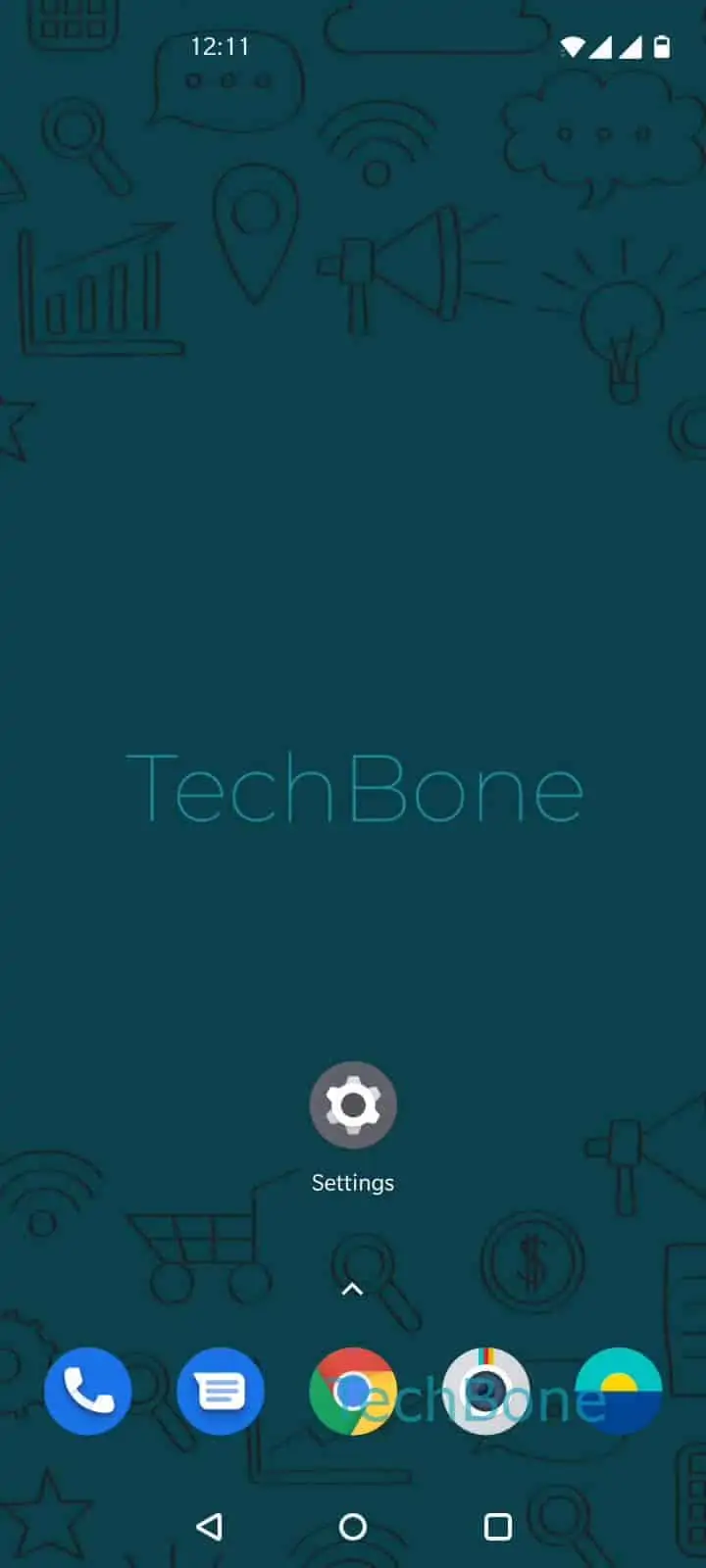
To change it, open Settings ➔ Display ➔ Display Scaling, then swipe the slider left or right to pick a size. The preview updates live so you can check icon spacing before applying it.
Some apps with fixed layouts do not scale cleanly at the largest setting, which can cause text or buttons to overlap. If only the text is hard to read and icons look fine, adjust the font size setting instead of display scaling.