
OnePlus
Manage Game Space Settings auf OnePlus
Game Space is the game launcher built into OnePlus phones running Android with OxygenOS. Any app the system recognizes as a game gets pulled into this library instead of appearing as a separate icon on the home screen. That behavior is intentional, not a broken install, but it explains why a freshly downloaded game seems to vanish.
Beyond organizing games, Game Space carries a settings panel that controls what happens on your phone while a game runs. Depending on the toggles you enable, it can silence notifications, block accidental taps near the screen edges, reject or auto-answer calls, and limit background data for other apps. These settings sit apart from the general system settings, which is why changing notification behavior for a single game does not touch your normal notification rules.
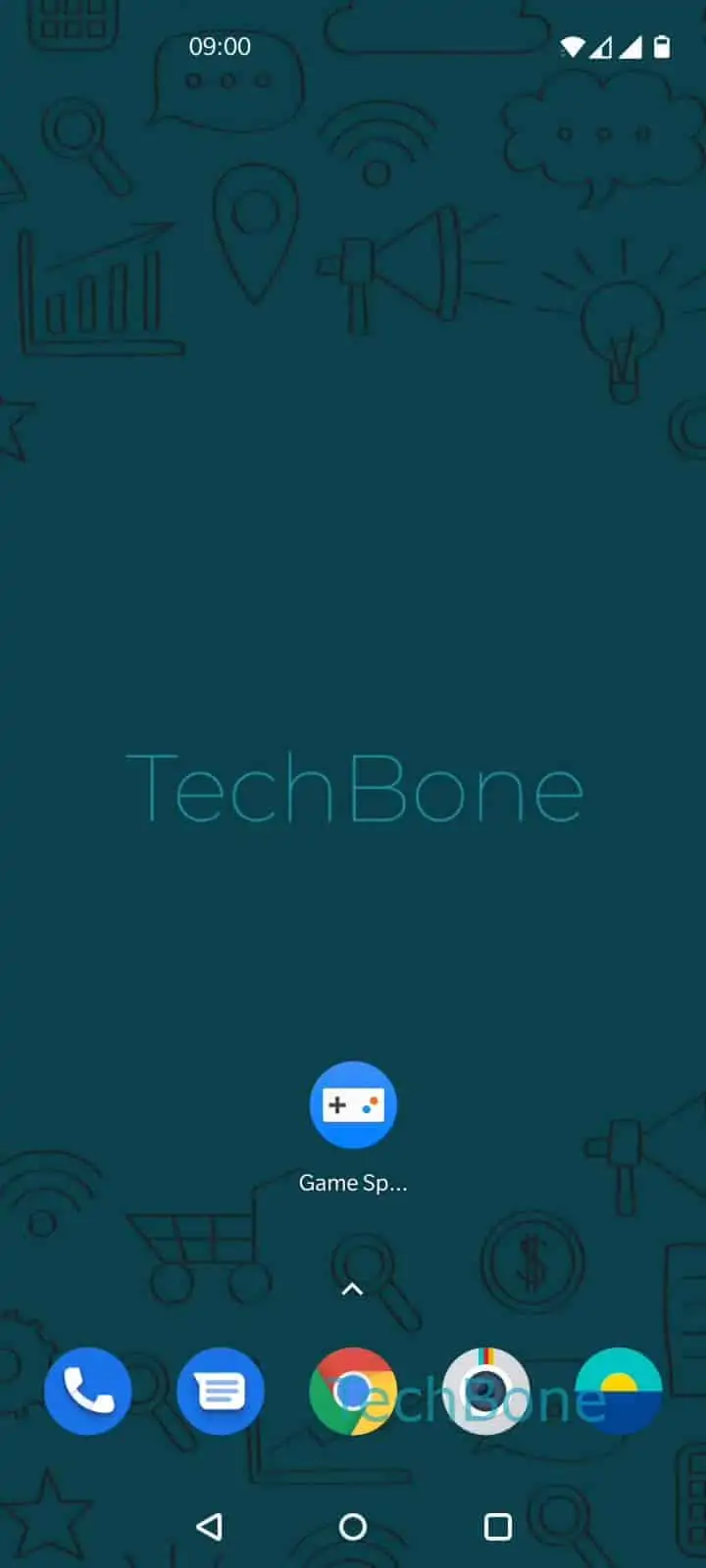
To reach them, open Open Game Space ➔ Open the menu ➔ Open the Settings ➔ Enable or disable the desired feature. Each toggle applies only while Game Space is active, so switching a feature off here will not change how the rest of your phone behaves outside of gaming sessions.
If a game still is not showing up after checking the library, reinstalling it or checking the Play Store download history is a faster fix than digging through Game Space settings.