
Skip to content
TechBone
OnePlus

OnePlus: Switch Between Gesture and Button Navigation

If the Back, Home and Recents bar keeps eating into your screen, or your OnePlus suddenly swipes instead of using buttons after an update, the navigation mode setting is behind it. OnePlus offers both classic button navigation and gesture navigation, and many people only notice the option once they want a cleaner screen or accidentally trigger the wrong mode. Picking the right one changes how you go back, go home and switch apps on every screen.

3 min4 steps
VersionAndroid 10 · Oxygenos 10

Step by step

1 / 4

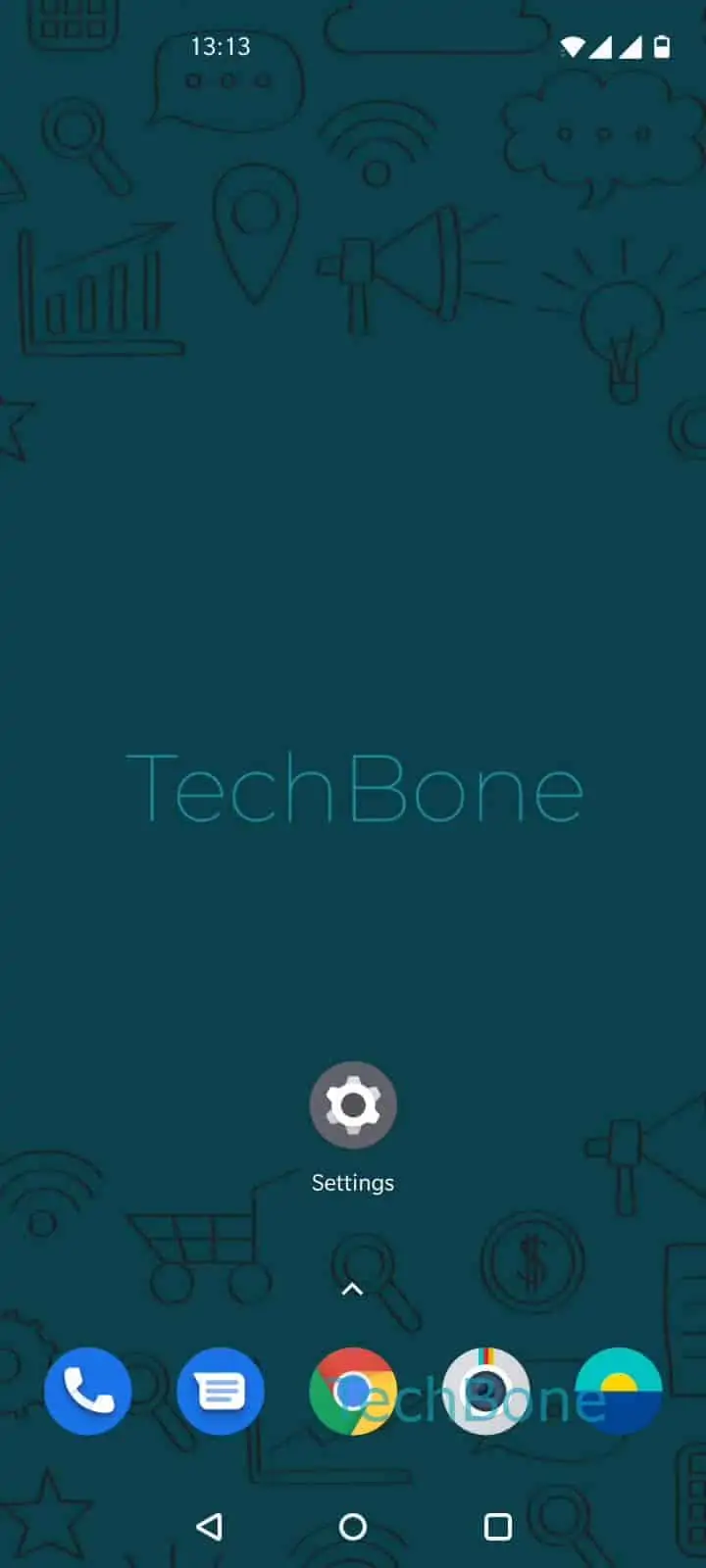
Step 1 of 4: Open the **Settings**

1

Open the Settings

Live simulator

Android 10 · Oxygenos 10
Switch Between Gesture and Button Navigation – Oxygenos 10: step 1 – Open the Settings
Open the Settings
1 / 4

Scroll or use the buttons for the next step

Feedback

Was the guide correct?

Help others: confirm the path or report a problem.

20

Confirmations

Forum verified this path

OnePlus

Switch Between Gesture and Button Navigation auf OnePlus

OnePlus phones support two ways to control navigation: the classic on-screen buttons for Back, Home and Recents, or full-screen gestures with no visible bar at all. The setting sits under the system's gesture and button controls, and switching it changes how every app responds to swipes and taps.

Where the setting lives

Open SettingsButtons & gesturesNavigation bar & gesturesBack, Home, Recents or Navigation gestures. Selecting Navigation gestures hides the bottom bar and frees up display area, since swipes from the edges replace the physical buttons.

Effects of switching

Button navigation is more predictable for people who dislike swipe gestures or use accessibility tools tied to fixed buttons. Gesture navigation gives you more screen real estate for video and games, but it takes a few days to build muscle memory for back-swipes near app edges.

If an app misreads edge swipes as in-app actions, switching back to button navigation is often the faster fix than adjusting individual app settings. Neither mode changes performance or battery life, only how you interact with the screen edges.

Frequently asked questions

Some OnePlus updates reset the navigation mode to the system default. Check SettingsButtons & gesturesNavigation bar & gestures and reselect your preferred mode.

Compatible devices

Tap your device — opens its hub with matching guides.