
OnePlus
Change Home Screen Grid Layout auf OnePlus
The home screen grid on a OnePlus phone controls how many app icons fit in each row and column, and how large those icons appear. OxygenOS offers several fixed layouts, typically ranging from a 4x5 to a 5x6 arrangement, so you can trade icon size for more columns or the reverse.
This setting sits in the home screen management tools built into the launcher, not in a separate app. If icons look tiny with lots of empty space around them, or so large that labels get cut off, the current grid choice is the cause rather than a display or scaling bug.
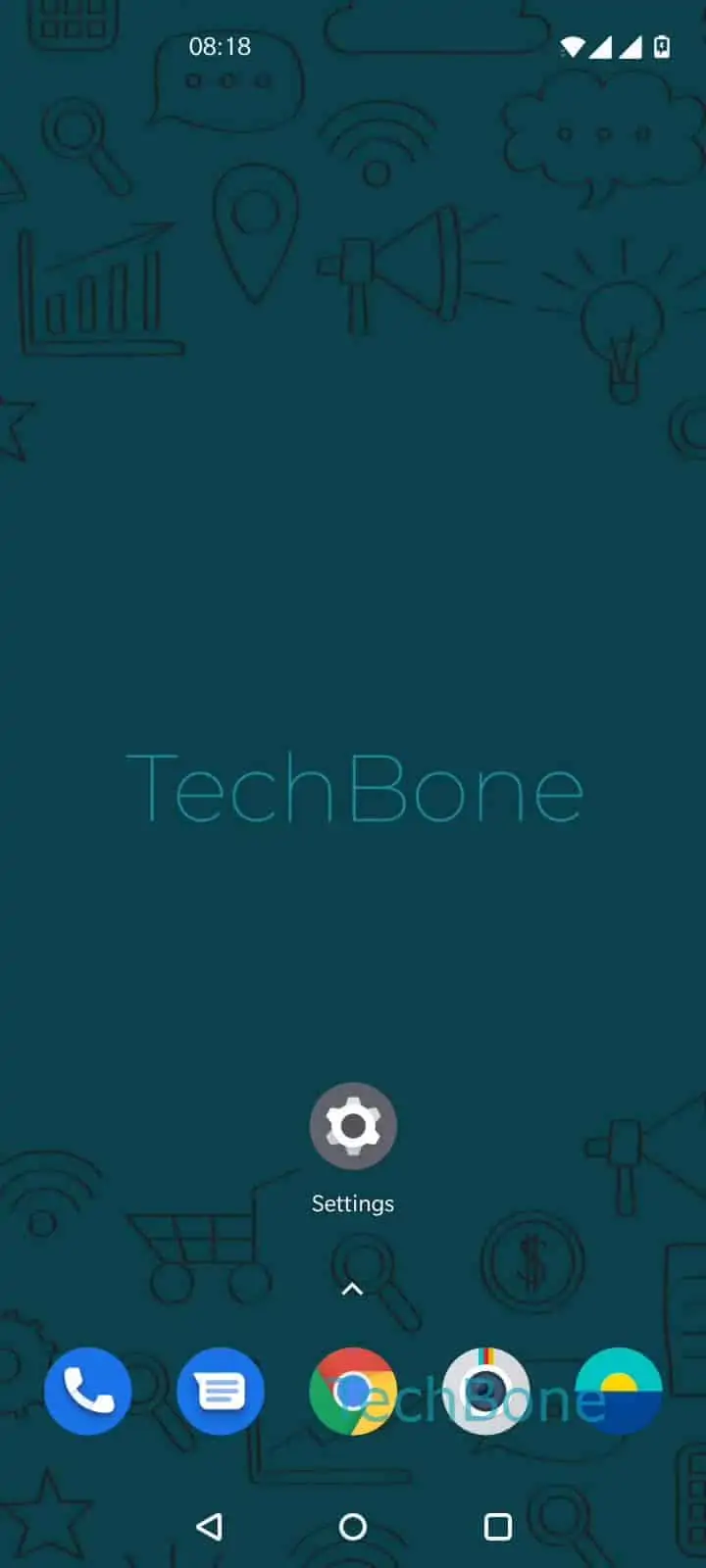
To change it, press and hold a free area on the home screen, then tap Home settings, followed by Home screen layout. Pick the grid you want from the available options and confirm with Save. OxygenOS then asks whether existing icons should stay in their relative position or realign automatically, so choose Cancel to keep manual placement or Align to let the system tidy the grid for you.
Switching grids can shift icons between screens, especially if a denser layout no longer has room for everything on the first page. Widgets are usually unaffected in size but may need to be repositioned if they now overlap icons. If you need per-app icon sizing instead of a uniform grid change, a third-party launcher is a better fit than this built-in setting.