
Skip to content
TechBone
OnePlus

OnePlus: Hide Apps from Home Screen and App Drawer

If an app keeps showing up on your home screen or inside the app drawer even though you never use it, the shortcut is simply set to visible in the launcher settings. This is common for pre-installed apps or tools you only open occasionally and do not want cluttering your layout. The fix works whether or not the App Drawer is switched on, since OxygenOS handles hidden shortcuts separately from the visible grid.

4 min5 steps
VersionAndroid 10 · Oxygenos 10

Step by step

1 / 5

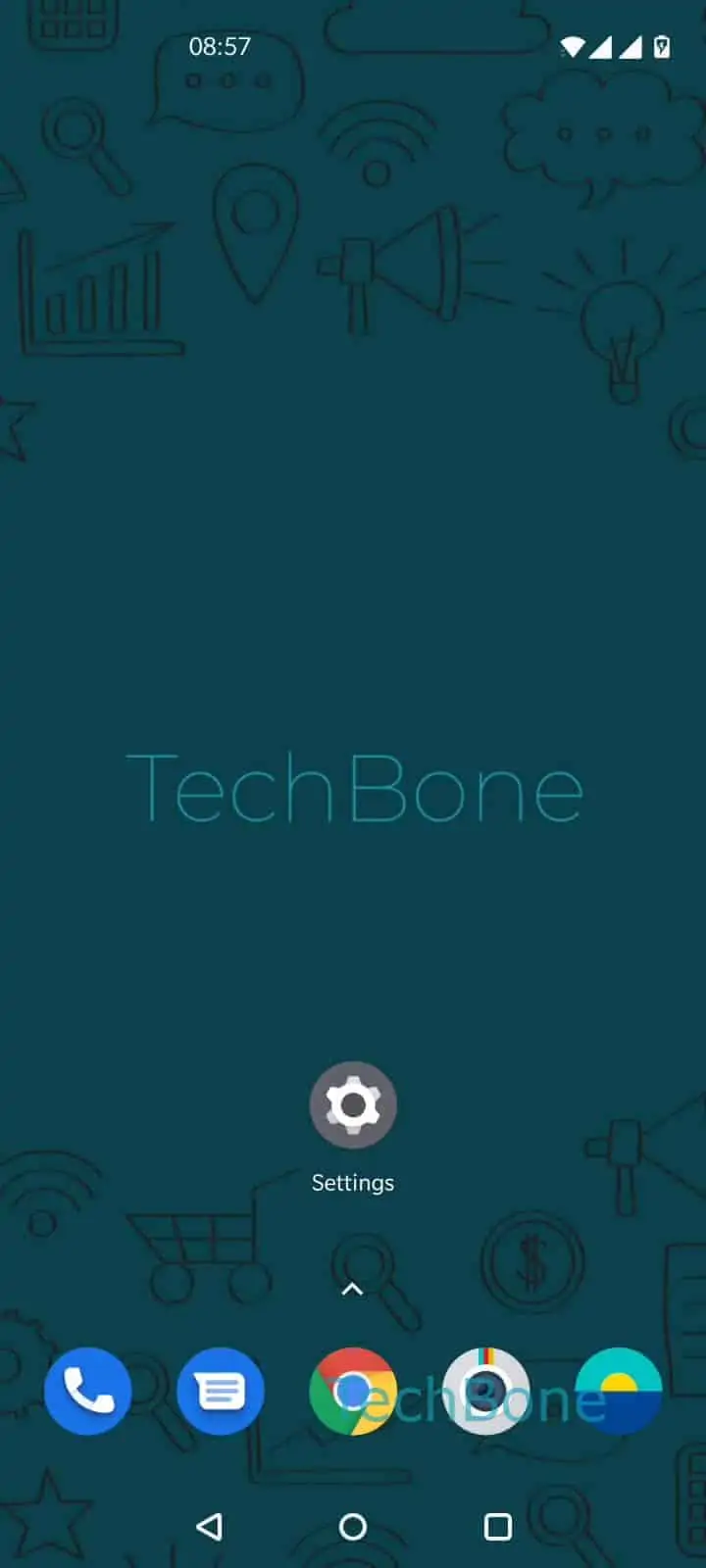
Step 1 of 5: Swipe on a **free area** on home screen

1

Swipe on a free area on home screen

Live simulator

Android 10 · Oxygenos 10
Hide Apps on Home Screen and in App Drawer – Oxygenos 10: step 1 – Swipe on a free area on home screen
Swipe on a free area on home screen
1 / 5

Scroll or use the buttons for the next step

Feedback

Was the guide correct?

Help others: confirm the path or report a problem.

72

Confirmations

Forum verified this path

OnePlus

Hide Apps on Home Screen and in App Drawer auf OnePlus

On OnePlus phones running OxygenOS, every app shortcut has a visibility setting inside the launcher, independent of whether the App Drawer is active. When an app you rarely use still sits on the home screen or inside the drawer, it usually means the shortcut was never moved into the hidden section.

To hide one or more apps, swipe on a free area of the home screen, then continue with the following steps:

Swipe on a free area on home screenSwipe to the rightTap on AddSelect apps to hideTap on Save

Once saved, the selected apps disappear from both the home screen and the app drawer grid, but they stay installed and keep receiving updates and notifications.

If the App Drawer is enabled on your device, you reach the hidden apps by spreading two fingers apart on the home screen, which opens a dedicated hidden space. With the App Drawer disabled, the same hidden apps live inside that swipe-right panel you used to hide them.

This method only changes visibility. If you want to stop an app from running in the background entirely, use the app permissions or battery settings instead, since hiding a shortcut does not disable the app itself.

Frequently asked questions

Yes. Hiding an app through Swipe on a free area on home screenSwipe to the right only removes the shortcut from view. Notifications, background sync, and updates continue exactly as before.

Compatible devices

Tap your device — opens its hub with matching guides.