Skip to content
TechBone
OnePlus

OnePlus: Show or Hide the Lockdown Option in the Power Menu

When you enable the Lockdown option, your OnePlus phone drops back to PIN or password entry the moment you tap it from the power button menu. Face Unlock, Fingerprint Scan and Smart Lock all get disabled instantly, which is handy for handing over the device or protecting it from unwanted access, but confusing if you never turned that toggle on yourself. Some users only notice the extra entry in their power menu and want to know where it came from or how to remove it again.

3 min4 steps
VersionAndroid 10 · Oxygenos 10

Step by step

1 / 4

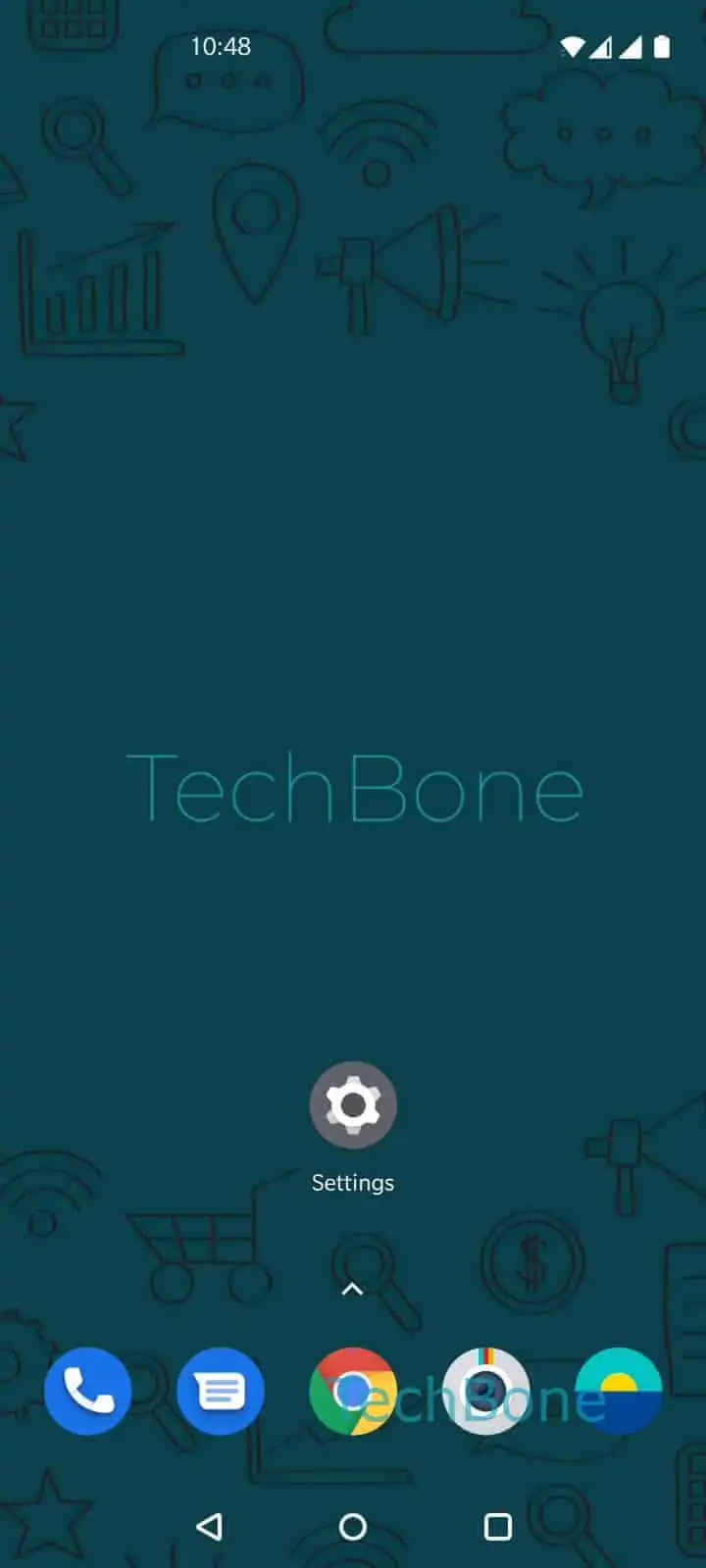
Step 1 of 4: Open the **Settings**

1

Open the Settings

Live simulator

Android 10 · Oxygenos 10
Show or Hide the Lockdown Option in the Power Menu – Oxygenos 10: step 1 – Open the Settings
Open the Settings
1 / 4

Scroll or use the buttons for the next step

Feedback

Was the guide correct?

Help others: confirm the path or report a problem.

52

Confirmations

Forum verified this path

OnePlus

Show or Hide the Lockdown Option in the Power Menu auf OnePlus

The Lockdown entry in the power off menu is not visible by default on most OnePlus phones. It only shows up once you switch on a dedicated toggle inside the security settings.

Once active, tapping Lockdown from the power menu forces the phone straight to PIN, password or pattern entry. Face Unlock, Fingerprint Scan and any Smart Lock trusted places or devices get suspended until you unlock manually with your credentials again.

This is useful before handing your phone to someone else, crossing a border, or whenever you want to rule out biometric or automatic unlocking for a short time. It is not meant as a permanent security mode, only as a quick way to drop back to credential-only unlocking.

To show or hide the option, open SettingsSecurity & lock screen, then open the extra settings inside that page and enable or disable Show lockdown option.

If you cannot find the toggle, check that a screen lock method (PIN, password or pattern) is already set up, since Lockdown depends on having one active.

Frequently asked questions

The phone immediately locks and disables Face Unlock, Fingerprint Scan and Smart Lock. You then need your PIN, password or pattern to get back in.

Compatible devices

Tap your device — opens its hub with matching guides.