Skip to content
TechBone
OnePlus

OnePlus: Enable Long Press for Symbols on the Keyboard

If letter keys on your OnePlus keyboard show no secondary symbol, you have to switch to the symbols layout every time you need a special character. Long press for symbols adds a small extra character to each key, letting you insert it by holding the key instead. This setting sits inside the keyboard app itself, not in the general display options, which is why many users miss it.

6 min7 steps
VersionAndroid 10 · Oxygenos 10

Step by step

1 / 7

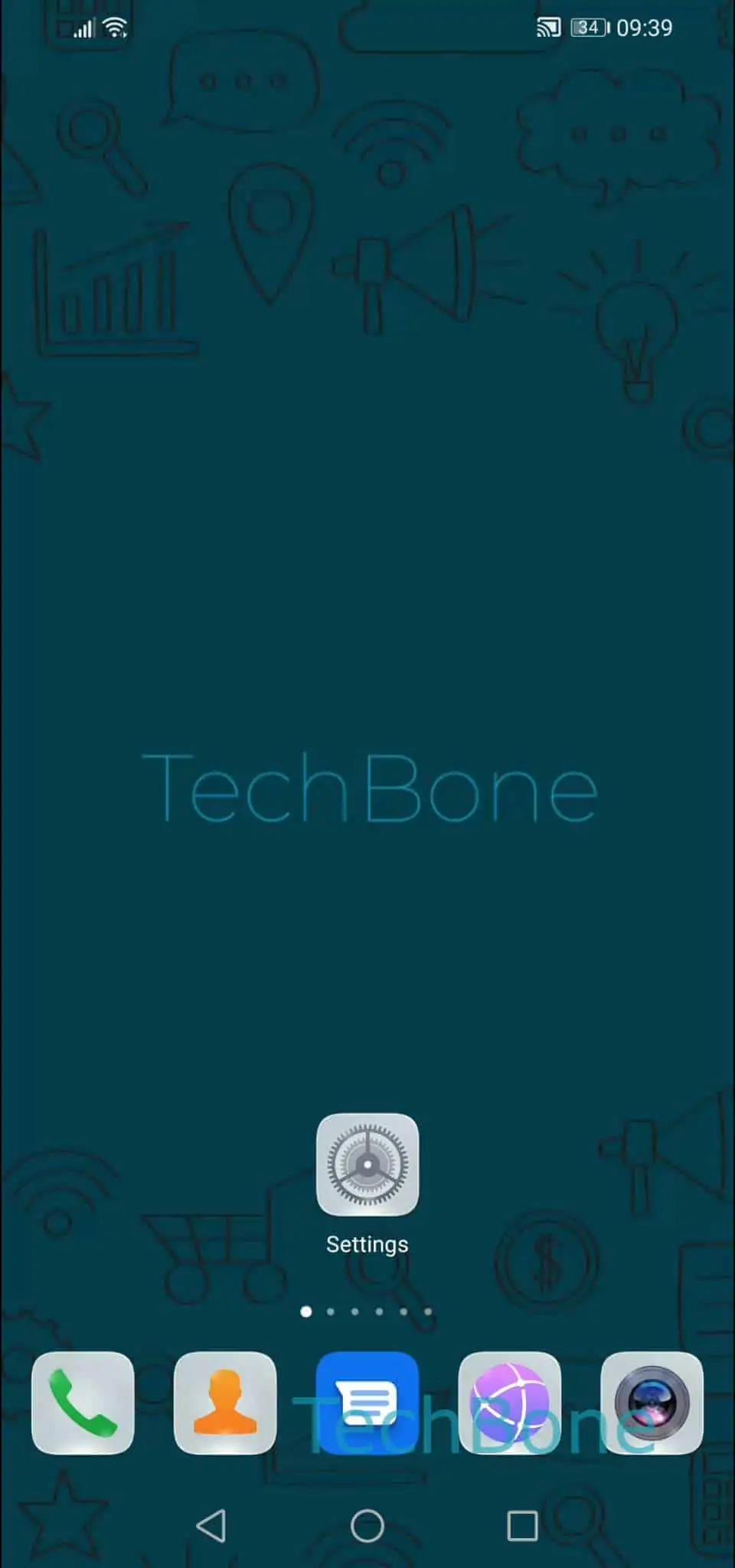
Step 1 of 7: Open the **Settings**

1

Open the Settings

Live simulator

Android 10 · Oxygenos 10
Enable or Disable Long Press for Symbols on the Keyboard – Oxygenos 10: step 1 – Open the Settings
Open the Settings
1 / 7

Scroll or use the buttons for the next step

Feedback

Was the guide correct?

Help others: confirm the path or report a problem.

56

Confirmations

Forum verified this path

OnePlus

Enable or Disable Long Press for Symbols on the Keyboard auf OnePlus

On many OnePlus keyboards, letter keys show only the main character until you switch to the symbols layout with the 123 key. Enabling long press for symbols adds a small secondary character to each key, so you can insert it by holding the key instead of switching layouts.

This option lives inside the Gboard keyboard preferences, not in the general OxygenOS display settings, which is why it can be hard to find. If the toggle appears missing, confirm that Gboard is set as your active virtual keyboard.

To enable or disable it: SettingsSystemLanguages & inputVirtual keyboardGboardPreferences ➔ enable or disable Long press for symbols.

Turning the setting off removes the small symbol previews and returns typing to a clean, letter-only key layout. Turning it on can slow down typing slightly at first, since each key press now requires a moment to decide between a tap and a hold.

Frequently asked questions

This usually means Long press for symbols is turned off, or Gboard is not your active keyboard. Check SettingsSystemLanguages & inputVirtual keyboard to confirm Gboard is selected before enabling the setting.

Compatible devices

Tap your device — opens its hub with matching guides.