Skip to content
TechBone
OnePlus

OnePlus: Enable or Disable Screen Magnification

Small text and icons on your OnePlus can be tough to read, especially in apps that ignore your font size settings. The Magnification accessibility feature lets you zoom in with a triple-tap or a dedicated shortcut, but it stays off until you switch it on. If tapping the screen three times keeps zooming in by accident, the same setting is the cause.

5 min6 steps
VersionAndroid 10 · Oxygenos 10

Step by step

1 / 6

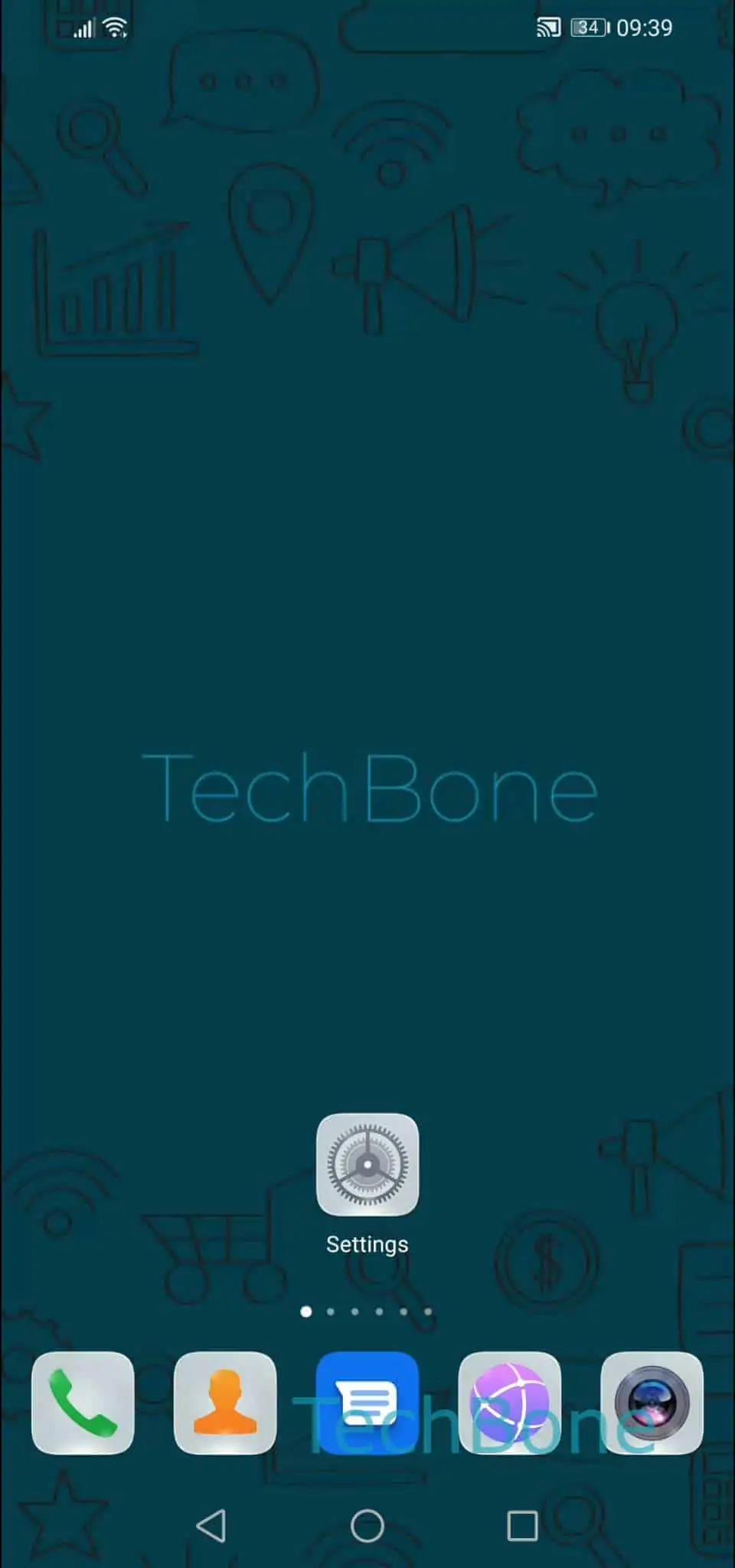
Step 1 of 6: Open the **Settings**

1

Open the Settings

Live simulator

Android 10 · Oxygenos 10
Enable or Disable Magnification (Accessibility Zoom) – Oxygenos 10: step 1 – Open the Settings
Open the Settings
1 / 6

Scroll or use the buttons for the next step

Feedback

Was the guide correct?

Help others: confirm the path or report a problem.

66

Confirmations

Forum verified this path

OnePlus

Enable or Disable Magnification (Accessibility Zoom) auf OnePlus

Magnification is a system-level zoom tool built into the Accessibility settings on OnePlus phones. It lets you scale up parts of the screen without changing the font size app by app, which helps in apps that do not respect system text scaling.

The feature offers two separate triggers. Magnify with triple-tap zooms in whenever you tap the screen three times in quick succession, then you drag with two fingers to scroll around the enlarged area. Magnify with shortcut instead ties the zoom to a dedicated accessibility button, so nothing happens unless you press it on purpose.

To turn either mode on or off:

Open the SettingsTap on SystemTap on AccessibilityTap on MagnificationChoose Magnify with triple-tap or Magnify with shortcutEnable or disable Use service

If triple-tap zoom keeps triggering while you are gaming or scrolling fast, switch to the shortcut mode instead, since it only reacts to an explicit tap on the button. If you only need larger text rather than a magnified viewport, check the display font size settings first, since Magnification zooms the whole screen and can make navigation harder in cramped apps.

Frequently asked questions

Magnify with triple-tap zooms in as soon as you tap the screen three times, while Magnify with shortcut only activates when you press a dedicated accessibility button. Both are toggled under Tap on MagnificationEnable or disable Use service.

Compatible devices

Tap your device — opens its hub with matching guides.