Skip to content
TechBone
OnePlus

OnePlus: Set Up Messages for Web on Your Computer

If you want to reply to texts without picking up your phone every time, pairing Messages with a browser tab on your PC solves that. The catch is that the phone still has to handle every message in the background, so the web session depends entirely on a working connection between the two devices. Many users get stuck at the QR code step because they open the wrong menu or use a browser that blocks the scanner.

3 min4 steps
VersionAndroid 10 · Oxygenos 10

Step by step

1 / 4

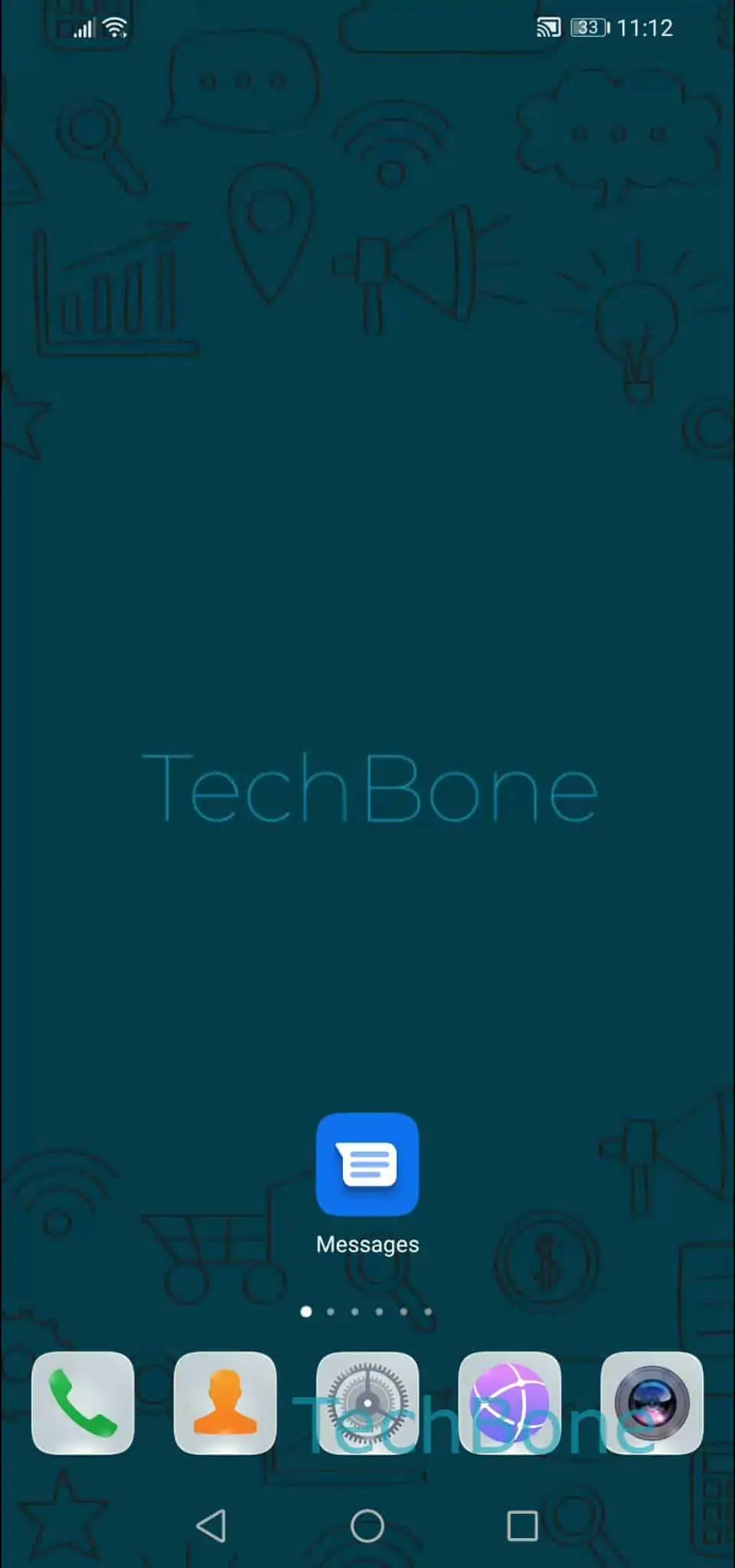
Step 1 of 4: Open the **Messages app**

1

Open the Messages app

Live simulator

Android 10 · Oxygenos 10
Pairing Messages for Web with a PC – Oxygenos 10: step 1 – Open the Messages app
Open the Messages app
1 / 4

Scroll or use the buttons for the next step

Feedback

Was the guide correct?

Help others: confirm the path or report a problem.

19

Confirmations

Forum verified this path

OnePlus

Pairing Messages for Web with a PC auf OnePlus

Messages for web lets your OnePlus phone act as the bridge between your SIM and a browser tab on a PC or laptop. Every text still passes through the phone's messaging app first, then gets mirrored to the browser over an active internet connection. That is why the feature only works while the phone stays powered on and online, and why it logs out automatically after long periods of inactivity.

To start pairing, open the Messages app on your OnePlus phone, then tap Open the menu and select Messages for web. Choose Tap on QR code scanner and follow the instructions on screen to scan the code shown on the Google Messages for web page in your PC browser.

This setup only works if the OnePlus Messages app (Google Messages) is your default SMS app. If you use a third-party messaging app instead, the web pairing option will not appear at all. Once paired, keep the browser tab open and the phone connected to Wi-Fi or mobile data, otherwise messages stop syncing until you reconnect.

Frequently asked questions

The session ends immediately. Reopen the Google Messages for web page and repeat the QR scan from Messages appOpen the menuMessages for web to pair again.

Compatible devices

Tap your device — opens its hub with matching guides.