
OnePlus
Move a Widget on the Home Screen auf OnePlus
Widgets on OnePlus phones don't lock into a grid position permanently. They stay exactly where you last placed them until you actively move them again, which is why a new app icon or a resized widget nearby can suddenly make the layout look cramped or uneven.
To reposition a widget, press and hold it until it lifts slightly off the home screen. Keep holding and drag it across the screen to the spot you want, then lift your finger to drop it there.
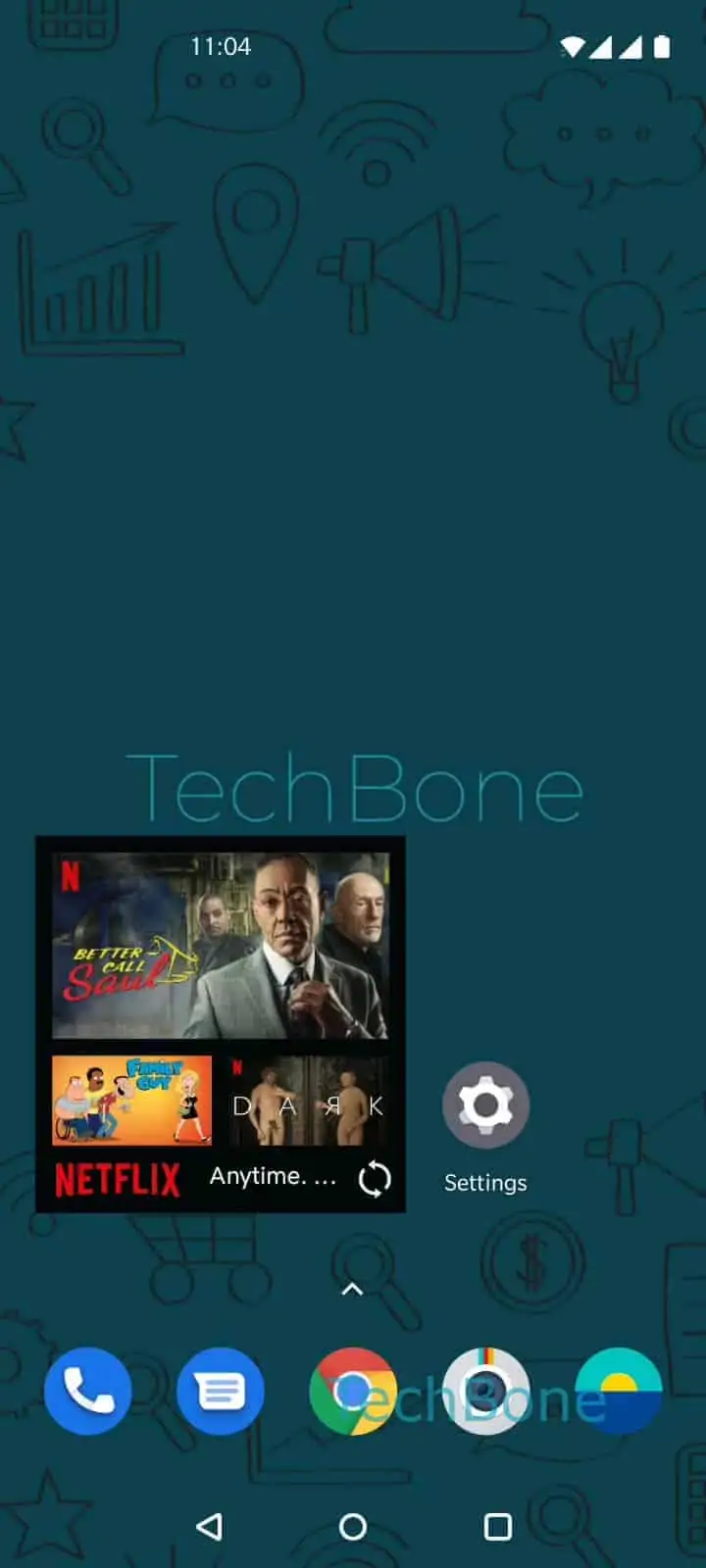
Tap and hold the widget ➔ Move the widget to the desired position and release it
While dragging, other icons and widgets on that home screen page shift out of the way automatically if there's enough room. If the target spot is already occupied by an app icon or another widget, OnePlus won't let you drop it there and the widget snaps back instead.
If you're trying to move the widget to a completely different home screen page rather than just a new position on the same page, drag it all the way to the edge of the screen and pause briefly. This scrolls to the next page so you can drop it there.
If the widget disappears entirely instead of just moving, it was likely dropped outside the home screen area rather than removed. Check the home screen pages on either side before assuming it was deleted.