
Skip to content
TechBone
OnePlus

OnePlus: Enable the Keyboard Number Row

If every digit forces a switch to the symbol keyboard, typing passwords or addresses on a OnePlus phone slows down fast. Gboard can add a dedicated number row along the top edge, but it takes up extra vertical space and some users prefer to turn it off again. Whether that row is active or hidden depends on a single Gboard preference.

6 min7 steps
VersionAndroid 10 · Oxygenos 10

Step by step

1 / 7

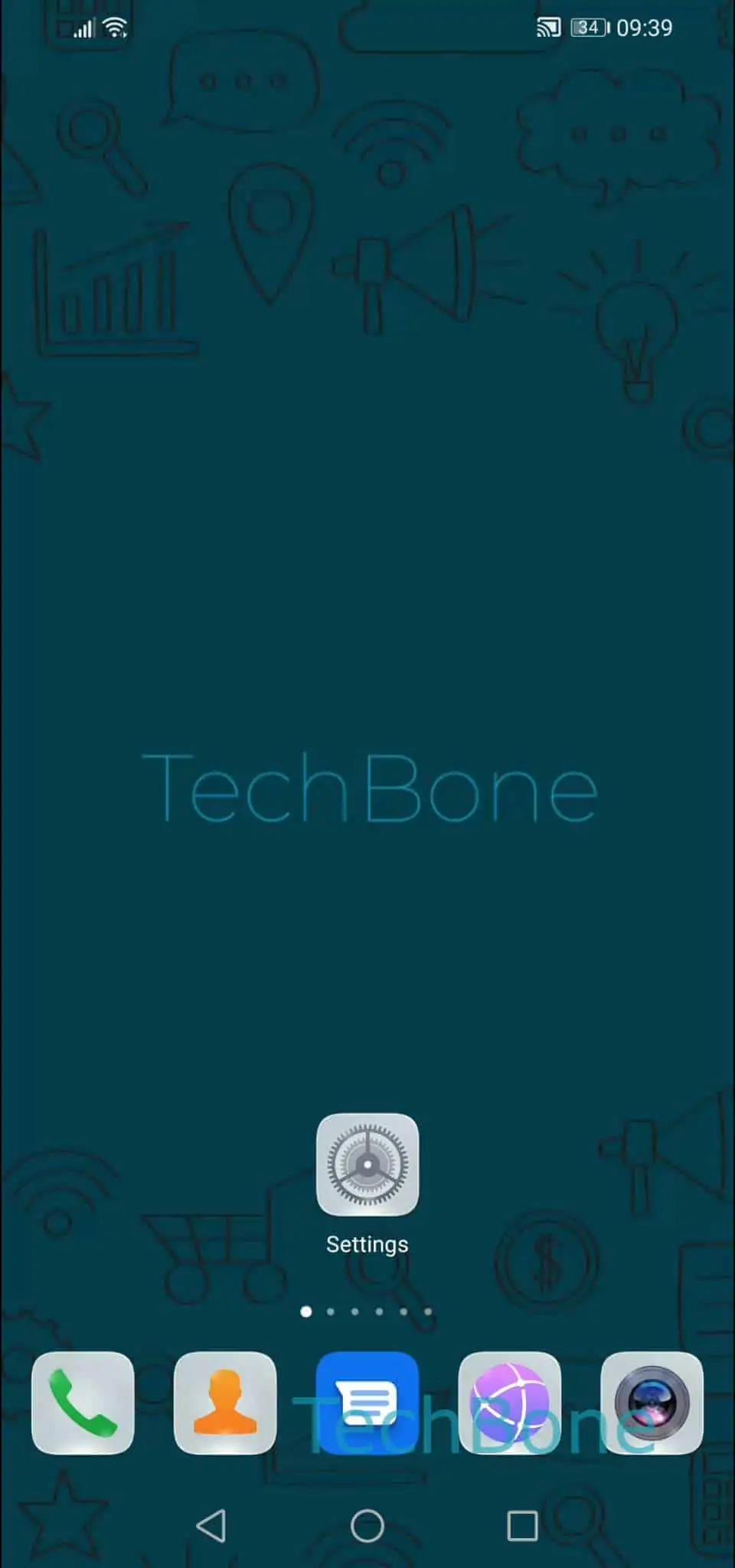
Step 1 of 7: Open the **Settings**

1

Open the Settings

Live simulator

Android 10 · Oxygenos 10
Enable or Disable the Keyboard Number Row – Oxygenos 10: step 1 – Open the Settings
Open the Settings
1 / 7

Scroll or use the buttons for the next step

Feedback

Was the guide correct?

Help others: confirm the path or report a problem.

41

Confirmations

Forum verified this path

OnePlus

Enable or Disable the Keyboard Number Row auf OnePlus

The number row is a Gboard feature, not a OnePlus system setting, so it only appears if Gboard is the active keyboard on the device.

When enabled, a fixed line with the digits 0 to 9 sits above the regular letter keys. Typing numbers no longer requires switching to the symbols layout, which speeds up things like PINs, order numbers, or verification codes.

The tradeoff is screen space. The keyboard grows taller, leaving less room for the app content above it, which matters more on smaller displays or in split-screen mode.

To change the setting, go to Open the SettingsTap on SystemTap on Languages & inputTap on Virtual keyboardTap on GboardTap on PreferencesEnable or disable Number row.

If digits still do not appear after enabling it, check whether a different keyboard app is set as default instead of Gboard. Switching keyboards resets this preference, since it is stored per keyboard app, not system-wide.

Frequently asked questions

This preference only exists inside Gboard. If another keyboard app is active on the OnePlus phone, open that app's own settings instead, or switch the default keyboard back to Gboard first.

Compatible devices

Tap your device — opens its hub with matching guides.