
OnePlus
Set Up Parental Controls auf OnePlus
OnePlus phones running OxygenOS route parental controls through the Digital Wellbeing settings instead of a separate app. That is why many parents look in the wrong place and never find the option.
Where parental controls live on OnePlus
The feature sits under Digital Wellbeing & parental controls in the system settings. From there you link a child account and choose which restrictions apply, from app time limits to content filters on Google Play.
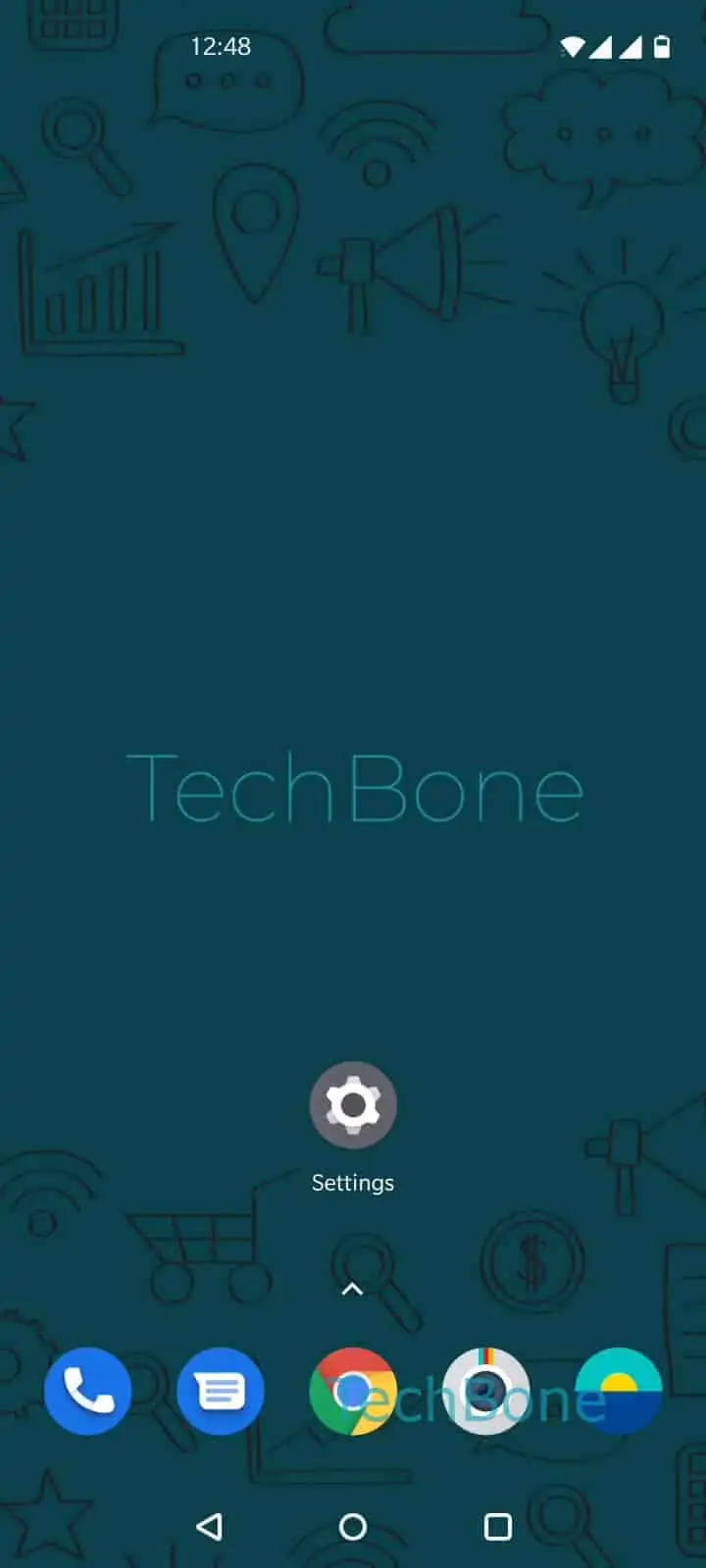
To reach it: Open the Settings ➔ Tap on Digital Wellbeing & parental controls ➔ Tap on Set up parental controls ➔ Tap on Get started and follow the instructions on screen.
What the setup actually changes
Once linked, the childs Google account inherits restrictions for apps, purchases and browsing. Screen time limits and bedtime schedules are managed from the parent device, not the childs device.
Content filters apply mainly to Google Play and Google services. They do not block third-party browsers or apps installed outside the Play Store unless you add extra restrictions inside those apps.
When this is not enough
If you need website-level filtering across all browsers, pair this setup with a DNS-based filter or a dedicated family management app. Digital Wellbeing alone covers device usage and Play Store content, not full network filtering.